Announce Your Wedding with Canva’s Save the Dates
Send beautiful wedding save the dates designed on Canva and manage your guests with CreatEcards.
Free to start. No credit card required.



The wedding journey
Every celebration has its own guest list and planning job. Move between the connected wedding invitations.
- EngagementEarly celebration
- Save the dateEarly notice
- Bridal showerOptional celebration
- BacheloretteOptional celebration
- Rehearsal dinnerSelected guests
- Wedding invitationFinal guest details
- Bachelor partyOptional celebration
- Couples showerOptional celebration
- Wedding receptionReception-only guests
- Wedding after-partyLate-night guests
- Post-wedding brunchMorning-after guests
Canva save the date with one live link
Wedding Planning Starts Here
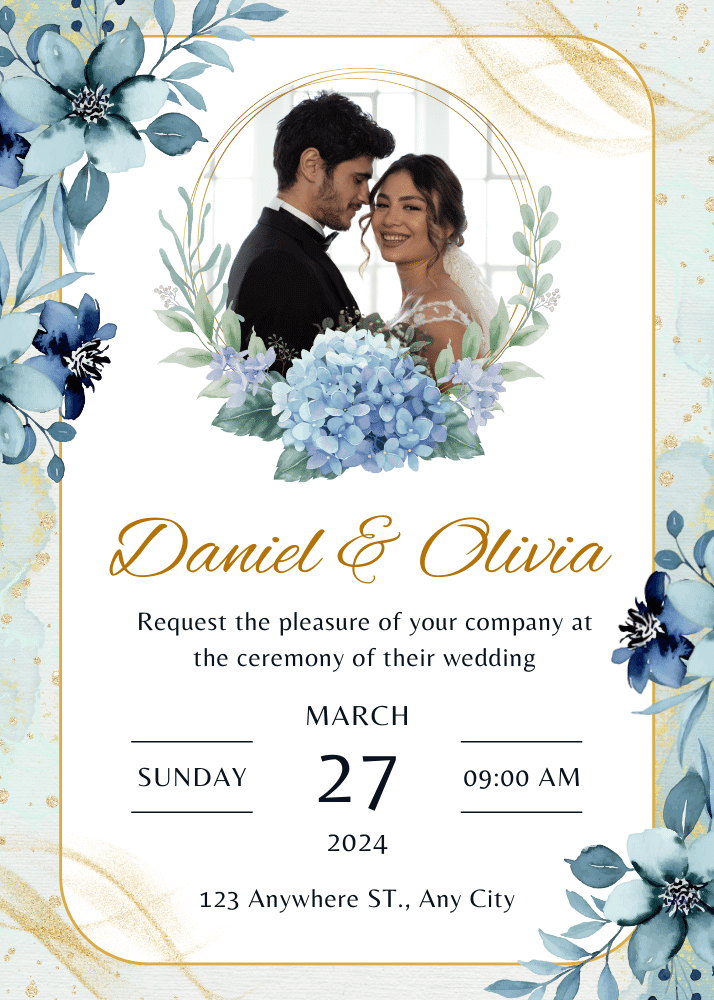
A live Canva save the date gives guests the wedding date and broad location before the full invitation is ready. CreatEcards keeps that early notice updateable and can guide guests to the final wedding invitation later.
A save the date has a different job from the final wedding invitation. Use it to protect the date and share the broad location while plans are still moving. Keep the page updateable, then direct guests to the full invitation when detailed attendance and meal responses are due.
Choose the date design
Sync from Canva
Share the early notice
Save the date or wedding invitation?
Use a save the date while the complete plan is still taking shape
A save the date protects the date. The wedding invitation gives guests the full plan and gives you the answers the venue and caterer need.
How to publish a Canva save the date as one live page
Share the date now, keep practical details updateable, and point guests to the full wedding invitation when it is ready.

How to publish a Canva save the date as one live page
Share the date now, keep practical details updateable, and point guests to the full wedding invitation when it is ready.
One live invitation page
Keep your Canva design, RSVP, and event details together
Turn the Canva save-the-date design into one mobile-friendly page for responses and practical details. Give guests the date and broad location without forcing the full invitation or meal questions too early.
- Put the date, city, and key travel note in one place
- Update details without replacing the shared link
Event details
Tell your guests when, where and what to expect
What your guest sees
Your invitation, details and response in one place
Event details
Tell your guests when, where and what to expect
Calendar ready
Help guests reserve the date from the same page
Keep the announcement useful after the first view with a calendar action beside the design.
- Make the date easy to add to a calendar
- Keep the confirmed date connected to the live invitation
Host setup
Confirmation actions
What people see
You’re on the list
Custom questions
Ask for early travel information if you need it
You can ask about early travel plans, or leave questions out while you are only announcing the date. If you collect replies, Simple RSVP asks once per group and Detailed RSVP asks each named guest. These are early replies, not final wedding RSVPs.
- Use text or multiple-choice questions
- Choose group-level or per-person answers
Host setup
Add your questions
Custom questions
Ask anything and collect the details you need
What people see
A few quick questions
Simple or Detailed RSVP
Collect a headcount or each guest’s details
If you collect early replies, Simple RSVP gives you a group count and one set of answers. Detailed RSVP collects names and answers for each person. These early replies are separate from your final wedding RSVPs.
- Choose group totals or named guests
- Collect group-level or per-person answers
RSVP & responses setting
How responses will be collected
What your guest sees
Attendance
RSVP & Responses Setting
How responses will be collected
Guest groups and invitation rules
Choose who can bring a plus-one
Choose whether guests can bring someone and set the total number of people allowed in a reply. If particular households need different allowances, add them to your guest list and send their personal links.
- Set the total number of people allowed in a reply
- Use personal links for different guest allowances
Guest policy
Set who guests can bring
What your guest sees
Attendance
Guest policy
Set who guests can bring
The planning outcome
An early notice guests can keep using
Date reserved
Give guests enough notice before the complete plan is ready.
Details stay current
Update the practical information behind the same link.
Next stage is clear
Point guests to the final wedding invitation when responses are due.
Wedding hosts on Canva invitations and easier planning
“CreatEcards was a total lifesaver for me when I tried creating a wedding RSVP invitation! As a beginner, I found the platform incredibly user-friendly and intuitive to use. I loved how seamless it was to publish my Canva designs as online invitations and manage RSVPs. Highly recommend for any Canva lover looking to jazz up their event planning game!”
“Easy to use, amazing tracking of wedding RSVPS and meal choices, ability to turn into excel spreadsheet from site and ease of linking wedding website to invitation. Developer was very quick to answer my questions and was very responsive to feedback. It was also affordable.”
“I am absolutely thrilled with the way my wedding invitation turned out, thanks to CreatEcards! Unlike other online invitation services, this platform made it a breeze to create a personalized and one-of-a-kind design that beautifully reflected my personal style. Throughout the entire process, I felt completely at ease and confident in my abilities, thanks to the user-friendly interface and helpful guidance provided by CreatEcards.”
“CreatEcards was a total lifesaver for me when I tried creating a wedding RSVP invitation! As a beginner, I found the platform incredibly user-friendly and intuitive to use. I loved how seamless it was to publish my Canva designs as online invitations and manage RSVPs. Highly recommend for any Canva lover looking to jazz up their event planning game!”
“Easy to use, amazing tracking of wedding RSVPS and meal choices, ability to turn into excel spreadsheet from site and ease of linking wedding website to invitation. Developer was very quick to answer my questions and was very responsive to feedback. It was also affordable.”
“I am absolutely thrilled with the way my wedding invitation turned out, thanks to CreatEcards! Unlike other online invitation services, this platform made it a breeze to create a personalized and one-of-a-kind design that beautifully reflected my personal style. Throughout the entire process, I felt completely at ease and confident in my abilities, thanks to the user-friendly interface and helpful guidance provided by CreatEcards.”
“Wow, I am so thrilled with CreatEcards! With their help, I was able to create the perfect wedding invitation and effortlessly manage my guest RSVPs. Compared to other online invitation sites, CreatEcards is incredibly simple to use and just so easy.”
“CreatEcards was a game-changer for creating our wedding invitations! The seamless integration with Canva made designing a breeze, and the ability to link directly to our designs saved us so much time. Highly recommend for anyone looking to effortlessly create stunning online invitations!”
“I appreciate the convenience of CreatEcards. Using Canva to design my wedding invitation was simple and including an RSVP link made the process seamless. The integration with Canva is a notable feature and it's helpful that there is a free plan option available.”
“Wow, I am so thrilled with CreatEcards! With their help, I was able to create the perfect wedding invitation and effortlessly manage my guest RSVPs. Compared to other online invitation sites, CreatEcards is incredibly simple to use and just so easy.”
“CreatEcards was a game-changer for creating our wedding invitations! The seamless integration with Canva made designing a breeze, and the ability to link directly to our designs saved us so much time. Highly recommend for anyone looking to effortlessly create stunning online invitations!”
“I appreciate the convenience of CreatEcards. Using Canva to design my wedding invitation was simple and including an RSVP link made the process seamless. The integration with Canva is a notable feature and it's helpful that there is a free plan option available.”
Save the date questions, answered
Got a specific question? Open your AI with our FAQ link, then ask it there.
Use a save the date when you want guests to reserve your wedding date before the venue and other plans are final. Send the wedding invitation when you are ready to share the full details and collect RSVPs. Any early replies to your save the date are separate from the final wedding RSVP.
Yes. Open CreatEcards from Canva’s Apps or Share menu to bring across your save the date design. Add an RSVP form and the event details in CreatEcards.
Yes. Guests open the live invitation in their browser and respond from the mobile-friendly page without needing Canva or a CreatEcards account.
Yes. In CreatEcards, open RSVP form, then RSVP & guests settings, and set Stop collecting response after date. Add the same reply-by date to your invitation details. To track invitees who have not replied, add them to your guest list and send their personal links.
Yes. Add the venue map, calendar action, accommodation information, or other useful links beside the invitation and response form.
Yes. Edit your event details in CreatEcards, or update your Canva design and sync it to the same invitation. Keep the page’s web address unchanged so guests can use the link you already shared.
Yes. Add text or multiple-choice questions for dietary needs, travel, meal choices, or another detail this event requires.
Keep planning from here
Continue the wedding journey
Build the final wedding invitation next, or move to the celebration you are planning now.




Publish the date now and keep the details flexible
Keep your Canva save the date and add one live page guests can return to as the wedding plan takes shape. Free to start.
Design Your Save the Date