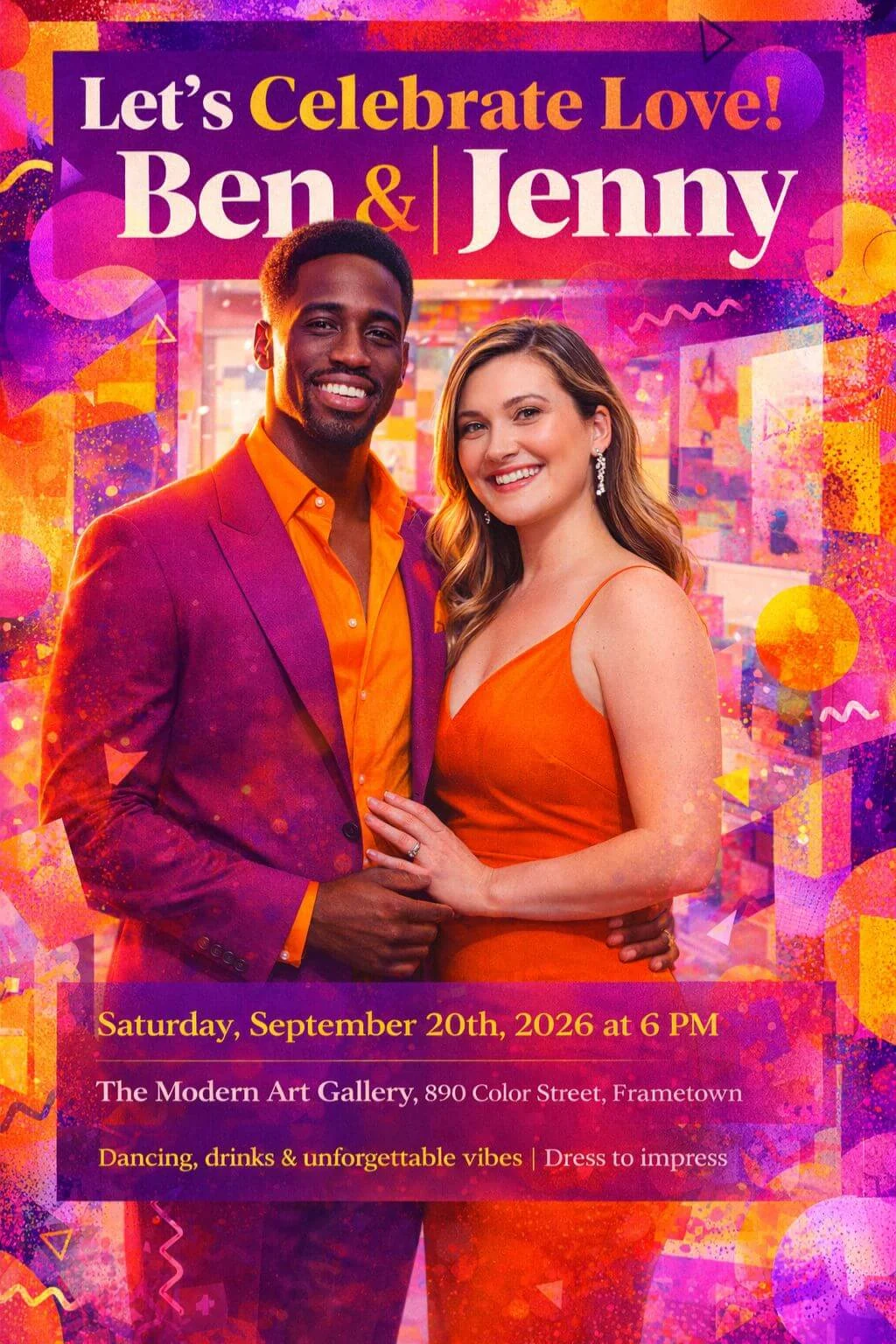
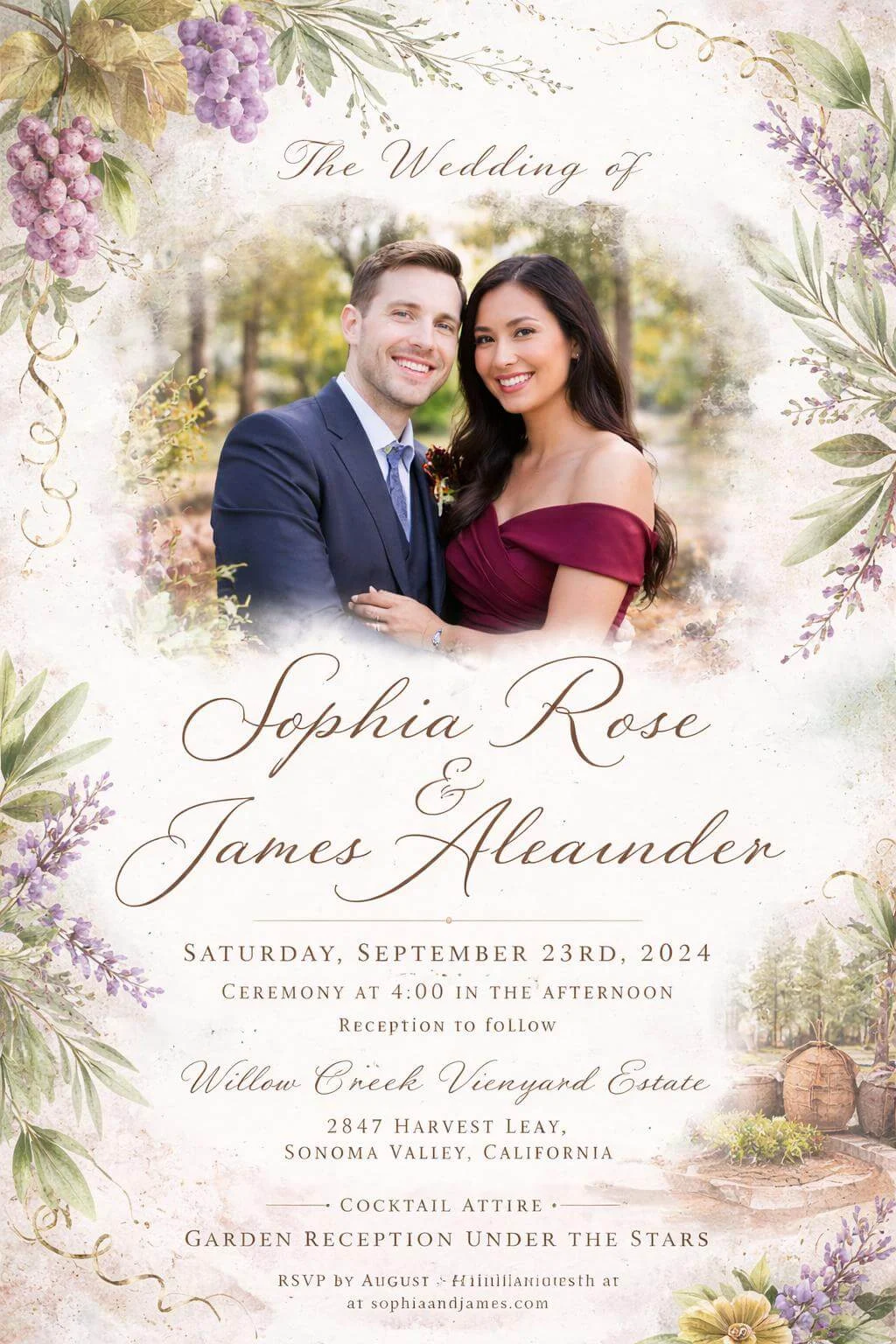
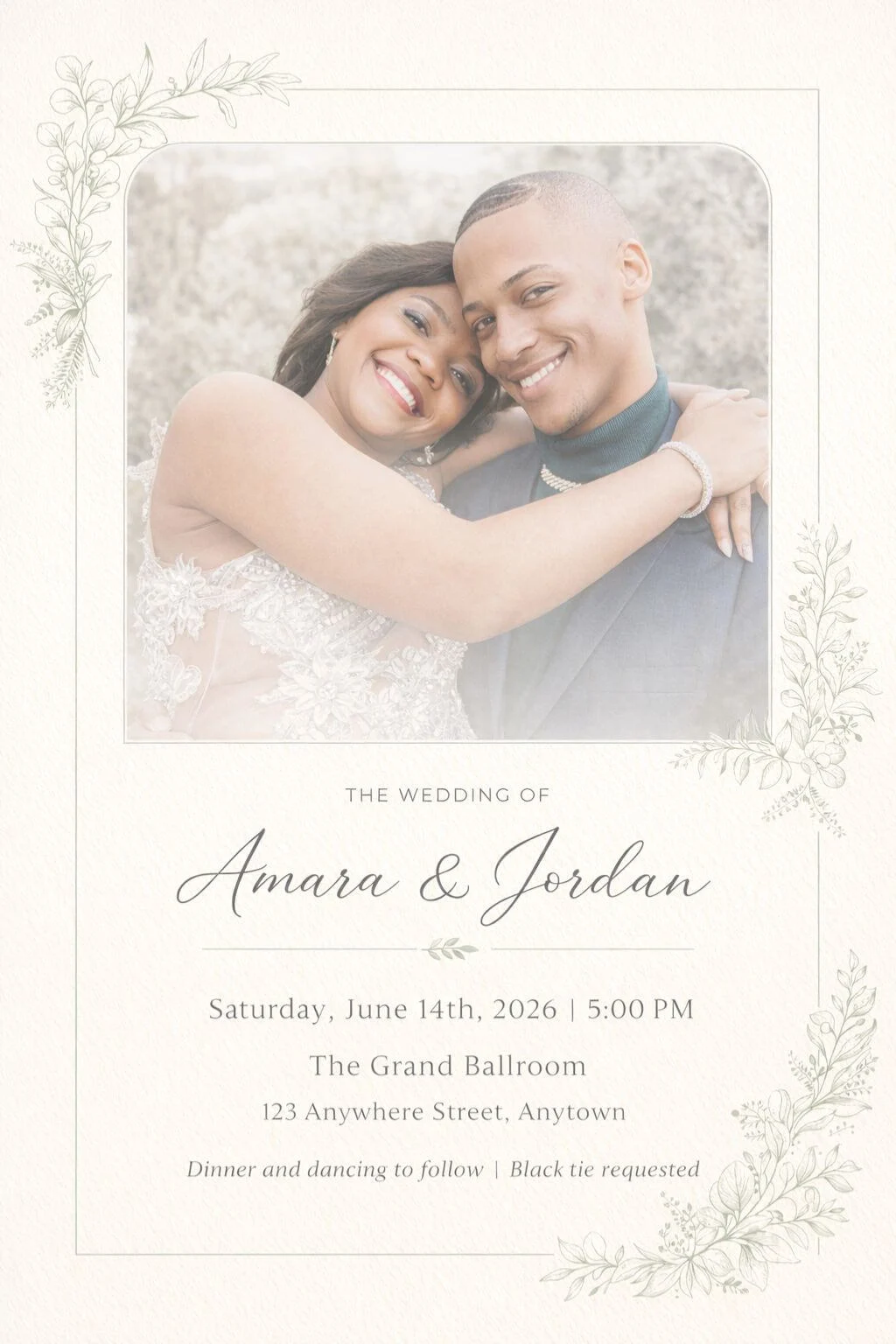
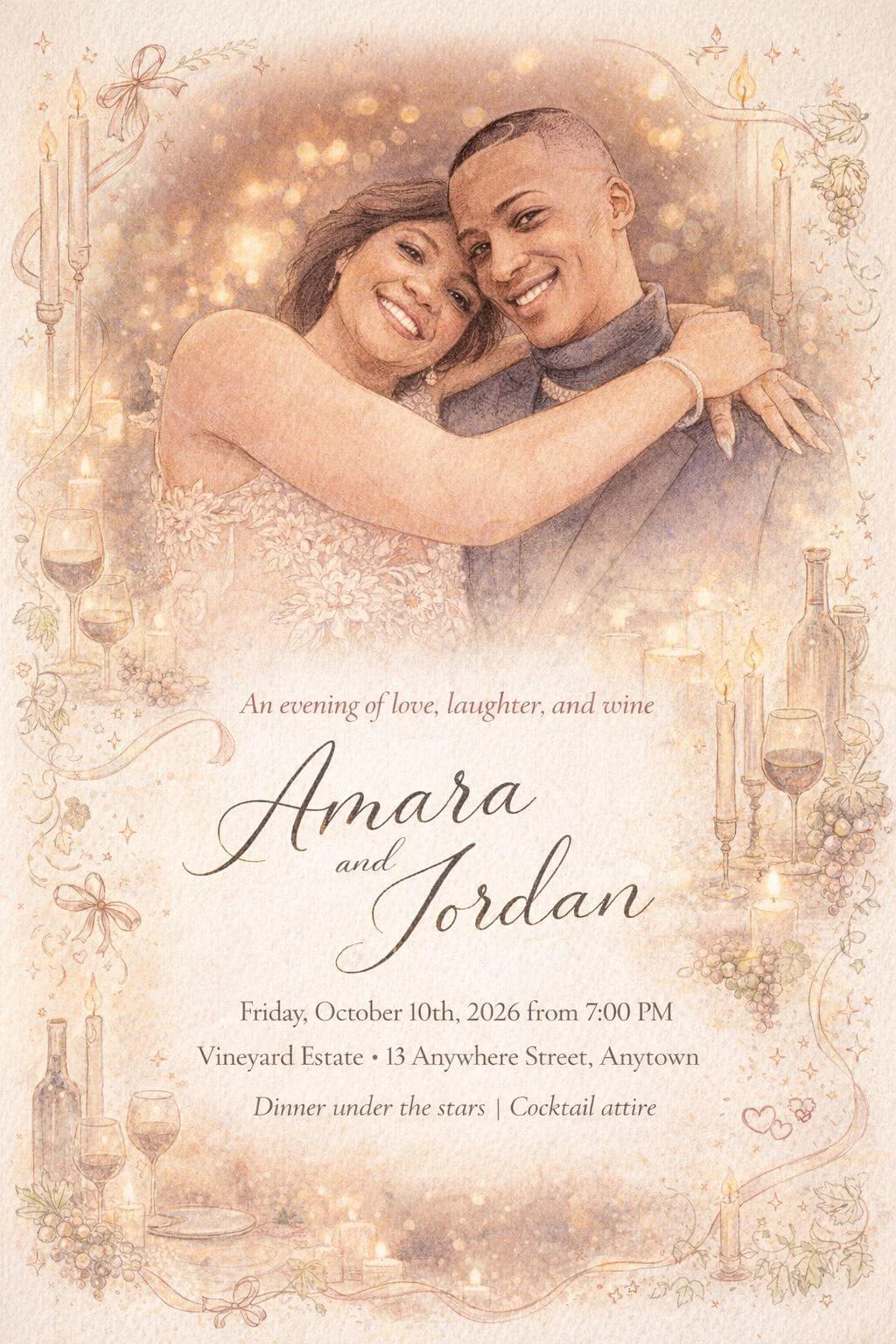
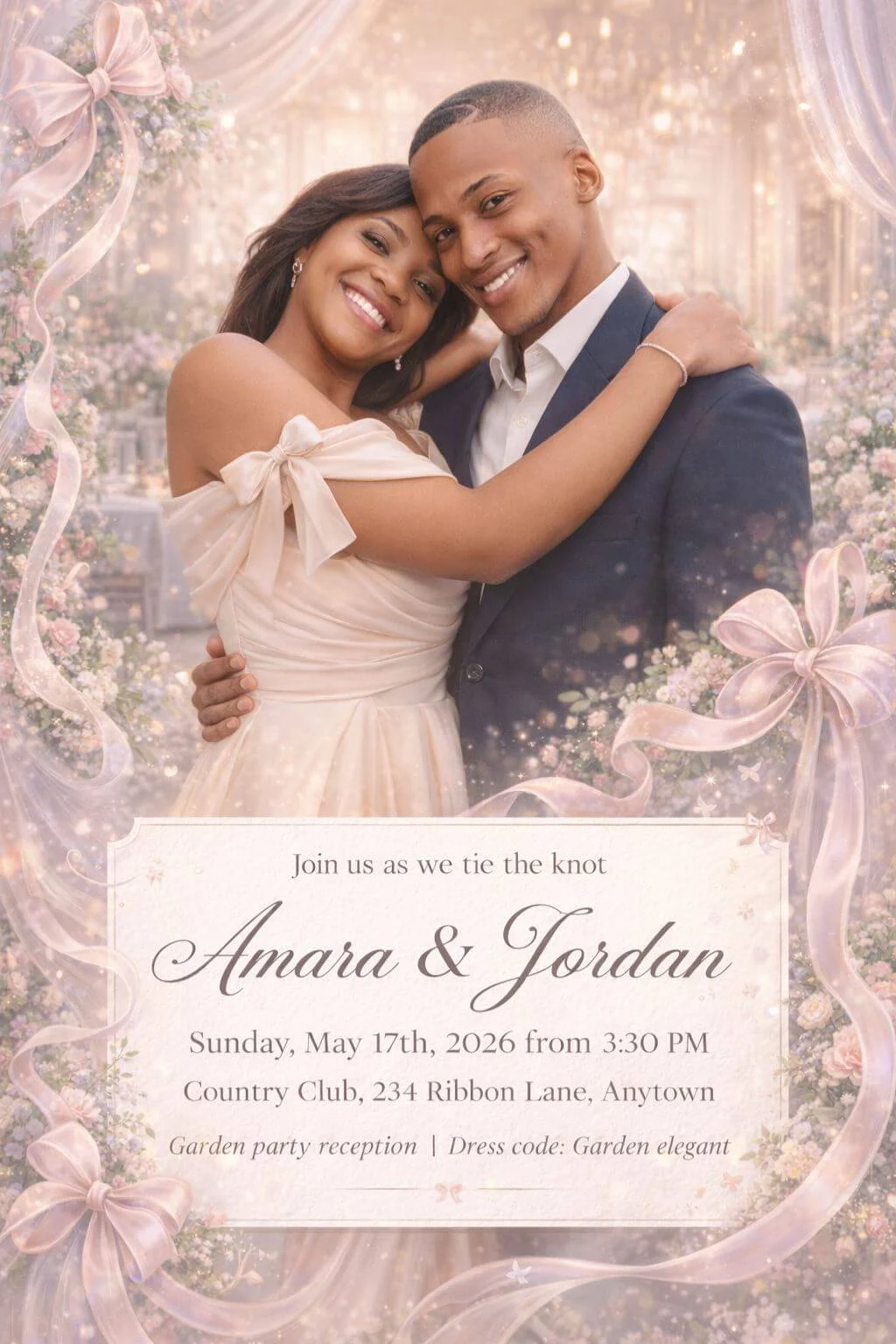
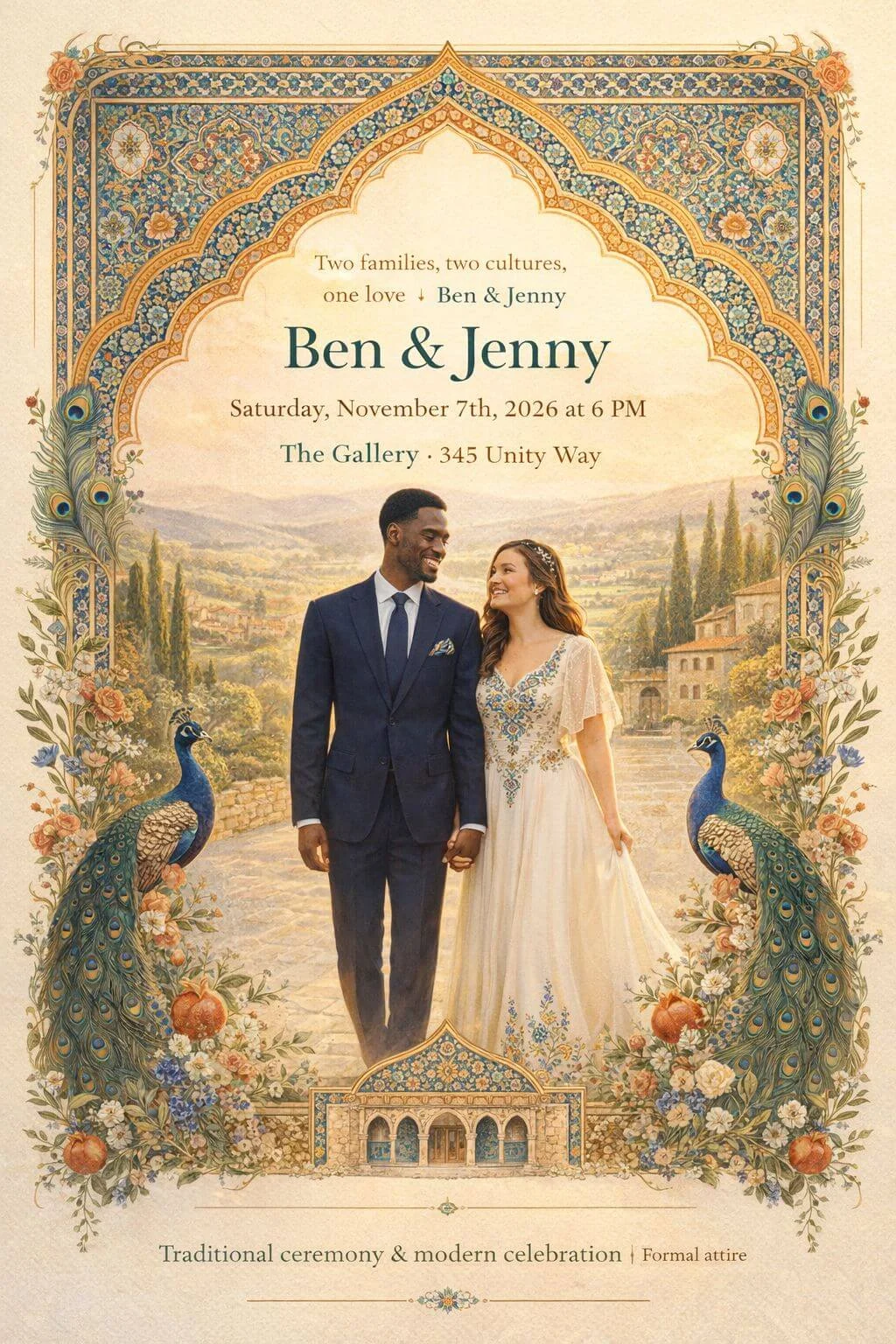
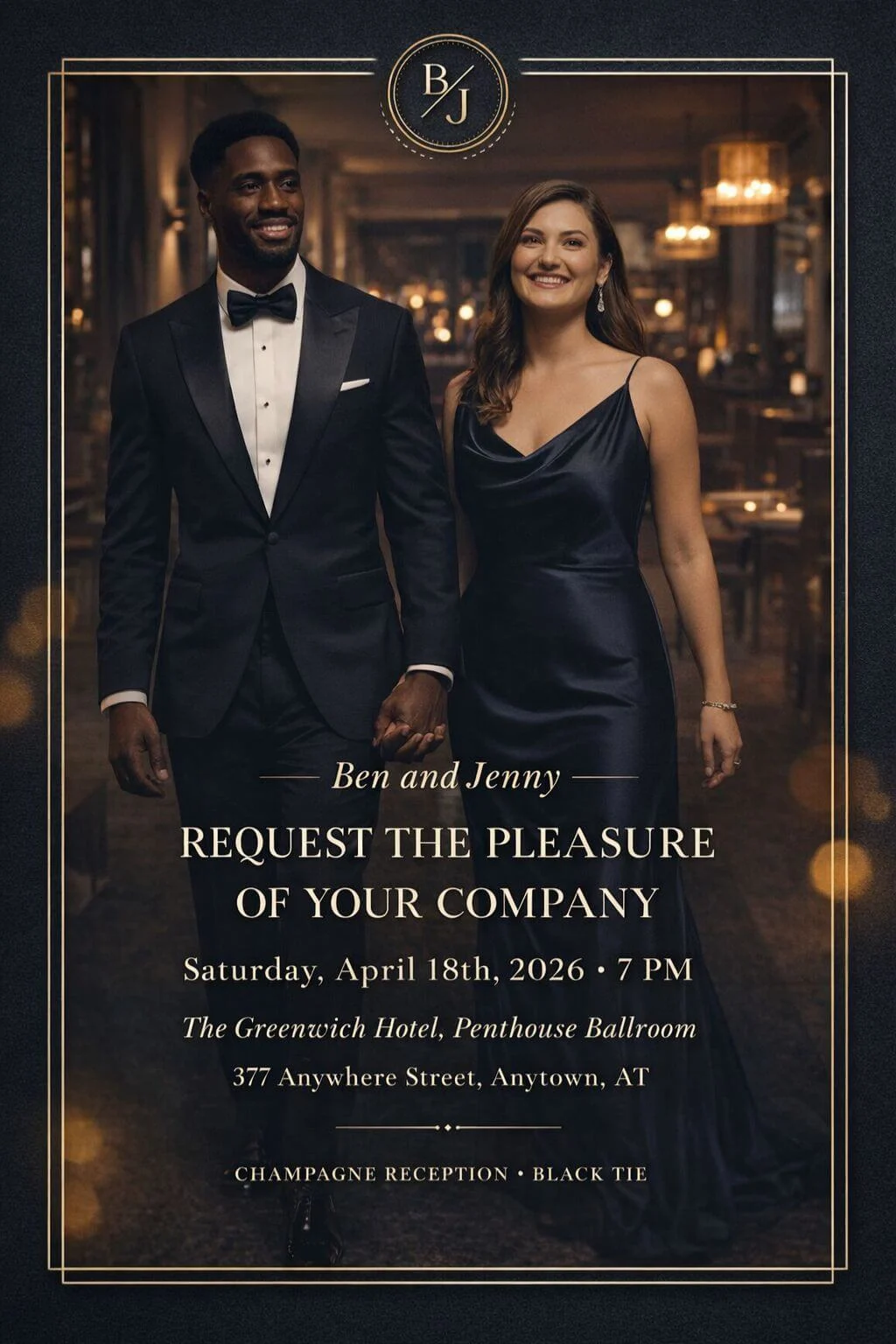
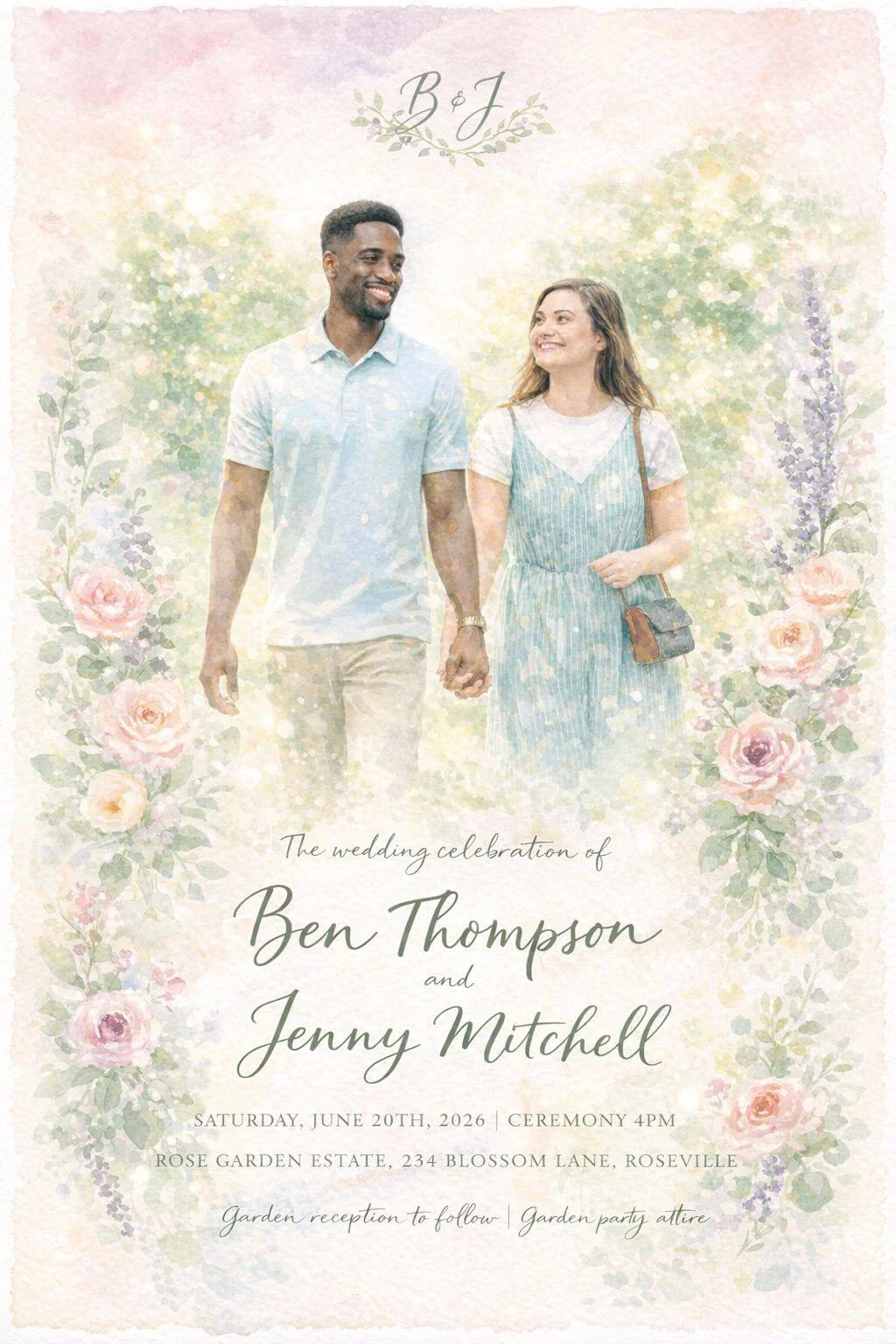
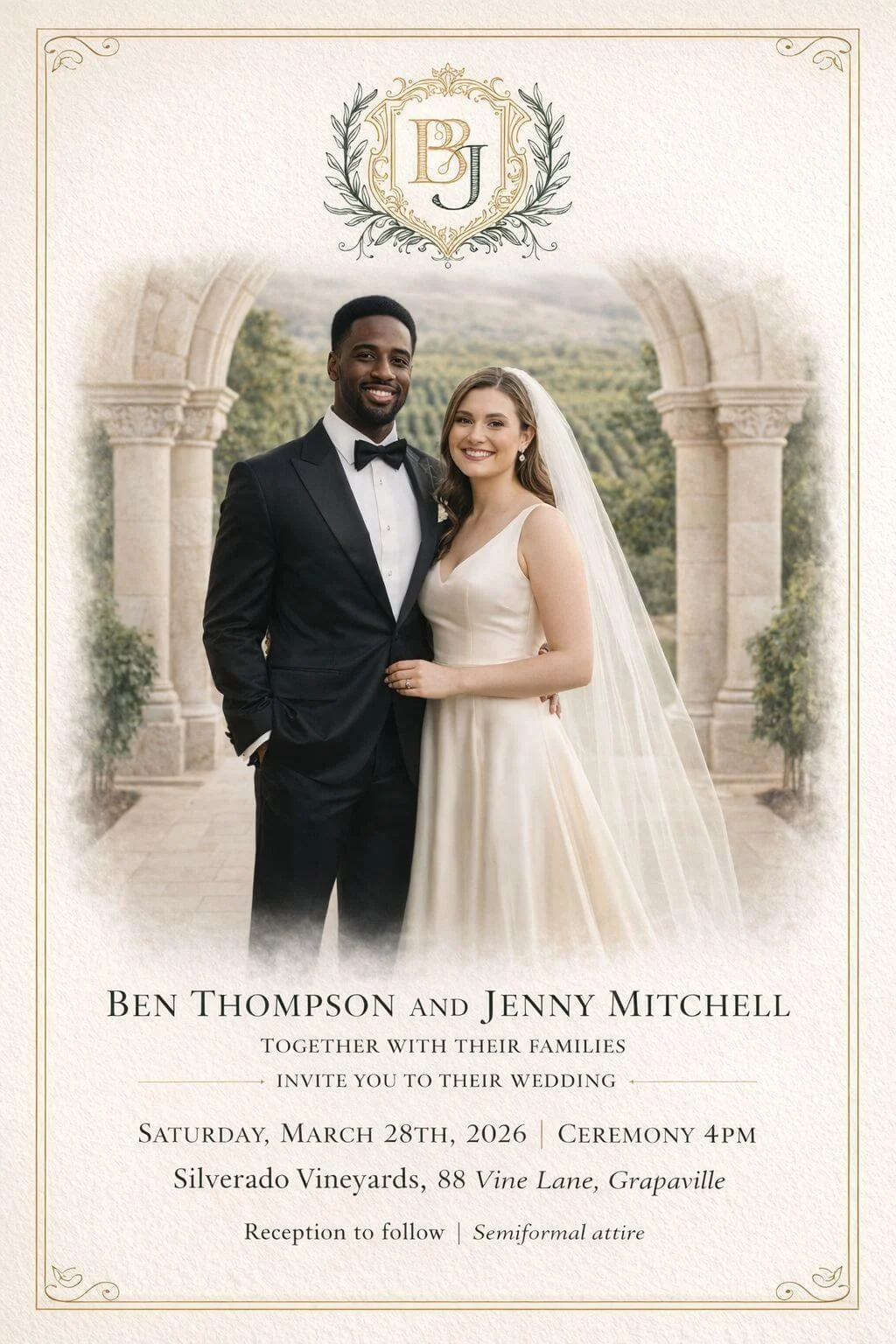
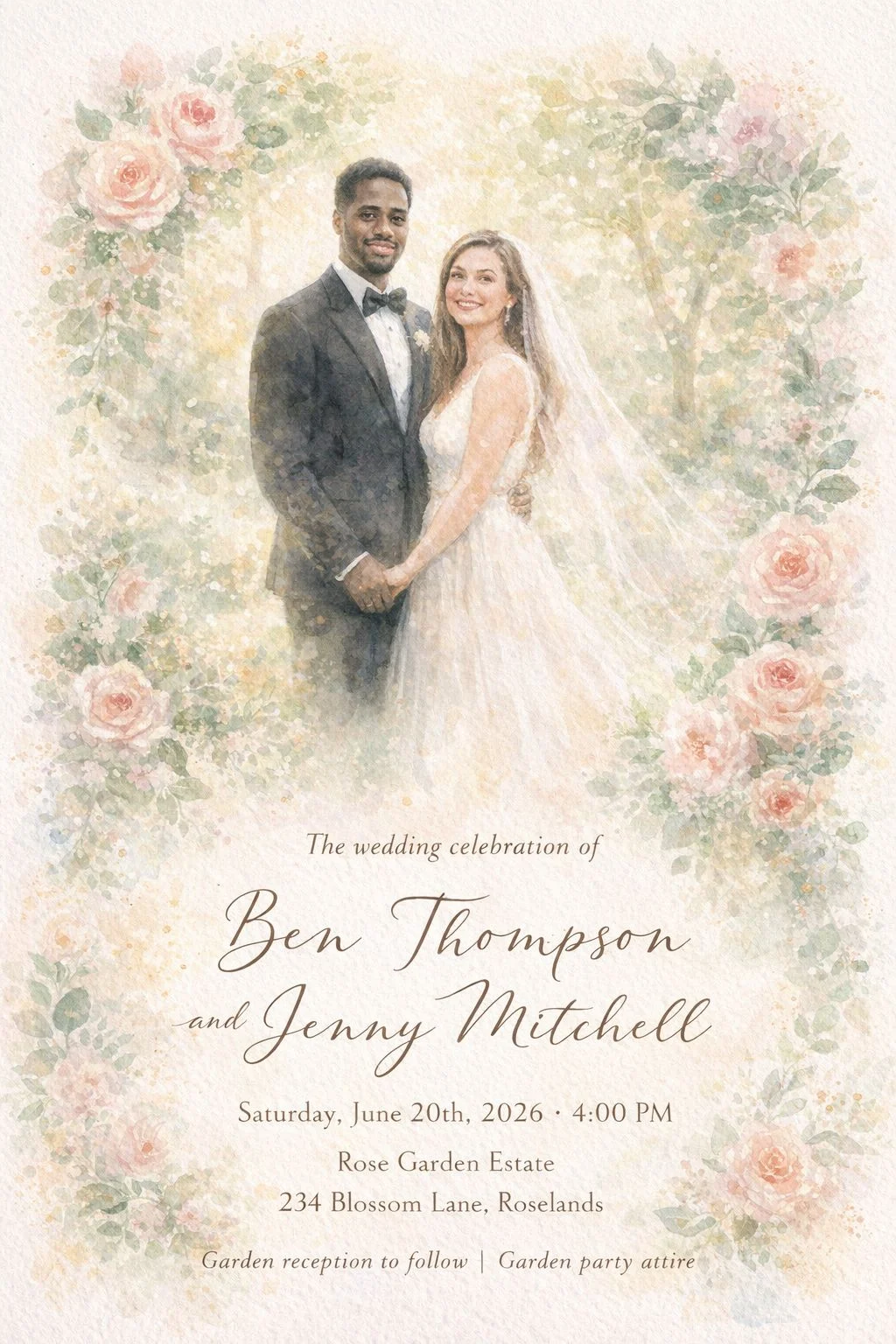
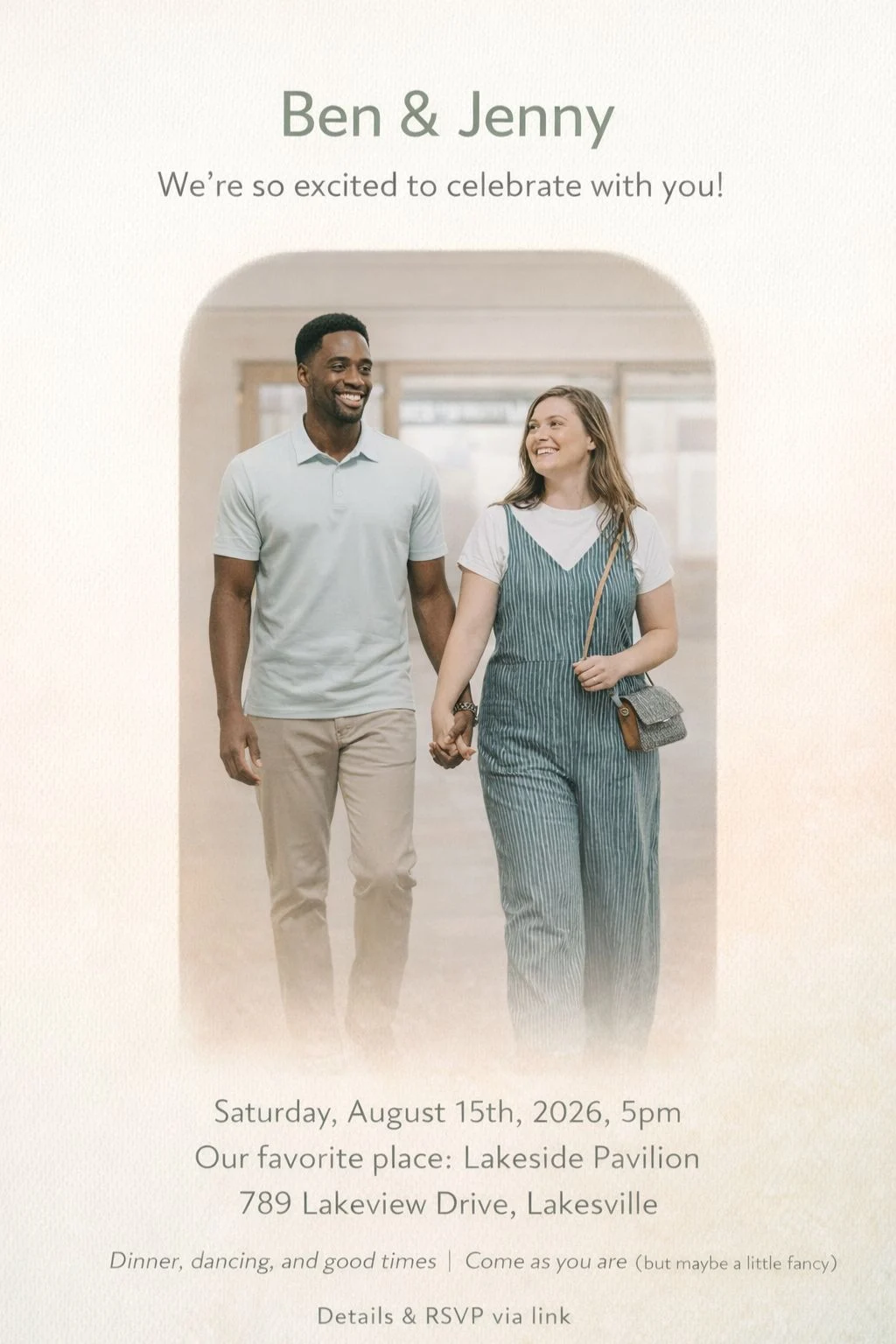
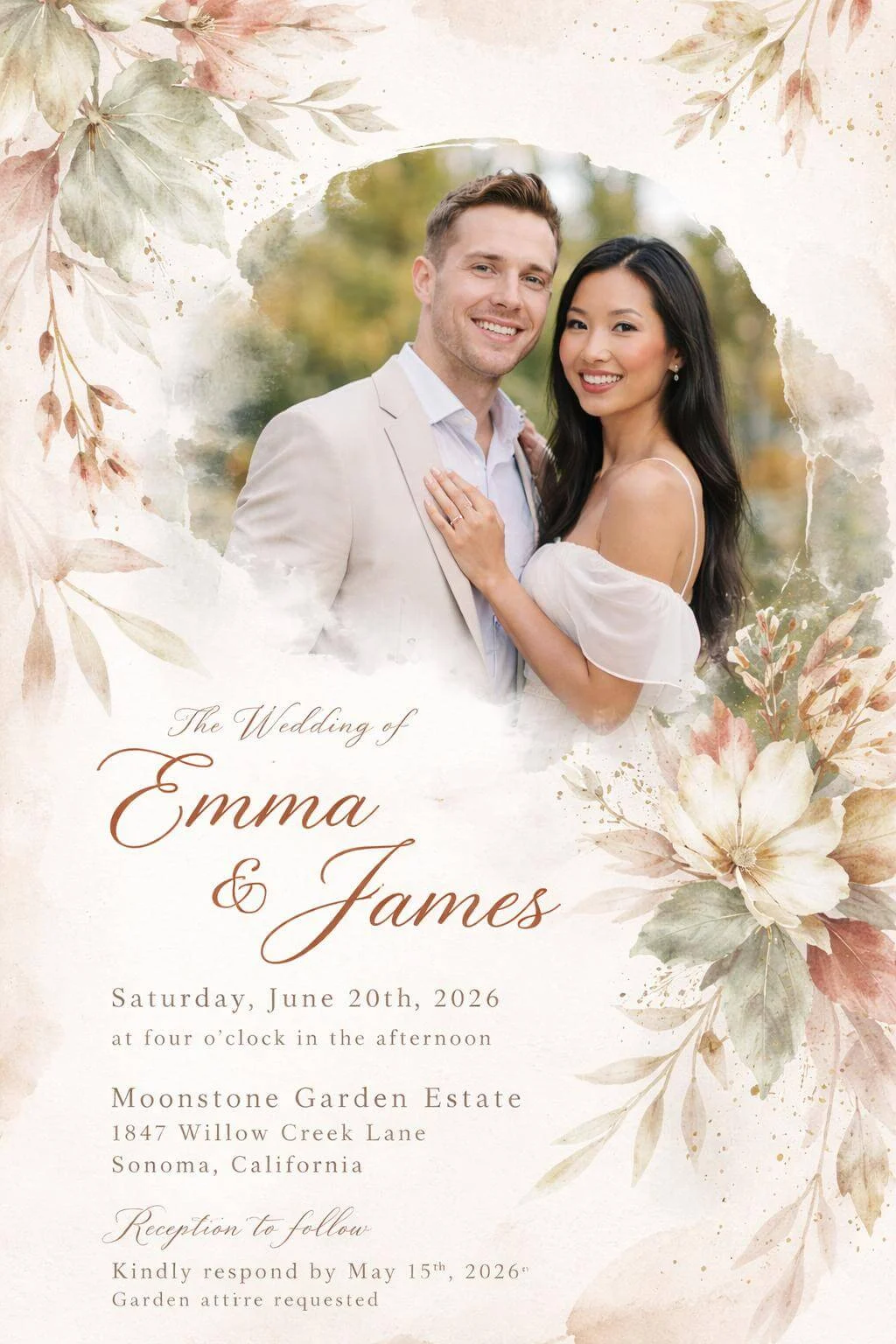
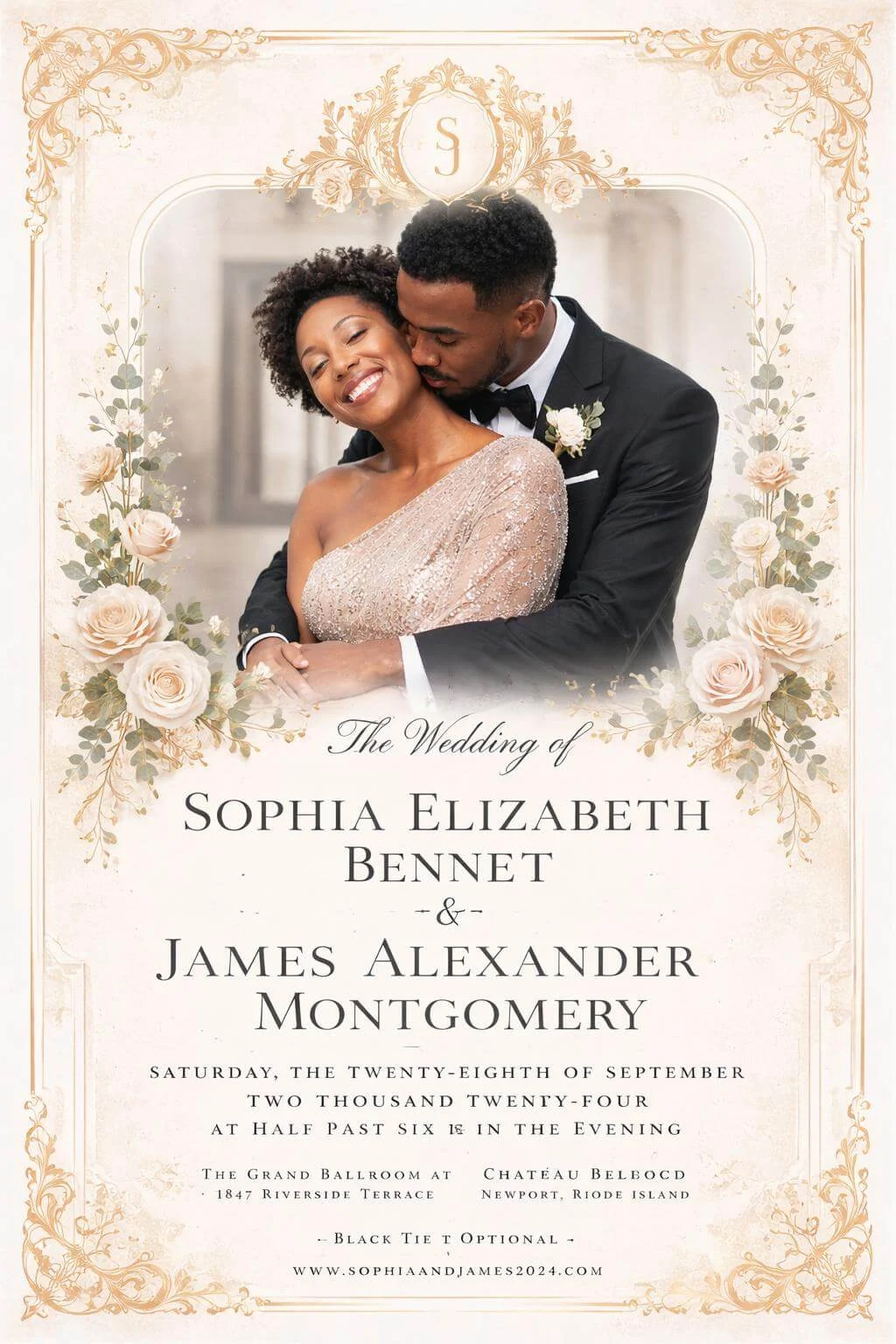
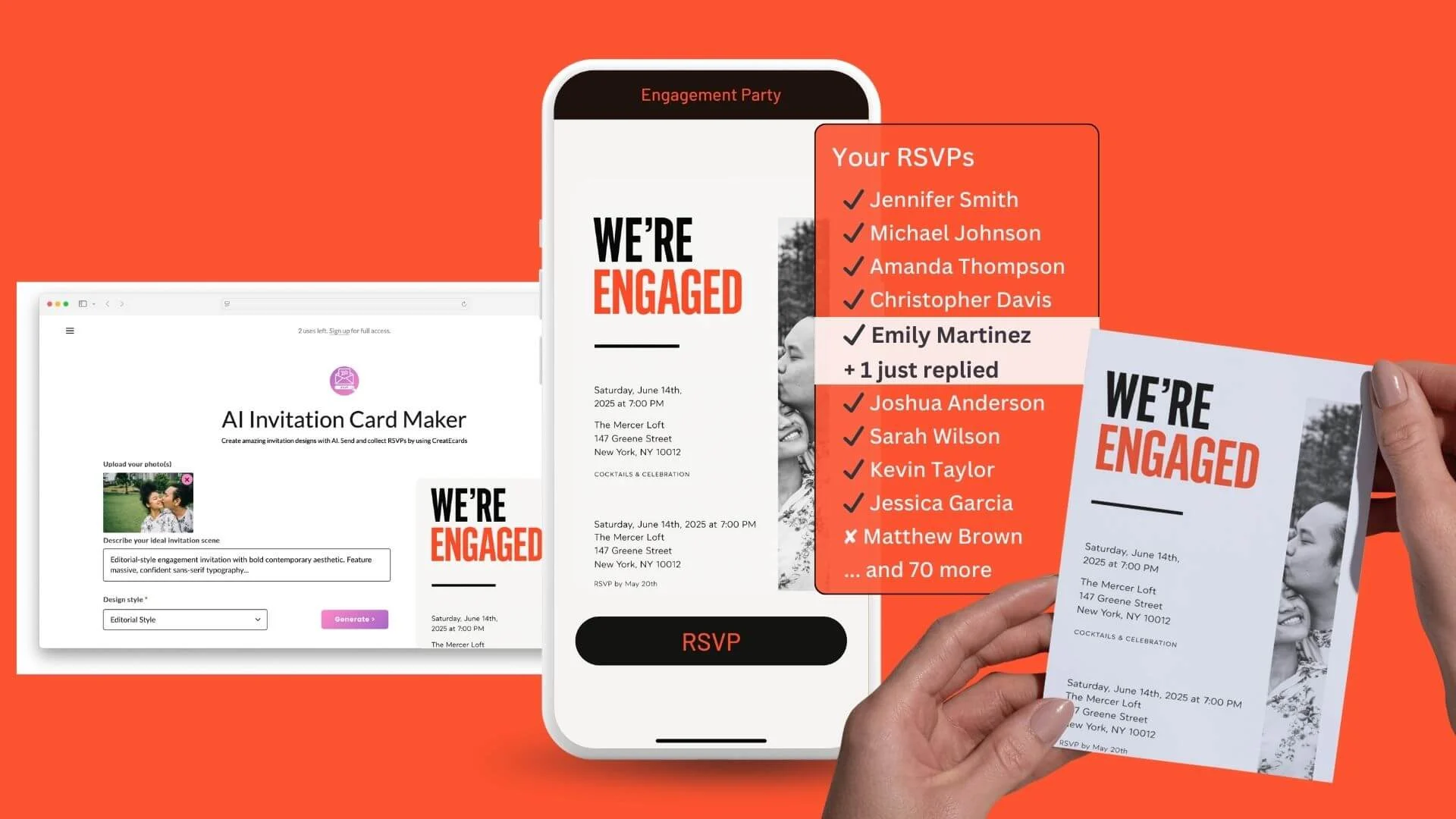
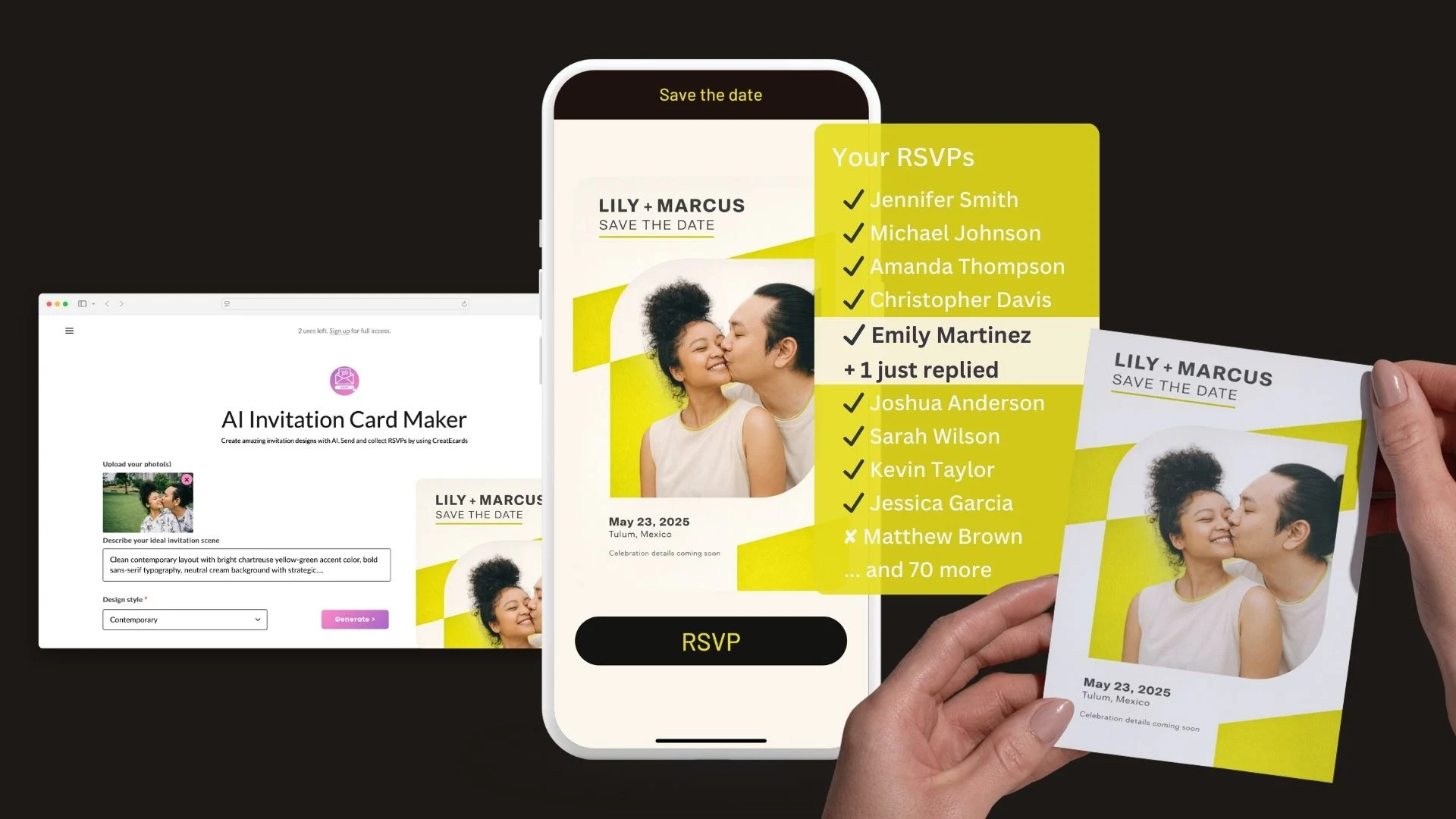
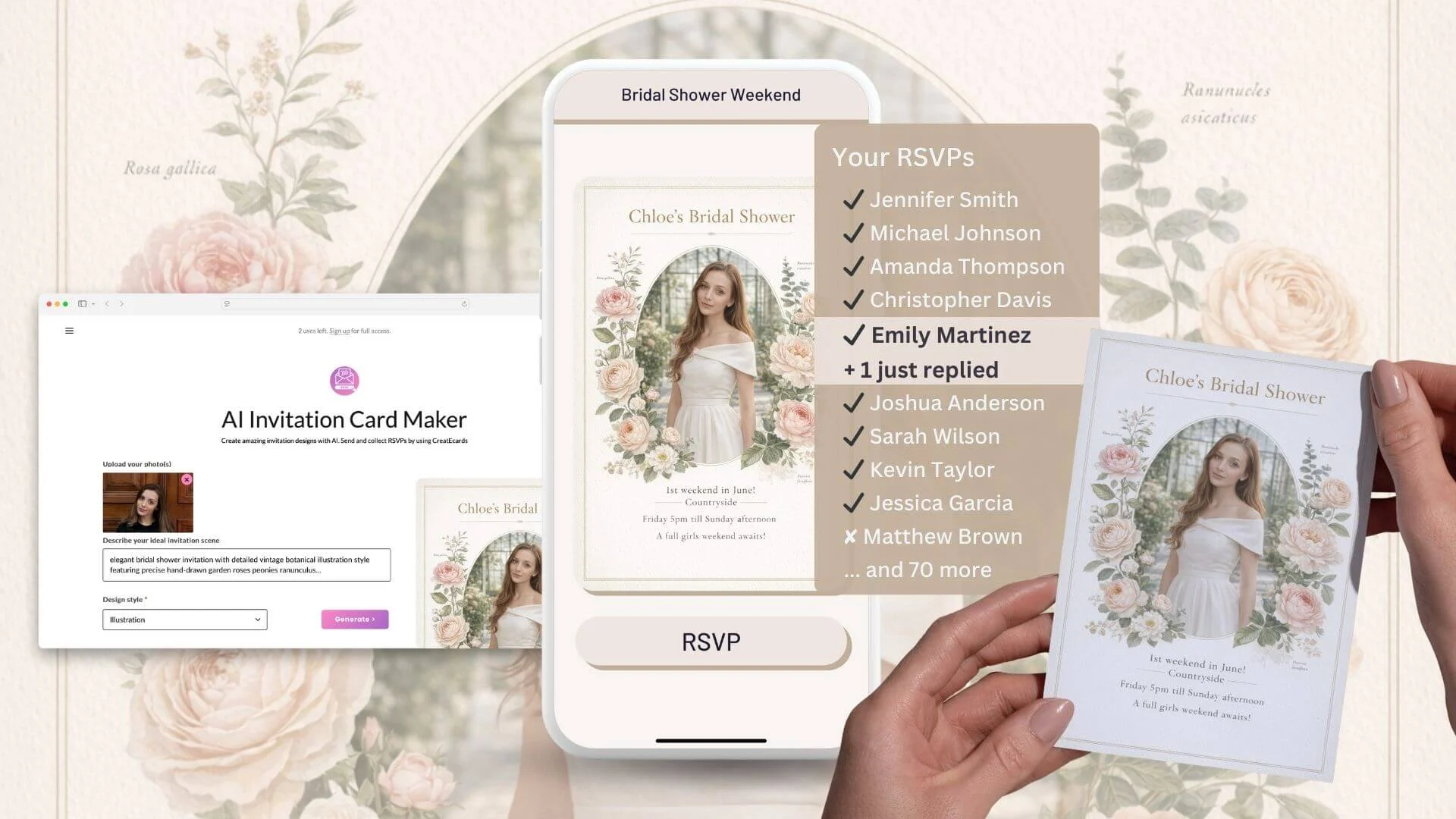
Choose a wedding template, add your names, date and venue, then create the invitation with your engagement photo in ChatGPT, Gemini or Google AI Mode. Upload it to CreatEcards to collect RSVPs, plus-ones and meal choices, and keep track of who is coming.
Bold colorful wedding with electric pinks oranges purples
DetailsStyleMood
Generate
1
Choose a template and add your wedding details
Pick a wedding template, add your names, date, time, venue and photo notes, then choose ChatGPT, Gemini or Google AI Mode. CreatEcards opens the prepared prompt in the AI you select.
CB+4Event group
Where do we RSVP?
Ava & Rowan's Wedding
createcards.io
Tap to RSVP
Delivered
2
Create the invitation in your preferred AI
Add your engagement photo in the AI and create the wedding invitation. Check the names, date, venue and other invitation text before downloading the finished image.
Live page
Your RSVPs
4 attending · 1 declined
Live
JSJennifer Smith
MJMichael Johnson
ATAmanda Thompson
EMEmily Martinez
MBMatthew Brown
+70 more guests
3
Upload it and collect responses
Upload the finished invitation to CreatEcards. Magic Fill drafts the matching live page, then you can add RSVP questions, meal choices, plus-one rules, maps, schedules and registry links before sharing.
What you can add to your live wedding invitation page
Keep the finished wedding design at the centre, then add responses, guest details, maps, schedules and registry links in one mobile-friendly page.
Magic Fill
Build the RSVP page from your invitation
Upload the finished invitation and Magic Fill reads the design, event details and colours to draft a matching live RSVP page.
Review and edit every detail before sharing
Your page automatically matches the invitation's colours and style
Your designYour page
You’re invited
Ava & Rowan's Wedding
Your date
Your venue
DetailsDirectionsFAQs
RSVP
Ava & Rowan's Wedding
Your date
Your venue
RSVP
RSVP
Let guests RSVP in seconds
Guests confirm on a fast, mobile-friendly page, and every response stays attached to your invitation.
No app or login for guests
Choose a simple RSVP (name + headcount) or a detailed one (every guest named, with answers)
✎Set responder details
Ava & Rowan's Wedding✕
1234
Step 1 of 4 · Your details
Your details
For Ava & Rowan's Wedding
Full name
Chloe Jones
Email
chloe@email.com
Attendance
Will you and your group be there?
Your attendance
Yes, I/we will be attending▾
Adults
2
Children
1
A few questions
Answered right inside the RSVP
What song gets you dancing?
Groove Is in the Heart
Take the shuttle?
YesNo
Almost there
Keep your RSVPs in one place
✦Join the Hub Free and optional
or skip and submit
Next
Guest policy
Set plus-one and child rules
Control who each guest can bring so your final headcount is ready for the venue or caterer.
Cap how many people each guest can bring, including children and plus-ones
Give different guests or families their own limits
Host setup
Set who guests can bring
Plus ones allowed
Children allowed
Max people per reply · 4
Guest policy
Set who guests can bring
Plus ones
Plus ones allowedNo plus ones
Guests
Adult onlyChildren allowed
Max people per reply4
Guests add their group; your head count stays right.
What people see
Attendance
Ava & Rowan's Wedding
Your date · Your venue
Adults · 2
Children · 1
Custom questions
Ask what your wedding needs
Collect meal choices, dietary needs or anything else right inside the RSVP - instead of chasing guests later.
Use text or multiple-choice questions
See each guest's answers next to their response
Host setup
Add your questions
Meal choice · Multiple choice
Dietary details · Text
Song request · Text
Custom questions
Ask anything and collect the details you need
Add custom questions to your reply form
What song gets you dancing?Text
Take the shuttle?Choice
YesNo
Anything else we should know?Text
Up to 6 questions, text or multiple choice. Guests can skip optional ones.
What people see
A few quick questions
Ava & Rowan's Wedding
Your date · Your venue
Choose your meal
Any dietary details?
Continue
RSVP limits
Close RSVPs by date or when your event is full
Set an RSVP deadline or guest capacity. The form closes at the deadline; choose whether to close or waitlist new replies at capacity. You can reopen it at any time.
Set a deadline or capacity limit
Reopen responses at any time
Host setup
Reply-by date
30 January, 2027
Close responses automatically
Reopen any time
Form settings
Stop collecting after a date
30 January, 2027
Replies close automatically once the date passes.
What people see
Replies are now closed
Ava & Rowan's Wedding
Your date · Your venue
The reply-by date has passed
Contact the host if plans changed
Calendar
Let guests save the wedding in one tap
Guests can add the event name, date, time and venue straight to their calendar in a tap.
Keep the confirmed details close
Reduce questions about when and where
Host setup
Confirmation actions
Add to calendar · On
Event title
Date and time
Venue
On every confirmation
Add to calendar is built in
✓Saved to the guest's calendar in a tap
No setup. It is ready on every reply you collect.
What people see
You’re on the list
Ava & Rowan's Wedding
Your date · Your venue
Add to calendar
Gift registry
Keep registry links on the invitation page
Add registry, honeymoon fund, Amazon or charity links beside the wedding details and RSVP.
Use more than one registry
Update links after the page is live
Host setup
Gift registry
Registry name
Registry link
Add another registry
Optional gift note
Gift registry
Share gift ideas and links to any registry
Guests can bring gifts
Registry name
Honey fund & Amazon
www.honeyfund.com
www.amazon.com
Add links to any registry; guests find them on your page.
What people see
Gifts
Ava & Rowan's Wedding
Your date · Your venue
Our registry
Honeymoon fund
View registry
Event schedule
Share the running order and locations
Add each part of your event - times, places and what's happening - so guests know exactly where to be and when.
Add agenda items with times and locations
Guests see the full schedule on the live page
Host setup
Build the agenda
3:00 · Welcome
4:00 · Toasts
6:00 · Dinner
8:00 · Dancing
Agenda
Share a schedule for your day
13:00 PMWelcome
24:00 PMToasts
36:00 PMDinner
48:00 PMDancing
Add each moment; your live page builds the schedule.
Use your own AI to create a personal wedding invitation
Start with a CreatEcards wedding template and prepared prompt. Add your engagement photo, names and event details in ChatGPT, Gemini or Google AI Mode, then upload the finished invitation to CreatEcards. Magic Fill drafts the matching live RSVP page.
“I am absolutely thrilled with the way my wedding invitation turned out, thanks to CreatEcards! Unlike other online invitation services, this platform made it a breeze to create a personalized and one-of-a-kind design that beautifully reflected my personal style. Throughout the entire process, I felt completely at ease and confident in my abilities, thanks to the user-friendly interface and helpful guidance provided by CreatEcards.”
Demeka David
Wedding
“CreatEcards was a total lifesaver for me when I tried creating a wedding RSVP invitation! As a beginner, I found the platform incredibly user-friendly and intuitive to use. I loved how seamless it was to publish my Canva designs as online invitations and manage RSVPs. Highly recommend for any Canva lover looking to jazz up their event planning game!”
Sook Fun Lim
Wedding
“Easy to use, amazing tracking of wedding RSVPS and meal choices, ability to turn into excel spreadsheet from site and ease of linking wedding website to invitation. Developer was very quick to answer my questions and was very responsive to feedback. It was also affordable.”
Lora Kellie
Wedding
“I am absolutely thrilled with the way my wedding invitation turned out, thanks to CreatEcards! Unlike other online invitation services, this platform made it a breeze to create a personalized and one-of-a-kind design that beautifully reflected my personal style. Throughout the entire process, I felt completely at ease and confident in my abilities, thanks to the user-friendly interface and helpful guidance provided by CreatEcards.”
Demeka David
Wedding
“CreatEcards was a total lifesaver for me when I tried creating a wedding RSVP invitation! As a beginner, I found the platform incredibly user-friendly and intuitive to use. I loved how seamless it was to publish my Canva designs as online invitations and manage RSVPs. Highly recommend for any Canva lover looking to jazz up their event planning game!”
Sook Fun Lim
Wedding
“Easy to use, amazing tracking of wedding RSVPS and meal choices, ability to turn into excel spreadsheet from site and ease of linking wedding website to invitation. Developer was very quick to answer my questions and was very responsive to feedback. It was also affordable.”
Lora Kellie
Wedding
“Wow, I am so thrilled with CreatEcards! With their help, I was able to create the perfect wedding invitation and effortlessly manage my guest RSVPs. Compared to other online invitation sites, CreatEcards is incredibly simple to use and just so easy.”
June
Wedding
“CreatEcards was a game-changer for creating our wedding invitations! The seamless integration with Canva made designing a breeze, and the ability to link directly to our designs saved us so much time. Highly recommend for anyone looking to effortlessly create stunning online invitations!”
Joshua Sulio
Wedding
“I appreciate the convenience of CreatEcards. Using Canva to design my wedding invitation was simple and including an RSVP link made the process seamless. The integration with Canva is a notable feature and it's helpful that there is a free plan option available.”
Shivramakrishnan V
Wedding
“Wow, I am so thrilled with CreatEcards! With their help, I was able to create the perfect wedding invitation and effortlessly manage my guest RSVPs. Compared to other online invitation sites, CreatEcards is incredibly simple to use and just so easy.”
June
Wedding
“CreatEcards was a game-changer for creating our wedding invitations! The seamless integration with Canva made designing a breeze, and the ability to link directly to our designs saved us so much time. Highly recommend for anyone looking to effortlessly create stunning online invitations!”
Joshua Sulio
Wedding
“I appreciate the convenience of CreatEcards. Using Canva to design my wedding invitation was simple and including an RSVP link made the process seamless. The integration with Canva is a notable feature and it's helpful that there is a free plan option available.”
Shivramakrishnan V
Wedding
Get inspired
Choose a wedding style and open its prepared prompt in your preferred AI.
AI wedding invitation generator vs the alternatives
Canva gives you the strongest hands-on editing. Self-prompting ChatGPT or Gemini gives you open-ended experimentation. CreatEcards is built for the next step too: keeping the wedding design and collecting trackable RSVPs in one live page.
Criterion
Best for RSVPsCreatEcards wedding invitation workflow
Self-prompting ChatGPT or Gemini
Canva
Design freedom
Start with a wedding style and use your own AI, then keep the finished design as the visual centre of the RSVP page.
Flexible experimentation, but you must write and refine the prompt yourself.
Excellent direct editing and the best choice when you want to design every element yourself.
Accurate wedding details
Structured event fields keep names, date and venue connected to the prepared prompt.
Free-form prompting can miss or alter important invitation text.
Manual editing gives you full control, but every detail must be entered and checked by hand.
RSVP collection
Upload the finished invitation and add a live RSVP page, guest questions, plus-ones and meal choices.
Generates an image, not a working wedding RSVP or guest list.
Creates the design, but a separate form or RSVP tool is needed to collect responses.
Best fit
Couples who want an AI-assisted wedding design and a clear headcount in one workflow.
People who enjoy prompt experimentation and only need an image.
People who prefer hands-on design control and are happy to connect another RSVP tool.
Design freedom
CreatEcards wedding invitation workflow
Start with a wedding style and use your own AI, then keep the finished design as the visual centre of the RSVP page.
Self-prompting ChatGPT or Gemini
Flexible experimentation, but you must write and refine the prompt yourself.
Canva
Excellent direct editing and the best choice when you want to design every element yourself.
Accurate wedding details
CreatEcards wedding invitation workflow
Structured event fields keep names, date and venue connected to the prepared prompt.
Self-prompting ChatGPT or Gemini
Free-form prompting can miss or alter important invitation text.
Canva
Manual editing gives you full control, but every detail must be entered and checked by hand.
RSVP collection
CreatEcards wedding invitation workflow
Upload the finished invitation and add a live RSVP page, guest questions, plus-ones and meal choices.
Self-prompting ChatGPT or Gemini
Generates an image, not a working wedding RSVP or guest list.
Canva
Creates the design, but a separate form or RSVP tool is needed to collect responses.
Best fit
CreatEcards wedding invitation workflow
Couples who want an AI-assisted wedding design and a clear headcount in one workflow.
Self-prompting ChatGPT or Gemini
People who enjoy prompt experimentation and only need an image.
Canva
People who prefer hands-on design control and are happy to connect another RSVP tool.
Want help with your wedding invitation?
Ask your preferred AI about wording, styles, RSVP setup or guest management using CreatEcards answers.
Choose an AI to open this topic with a link to our FAQ.
Your wedding invitation questions, answered
Can I create wedding invitations with AI for free?+
Yes. CreatEcards is free to start. Choose a wedding style, add your details, and open the prepared prompt in your own ChatGPT or Gemini. When the design is ready, upload it to CreatEcards to create a live RSVP page.
Can I add my engagement photos to AI wedding invitations?+
Yes. Add your engagement photo in your own ChatGPT or Gemini after the prepared prompt opens. Your AI can restyle the photo to suit the wedding template while keeping the names, date, and venue tied to the details you supplied.
What should I write in my wedding invitation?+
Include the couple’s names, wedding date, time, venue, and any essential guest instructions. Keep longer details, meal questions, plus-one rules, maps, and registry links on the live RSVP page so the invitation stays easy to read.
Can I use AI wedding invitation templates?+
Yes. Start with one of the wedding templates on this page, add your event details, and open its prepared style prompt in your own AI. The template gives you a clear visual direction without starting from a blank prompt.
How do I collect RSVPs with my AI wedding invitation?+
Download the finished invitation from your AI and upload it to CreatEcards. Magic Fill drafts a matching live RSVP page where guests can respond, and you can collect plus-ones, meal choices, dietary needs, and other wedding details.
Do I need design skills to create wedding invitations with AI?+
No. Choose a template and enter the wedding details instead of writing a complex prompt yourself. Your own AI creates the image, then CreatEcards adds the working RSVP and guest-management layer.
Can I print my AI-generated wedding invitation?+
Yes. Download the invitation from your AI and print it with your preferred service. You can also add a CreatEcards QR code so the printed invitation opens the same live wedding RSVP page.
What wedding invitation styles can I create with AI?+
The wedding collection includes minimalist greenery, Dutch florals, hand-drawn romance, ribbons and bows, maximalist colour, classic monograms, watercolor, modern typography, gilded designs, and vineyard-inspired styles.
How is this different from other wedding invitation makers?+
CreatEcards connects the generated design to the job that still needs finishing. Your own AI creates the wedding invitation image, then CreatEcards turns it into a live page where you collect responses and keep the guest list clear.
Can I edit my wedding invitation after the AI creates it?+
Yes. Continue editing or regenerate the image in your own AI before downloading it. After uploading it to CreatEcards, review and edit the event details, RSVP questions, guest rules, and page styling before sharing.
Can I use your ChatGPT assistant for wedding invitation help?+
Yes. Use the Ask Your AI launcher above these questions for help with wording, etiquette, styles, or RSVP planning. To generate the invitation itself, start with a template so the wedding details and style prompt are prepared for you.