Confirm meeting attendance and keep the agenda and joining details together.
Use the approved Canva invitation for a physical, virtual, or hybrid meeting and collect attendee organization, role, and attendance mode.
Free to start. No credit card required.


Keep the Canva design
Collect attendance in one place
Share practical event details
Professional and community events
Choose the page that matches the attendance job and practical details for the event you are coordinating.
 Church eventsAttendance and practical details
 GalaPolished guest and event details
 Award nightHonorees, guests, and program timing
 Grand openingBranded launch guest list
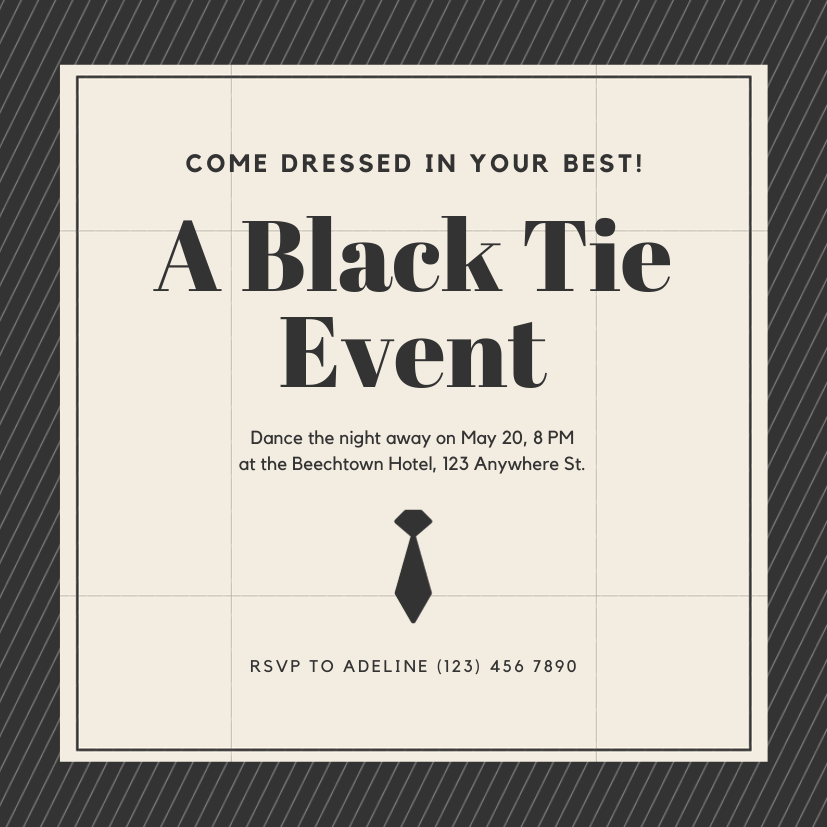 Black tieFormal attendance and dress guidance
 BanquetTable and meal headcount
 ExhibitionVisitor registration and access details
 Business meetingAttendees, agenda, and joining details
 WorkshopCapacity, sessions, and preparation
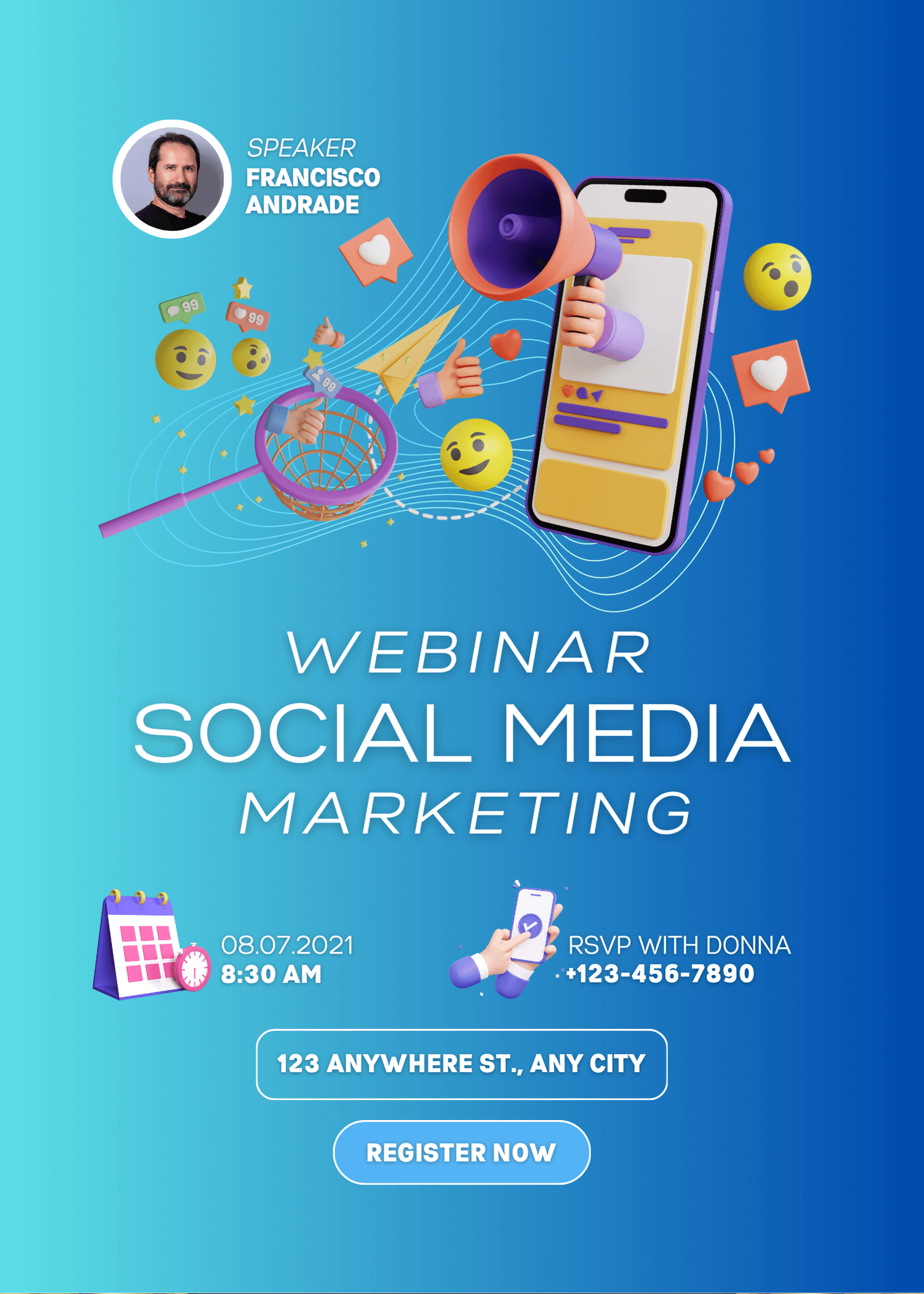 WebinarTimezone, session, and joining details
Business meeting invitation with online registration
What is a business meeting invitation with attendance confirmation?
A business meeting invitation with attendance confirmation helps an executive assistant or coordinator know who is joining and how. The live page keeps the agenda, location or joining link, timezone, accessibility, and attendee questions together.
A calendar invitation alone may not collect the role, organization, attendance mode, or practical details the organizer needs. CreatEcards adds that light registration layer without turning a focused meeting into a conference platform.
Confirm attendance
Ask practical questions
Share event details
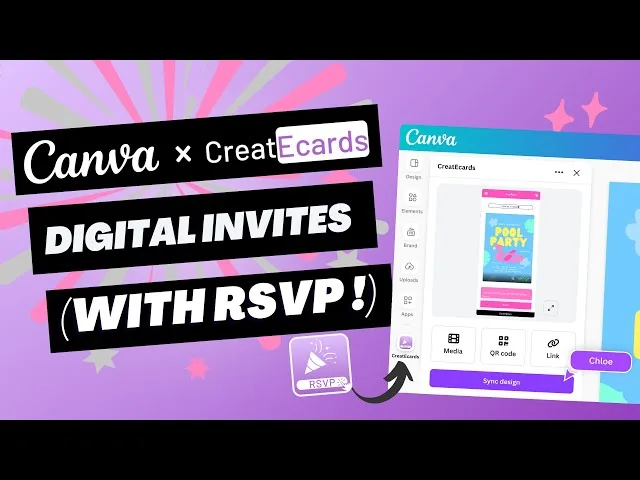
How to add online registration to a Canva business meeting invitation
Keep the invitation approved in Canva, add the attendance, organization, role, physical or virtual attendance details the event needs, then track every response in one place.
Plays from YouTube. Pressing play loads YouTube's privacy-enhanced player, and Google may store cookies on your device. Cookie policy
How to add online registration to a Canva business meeting invitation
Keep the invitation approved in Canva, add the attendance, organization, role, physical or virtual attendance details the event needs, then track every response in one place.
Simple or Detailed RSVP
Collect the level of attendee detail your event needs
Use Simple RSVP for group totals plus one set of answers for the group. Use Detailed RSVP to name every attendee and collect answers for each person attending the business meeting.
- Choose group totals or named attendees
- Collect group-level or per-person answers
RSVP & responses setting
How responses will be collected
What your guest sees
Attendance
RSVP & Responses Setting
How responses will be collected
Custom questions
Ask questions once per group or for every named attendee
With Simple RSVP, collect one set of answers for the group. With Detailed RSVP, ask each named attendee about attendance, organization, role, physical or virtual attendance or attendance at a secondary session or event.
- Use text or multiple-choice questions
- Choose group-level or per-person answers
Host setup
Add your questions
Custom questions
Ask anything and collect the details you need
What people see
A few quick questions
One live invitation page
Keep your Canva design, response form, and event details together
Turn the approved Canva business meeting design into one mobile-friendly page for responses, agenda, meeting location, map, joining link, and later updates from the organizer.
- Update practical details without replacing the shared link
- Keep the same shared link as plans change
Event details
Tell your guests when, where and what to expect
What your guest sees
Your invitation, details and response in one place
Event details
Tell your guests when, where and what to expect
Response settings
Control how, what, and when attendees respond
Choose Simple or Detailed RSVP, decide which contact details to collect, set the response date, apply guest rules, and add capacity or a waitlist when the business meeting has a limit. Use capacity for a limited room or session. Virtual attendance can remain unrestricted unless the organizer sets a limit.
- Set the response method, contact fields, and deadline
- Add capacity and a waitlist only when the event needs them
Host setup
Response settings
What people see
The form follows your rules
Before the response date
Confirmed attendees with one reliable meeting brief
Attendance by mode
With a guest list and personal links, see who plans to attend in person or online and who has not replied.
Relevant attendee context
Collect organization, role, accessibility, and other meeting-specific inputs.
Agenda and access together
Share the agenda, location, map, joining link, timezone, and login or arrival time.
Why professional event organizers use CreatEcards
“I recently used CreatEcards to set up an impressive online invitation for a men's conference. The combination of Canva's design options and CreatEcards' user-friendly interface allowed me to easily incorporate video stills, audio, and RSVP functionality, making it the perfect choice for my needs.”
Business meeting invitation questions, answered
Got a specific question? Open your AI with our FAQ link, then ask it there.
Yes. Use the approved business meeting design as the event page artwork, then add registration questions and practical details in CreatEcards. Open the app from Canva’s Share menu when you are ready.
Collect attendance, organization, role, physical or virtual attendance, plus any other organizer-defined question that applies to this event.
Yes. Keep agenda, meeting location, map, joining link and other practical information on the same live page as the Canva invitation and response.
Use capacity for a limited room or session. Virtual attendance can remain unrestricted unless the organizer sets a limit.
Yes. Update the design in Canva and sync it again, or edit the event details in CreatEcards. Attendees keep using the same invitation link.
No. They open the live event page on their phone and respond without creating an account.
Add online registration to your business meeting invitation
Keep your Canva design, collect the attendee details your team needs, and share one live page for the business meeting.
Create your business meeting invitation