Looking for an e-vite? Start with the e-invite guide
The terms mean the same thing. See how a live electronic invitation keeps the design, event details, RSVP, and guest list together.
Free to start. No credit card required.



What is an e-vite?
E-vite and e-invite mean the same thing
E-vite is an alternate spelling of e-invite. Both describe an electronic invitation shared online. For the full category guide, including live RSVP and guest tracking, use the main e-invite page.
E-vite and e-invite are two spellings for the same electronic-invitation idea. Rather than repeat the full category guide here, continue to the main e-invite page for the static-card-versus-live-invitation difference, online RSVP, and guest tracking.
Design the e-vite
Add the live RSVP
Share one link
E-vite options
Make the e-vite do more than display the design
A working e-vite gives guests the invitation, practical event details, and a clear way to respond on the same page.
Canva image or PDF
Share your design as a file. Guests reply through your email or messaging app.
Design file plus a separate form
Share the design file and a separate link to the RSVP form.
RSVP form with your design
Upload your invitation image into a form and add response questions.
Canva plus CreatEcards
Sync your Canva design into an invitation page with event details, an RSVP form and a guest dashboard.
Use CreatEcards when you want to sync your Canva design into a dedicated invitation page, add event details and RSVP questions, and manage replies in your guest dashboard.
Create your invitation/RSVP pageHow to make an e-vite with online RSVP
Create the e-vite in Canva, sync it from the CreatEcards app, then add the event details and RSVP.

How to make an e-vite with online RSVP
Create the e-vite in Canva, sync it from the CreatEcards app, then add the event details and RSVP.
One live invitation page
Keep your Canva design, RSVP, and event details together
Turn the design you made in Canva into one mobile-friendly page for responses, dates, venues, maps, schedules, helpful links, and later updates.
- Update practical details without sending a replacement invitation
- Keep your invitation’s web address unchanged when updating the page
Event details
Tell your guests when, where and what to expect
What your guest sees
Your invitation, details and response in one place
Event details
Tell your guests when, where and what to expect
Simple or Detailed RSVP
Collect the level of guest detail your event needs
Use Simple RSVP for adult and child totals plus one set of answers for the group. Use Detailed RSVP to name every guest and collect answers for each person.
- Choose group totals or named guests
- Collect group-level or per-person answers
RSVP & responses setting
How responses will be collected
What your guest sees
Attendance
RSVP & Responses Setting
How responses will be collected
Guest groups and invitation rules
Set default rules or personalize each invited group
Set defaults for plus-ones, adults, children and the total number allowed in one reply, including the person replying. Add guests individually or upload a guest list. Send personal links when invited groups need different rules.
- Apply sensible defaults across the event
- Override the rules for an individual invited group
Guest policy
Set who guests can bring
What your guest sees
Attendance
Guest policy
Set who guests can bring
Printable QR code
Make your printed Canva invitation open the same live page
The CreatEcards app in Canva gives you a QR code before your invitation is published. Add it to the design before syncing, then publish your invitation and scan a test print before printing the full batch.
- Use the QR code on printed invitations, flyers, or signs
- Show updated details without reprinting the design
Your printed design
Live page
E-vite makers on Canva design and RSVP tracking
“CreatEcards saved me so much time by allowing me to create my event invitation without the need to redesign anything. I love that CreatEcards is seamlessly linked to Canva designs, making it easy to bring my creations to life as online invitations or event websites. Thanks to CreatEcards, managing RSVPs, including gift registry links, location details, and calendar links, has never been easier!”
“CreatEcards helped me utilize my Canva design and seamlessly create an online invitation with all the necessary details like RSVPs, gift registry links, and more. I love how easy it is to incorporate my Canva designs, which sets it apart from other online invitation websites!”
“I absolutely love using CreatEcards! It's super easy to create a free ecard through Canva and seamlessly integrate RSVPs with just a click, making it a breeze to combine Canva and CreatEcards effortlessly. Compared to other online invitation sites, CreatEcards stands out with its fantastic Canva integration – I personally adore Canva for its user-friendly customization features, and CreatEcards just takes that convenience to the next level.”
“CreatEcards saved me so much time by allowing me to create my event invitation without the need to redesign anything. I love that CreatEcards is seamlessly linked to Canva designs, making it easy to bring my creations to life as online invitations or event websites. Thanks to CreatEcards, managing RSVPs, including gift registry links, location details, and calendar links, has never been easier!”
“CreatEcards helped me utilize my Canva design and seamlessly create an online invitation with all the necessary details like RSVPs, gift registry links, and more. I love how easy it is to incorporate my Canva designs, which sets it apart from other online invitation websites!”
“I absolutely love using CreatEcards! It's super easy to create a free ecard through Canva and seamlessly integrate RSVPs with just a click, making it a breeze to combine Canva and CreatEcards effortlessly. Compared to other online invitation sites, CreatEcards stands out with its fantastic Canva integration – I personally adore Canva for its user-friendly customization features, and CreatEcards just takes that convenience to the next level.”
“CreatEcards made RSVP collection a breeze for me, turning event planning into a stress-free experience. The seamless integration with Canva allowed me to showcase my creativity while designing beautiful online invitations and event websites. I highly recommend CreatEcards to any Canva lover looking to easily manage their events and impress their guests with personalized digital creations.”
“I absolutely love CreatEcards for transforming my Canva designs into stunning online invitations and event websites effortlessly. The platform is user-friendly and allows me to customize every detail from RSVP collection to adding gift registry links, making event planning a breeze. With CreatEcards, I can easily share my creations with guests, saving time and adding a touch of elegance to every event!”
“CreatEcards has made my Canva dreams a reality with its seamless integration - truly a game-changer! Thanks to CreatEcards, effortlessly publishing my Canva designs as online invitations and event websites has been a time-saving blessing. If you're a fan of Canva, you'll absolutely love how CreatEcards transforms your creations into interactive and stunning e-vites with just a few simple clicks.”
“CreatEcards made RSVP collection a breeze for me, turning event planning into a stress-free experience. The seamless integration with Canva allowed me to showcase my creativity while designing beautiful online invitations and event websites. I highly recommend CreatEcards to any Canva lover looking to easily manage their events and impress their guests with personalized digital creations.”
“I absolutely love CreatEcards for transforming my Canva designs into stunning online invitations and event websites effortlessly. The platform is user-friendly and allows me to customize every detail from RSVP collection to adding gift registry links, making event planning a breeze. With CreatEcards, I can easily share my creations with guests, saving time and adding a touch of elegance to every event!”
“CreatEcards has made my Canva dreams a reality with its seamless integration - truly a game-changer! Thanks to CreatEcards, effortlessly publishing my Canva designs as online invitations and event websites has been a time-saving blessing. If you're a fan of Canva, you'll absolutely love how CreatEcards transforms your creations into interactive and stunning e-vites with just a few simple clicks.”
E-vite questions, answered
An e-vite is an electronic invitation shared online. A CreatEcards e-vite can include the Canva design, event details, RSVP, and guest tracking on one live page.
Yes. Make your invitation design in Canva, then open Apps and find CreatEcards. Select Sync design, choose Online Invitation, and complete the sync to create your RSVP page.
Yes. Guests open the live e-vite link and respond on the same page. Their responses appear in the guest dashboard.
No. Guests open the e-vite in their browser and respond without creating an account.
Yes. Changes to your event details appear on the existing invitation page. Keep that invitation and its web address unchanged. For design changes, edit in Canva, open the CreatEcards app, select the existing invitation, and choose Sync changes.
Use Simple RSVP for adult and child totals and one set of answers for the group. Choose Detailed RSVP to collect each attendee’s name, including plus-ones, and answers for each person. Add custom questions for meal choices, dietary needs or other details you need.
Yes. In Canva, open Apps and find CreatEcards. Add its QR code to your design before you sync it. Publish your invitation, then scan a test print before printing the full batch. Keep the invitation’s web address unchanged so the code continues to open that page.
Related invitation journeys
Choose the next part of the invitation project
Go deeper on RSVP tracking, sharing, or the Canva format you want guests to experience.


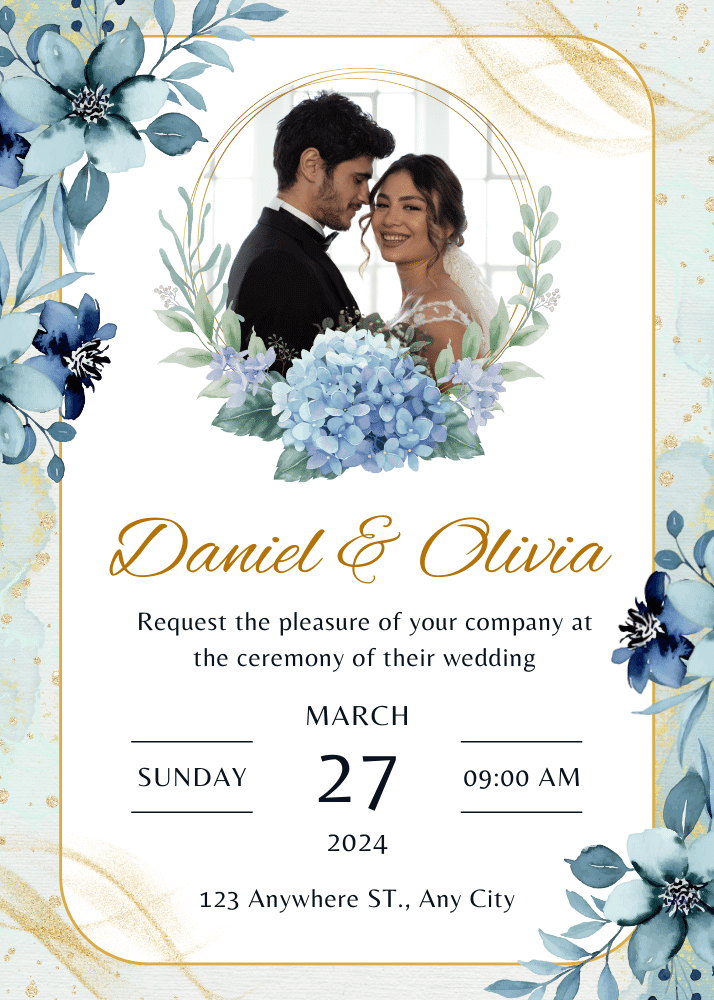
Turn your Canva e-vite into a live invitation
Keep the design and add the live page that collects RSVPs and keeps the guest list clear.
Create your invitation/RSVP page