Your Canva invitation may already have the photos, fonts and personal details that make it feel right for the occasion. CreatEcards lets you build on that design with an RSVP page, where guests can read about your event and tell you whether they’re coming. You keep editing your design in Canva and manage the event information and replies in CreatEcards.
In Canva, you can connect your design to CreatEcards in two ways. Open Apps → CreatEcards for the full app, including tools for an RSVP QR code and Canva video, music or animation. Or use Share → CreatEcards to transfer your design directly. Choose either route; both take you into CreatEcards to set up your RSVP page.
Open your design and find the CreatEcards app
If your invitation is already in Canva, open it in the Canva editor. If you need a design first, open Create new in your CreatEcards dashboard and browse the invitation categories. Open a category and choose Get started in Canva to visit Canva's template collection. Choose a template, customize it and add your event details before connecting it to CreatEcards.
With your design open, select Apps in Canva's left sidebar, search for CreatEcards and open the app. Its panel appears beside your design, with Sync design at the bottom.
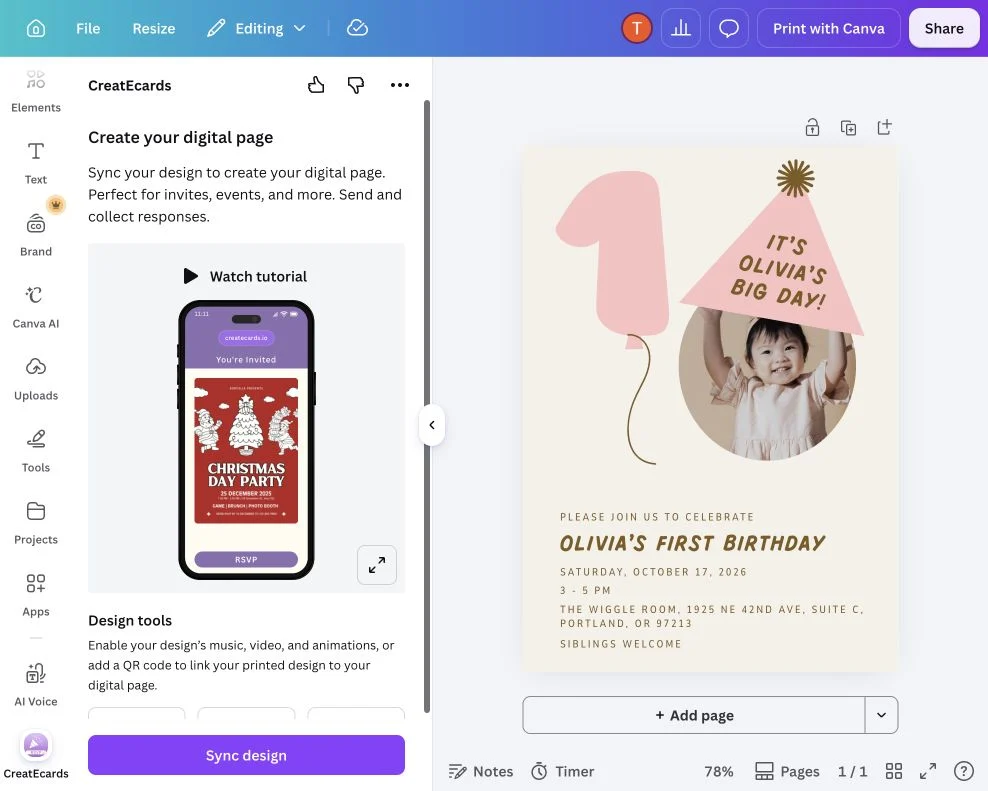
Your invitation stays open in Canva while you use the CreatEcards panel to connect it to an RSVP page.
For a still-image invitation, you can go straight to Sync design. If you're printing invitations, add your RSVP QR code before syncing. If your design includes video, music, animation or a slideshow, enable that content through Media. Scroll within the app panel to find QR code and Media.
For printed invitations, add an RSVP QR code before syncing. For video or animation, connect your Canva media first.
Sync the design and open your RSVP page setup
Syncing brings your design into CreatEcards, where you'll finish your RSVP page. In Canva, open Apps → CreatEcards and select Sync design. If you've just selected Sync changes in Media, you're already at the page-type choice.
- Choose Online Invitation for a birthday, wedding or other personal celebration, then select Sync to CreatEcards. This page type works for in-person and online occasions; Business Event is for professional events with registration.
- Complete Canva's export screen by selecting Export. When the sync finishes, the app confirms Your design has been synced!
- Follow the link to CreatEcards. If Canva shows You are about to leave Canva, select Continue. You can also use Open in CreatEcards in the app panel.
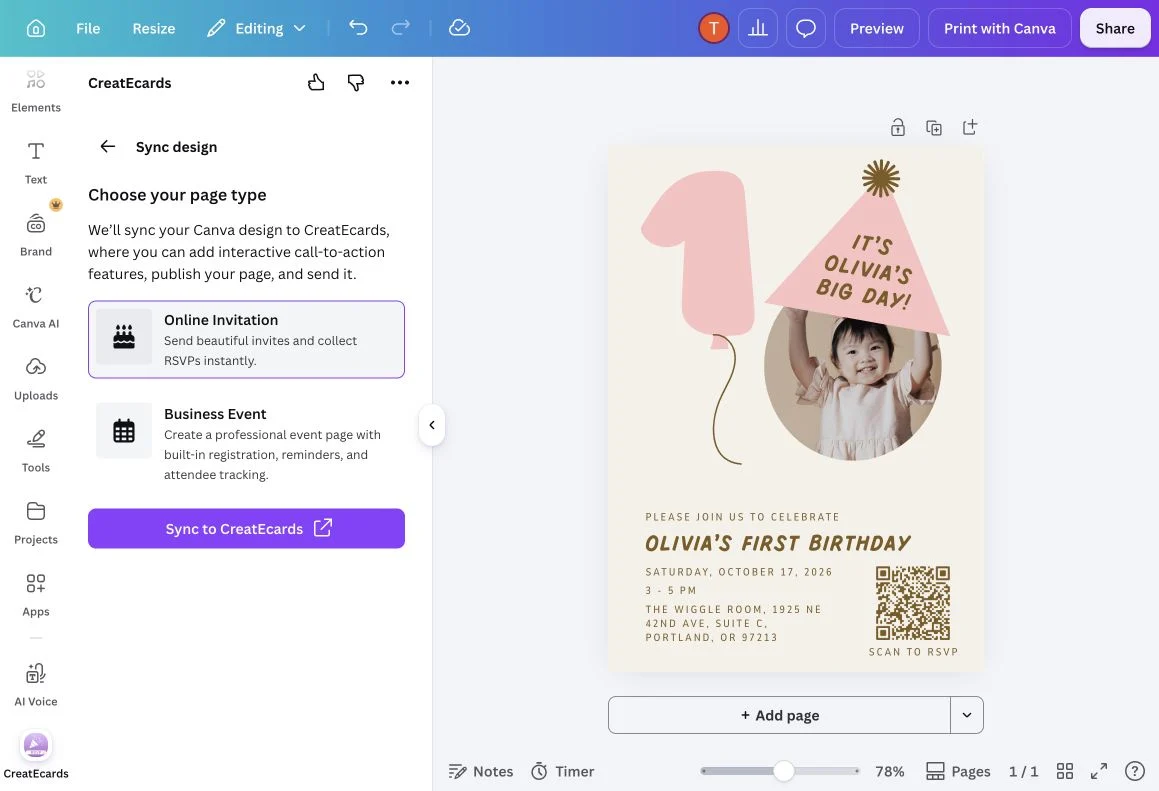
Choose Online Invitation to begin setting up an RSVP page for your personal event.
Your design appears on the CreatEcards welcome page, ready for you to sign in or create an account. Choose Continue with MagicFill to help fill in event details and style the page from your design, or No thanks, don't use AI please to enter the information yourself. Review the result in the CreatEcards editor. The transfer itself hasn't published your RSVP page for guests. You'll do that after checking the details, RSVP settings and styling. After publishing, Send & manage opens that invitation’s Page Manager, where you prepare messages, manage your guest list and review replies.
If you reopen the Canva app later, Open in CreatEcards may ask whether you've changed the design. Choose Sync design to transfer your latest edits, or Open in CreatEcards to continue with the version already synced.
An alternative: open CreatEcards from Canva's Share menu
To transfer your invitation through Canva’s Share menu:
- Open your design in Canva and select Share.
- Find CreatEcards. You may need to expand See all and More options.
- Check that the correct design page is selected, then choose Publish now.
- Select Check it out to continue setting up your RSVP page in CreatEcards.

This is the Canva transfer screen. Continue into CreatEcards to finish setting up and publishing your RSVP page.
This way of using CreatEcards is useful for transferring your design, including later revisions. Open the main app under Apps when you want to add a QR code or enable media. Canva's Your content has been published! message confirms the Canva-side transfer; check your page's publication status inside CreatEcards before sharing its link with guests.
Questions you may have
Do I need to use CreatEcards through both Apps and Share?
No. They are alternative ways to transfer your design. The main app under Apps also lets you add a QR code and enable media. You don't need to repeat the transfer through Share after syncing through the app.
Will syncing change or delete my Canva design?
Syncing doesn't change or delete your original Canva design. You continue editing it in Canva. If you choose Add to design in the QR code panel, that action adds the QR code to your design.
What if the link from Canva has expired?
After syncing, CreatEcards holds the transferred design temporarily while you follow the link and save it to your account. If you leave that unfinished, the temporary copy is eventually removed and the link expires. Your original Canva design is still there.
Return to the CreatEcards app in Canva, sync again and follow the new link. Sign in or create an account and continue the setup to save your page.
Can I update my Canva design after creating the RSVP page?
Yes. Edit your design in Canva and sync it again. When CreatEcards recognizes the updated design, choose Sync changes to apply it to the existing page. If you've changed event information in your design, update the matching RSVP-page fields too, including any date or RSVP deadline.