Include Canva video, music or animation
Your Canva invitation can include movement and sound as well as a still design. If you’ve added video, music or animation in Canva, you can include it on your CreatEcards RSVP page for guests to watch or listen to before replying.
To bring that media across, open Apps → CreatEcards in the Canva editor and scroll to Media. Choose Video for a video invitation or Slideshow for an animated design presented as a slideshow. You’ll then copy Canva’s HTML embed code into the app. This connects the Canva media to your RSVP page; you don’t need to write or edit any code.
- In the CreatEcards app, open Media and choose the display mode.
- In Canva, open Share, then find Embed under See all or More. Select Embed to enable it. Canva makes the embedded design public, so review that choice before continuing.
- Copy the first field labeled HTML embed code, rather than the separate Smart embed link.
- Return to the CreatEcards app, paste it into HTML embed code and select Sync changes. This opens the page-type selection for syncing.
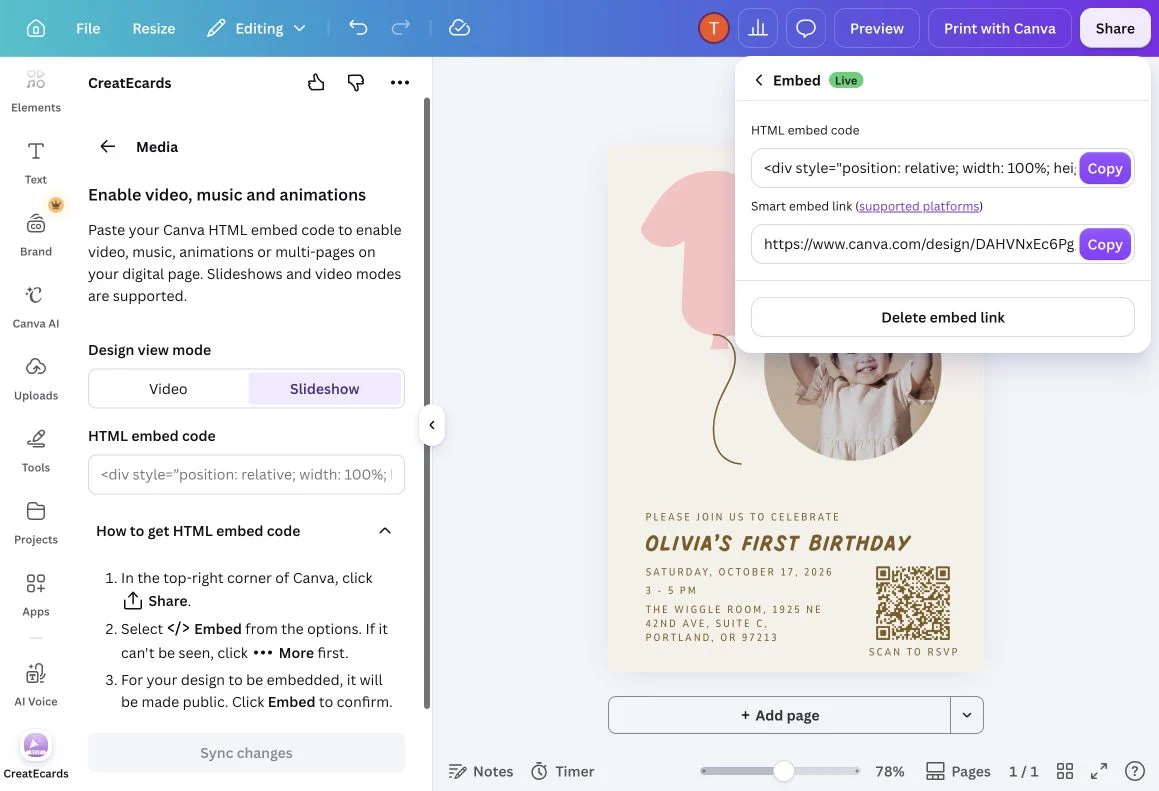
Use the upper Copy button for HTML embed code, then paste that code into the CreatEcards Media panel.
Syncing brings across both a still image of your design and the embedded media you've added. The still image is used as the invitation's preview image in emails and shared links, while guests can view the moving design on your RSVP page. Make sure the image represents your invitation clearly, as it may be the first thing guests see before opening the page.
That's why Canva still asks you to export a JPG even when your invitation includes video or animation. You may also see a Limited media playback warning during export. After completing the sync, play your invitation in your CreatEcards preview and check the full sequence, animation and sound. Check it on the devices your guests will use before sharing it.
Questions you may have
Why am I seeing JPG export options when my design has video or animation?
CreatEcards uses the JPG as a still preview of your invitation in emails and shared links. The embedded media is brought across too, so guests can view the video or animation on your RSVP page. Complete the export, then check both the image and media playback in CreatEcards before sharing.
Then sync your design and check the full media preview.