A wedding, birthday or baby shower gives you plenty to share before the day arrives. In Canva, you can create an event website that brings it all together in your own style, from the photos and videos that make it personal to the schedule, directions and answers guests will look for. You choose how the story unfolds as they scroll, with room for more than you could fit on an invitation.
For a wedding or anniversary, that might mean sharing moments from your life together before introducing the celebration. The website below uses couple videos, floral details and a cream-and-olive palette to give the occasion its own character.
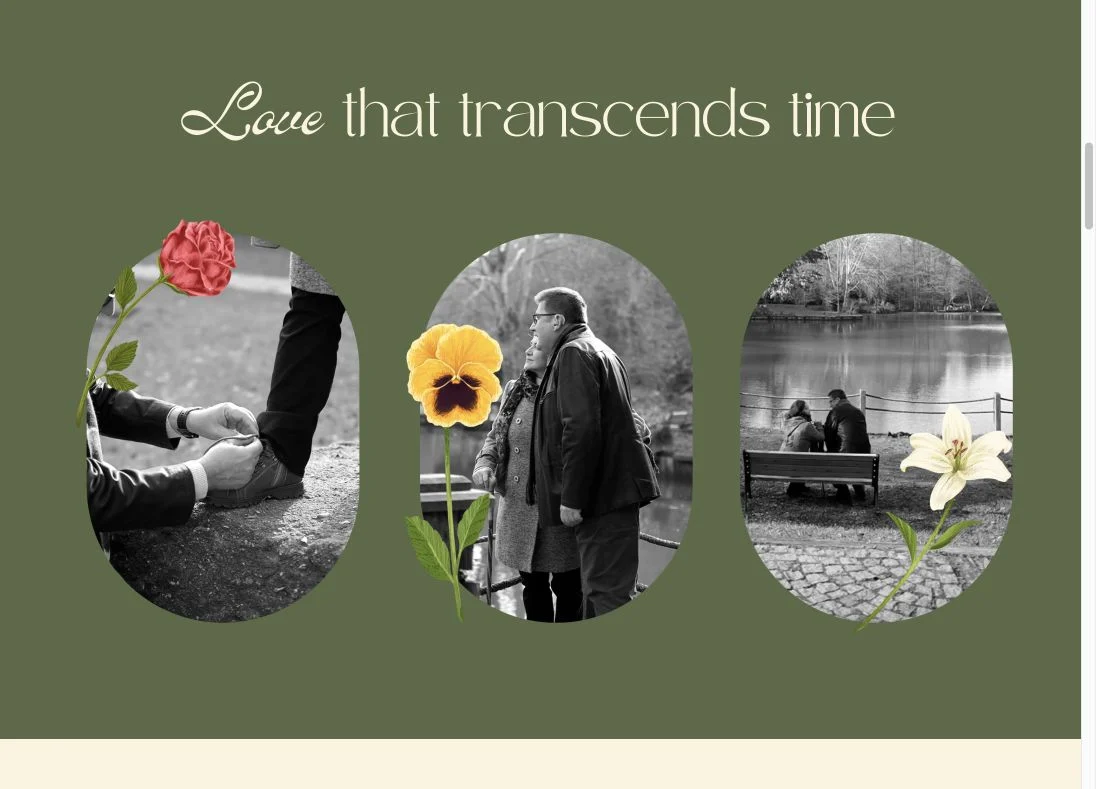
Photos and videos give you room to tell the story behind the occasion, using a layout and style you’ve chosen.
The practical information can feel just as much a part of your design. Here, the date, venue and dress code each have their own space, making them easy to find while keeping the look of the website consistent. You could follow these with the day’s schedule, travel information or FAQs.
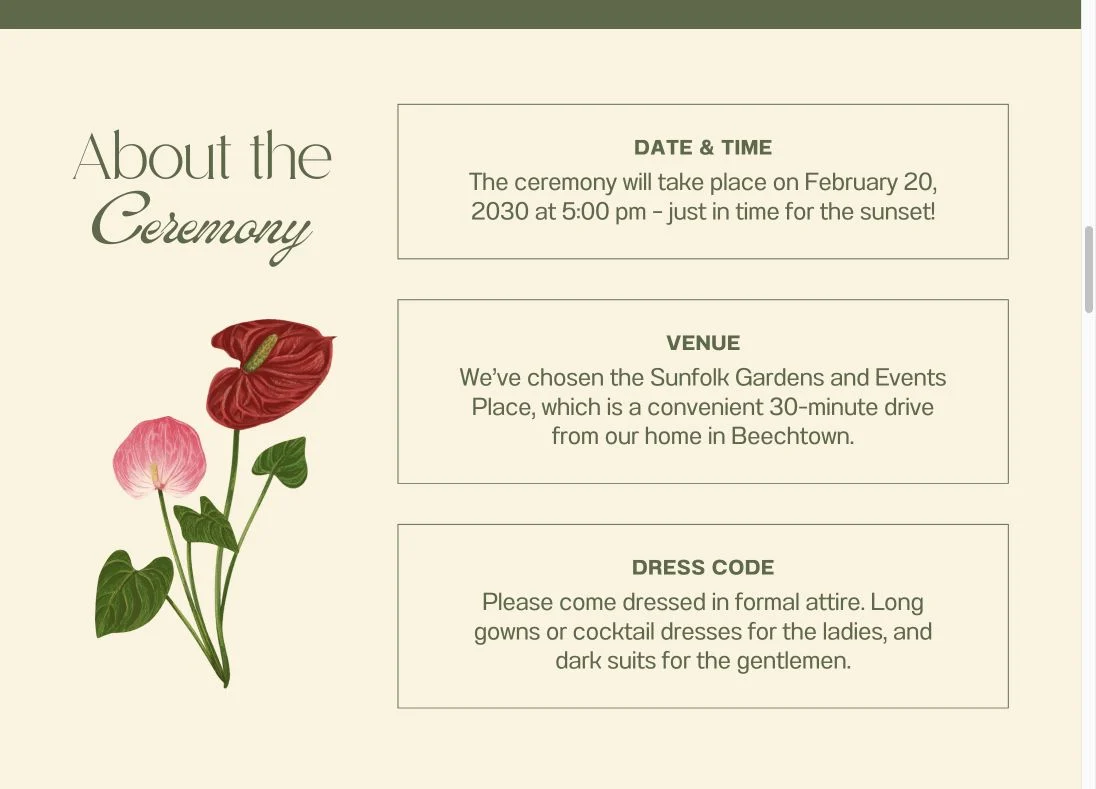
Give guests the details they need in a presentation that feels like your event.
You can connect your Canva event website to a CreatEcards RSVP page, giving guests a place to reply as well as a website to explore. Your CreatEcards RSVP page is the invitation: it brings together your invitation design, key event details and reply form. Add a link from that invitation to your Canva website, then link the website’s RSVP button back to the CreatEcards invitation. Guests can start at either page and move between the event information and their reply.
Canva hosts your website, while CreatEcards hosts your invitation and manages the replies. A matching invitation design connects the two visually, so guests recognize the occasion as they move between them.
Prepare your website and a matching invitation design
In the Canva project containing your event website, create a separate invitation design. We recommend using an invitation design type, with colors, initials or other details that match your website. This separate design supplies the invitation image for your CreatEcards RSVP page; your event website stays hosted in Canva.
On your Canva website, give guests a clear place to reply, such as a Click to RSVP button after the event details. You can include a reply-by date beside it. Publish your website in Canva and keep its live address for the return link you’ll add to your RSVP page.
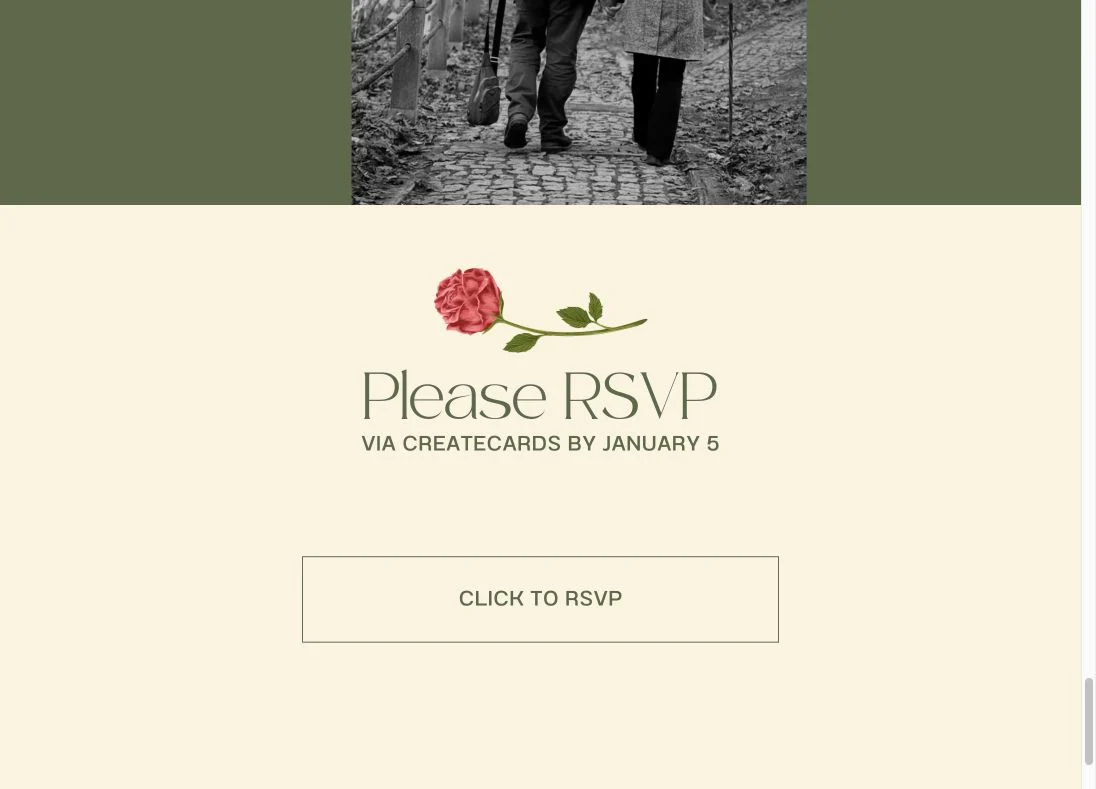
Your website introduces the event. Its RSVP button will take guests to the separate page where they can reply.
In this example, Page 1 is the Canva website and Page 2 is a portrait invitation with matching initials and a flower. Select the separate invitation when you’re ready to connect it to CreatEcards.

The selected invitation is the design you’ll sync to CreatEcards. The website remains a separate page in the same Canva project.
Connect the website’s RSVP button
Your website’s RSVP button needs a link to the CreatEcards invitation where guests will reply. You can get that link before the RSVP page is ready: the CreatEcards app provides it for your separate invitation design before you sync. This lets you add the button while you’re still building your Canva website.
First, copy your invitation’s link:
- In Canva, select the separate invitation design in your website project.
- Open Apps → CreatEcards and choose Link.
- Copy the address under Add a link to your design.
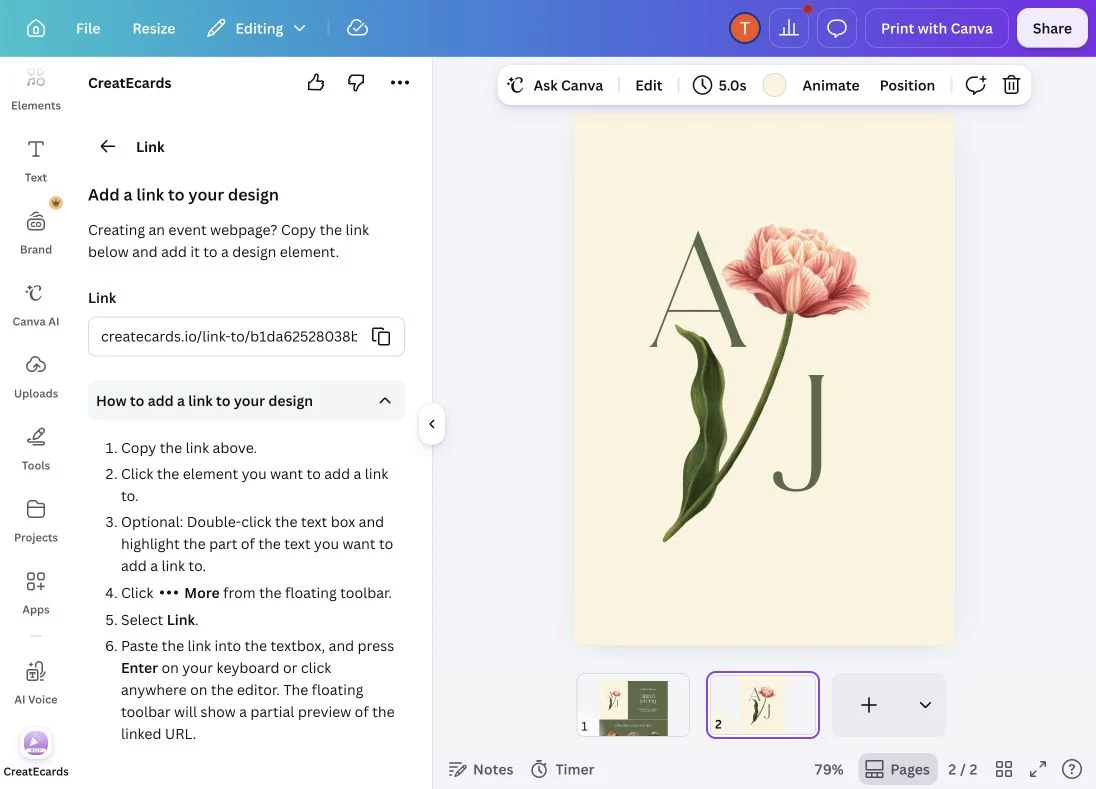
The app provides the link before the RSVP page is set up. Keep using this link as you complete and publish the separate RSVP page.
Then add the link to your website’s RSVP button:
- Return to your website page in Canva and select the RSVP text.
- Open More → Link, paste your invitation’s address and select Done.
If the button has a separate surrounding shape, select that shape and give it the same link. This makes both the text and its surrounding box point to your RSVP page.
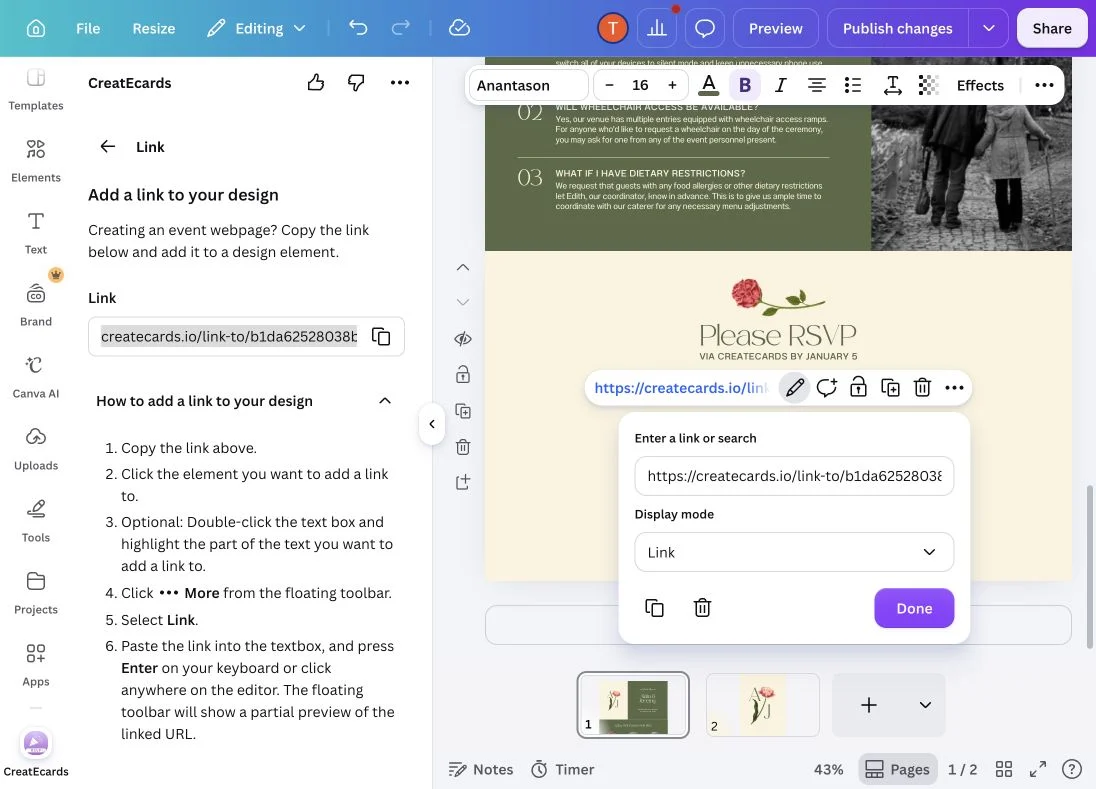
Paste the address from the CreatEcards Link panel into the selected website element’s link field, then choose Done. Apply the same address to the surrounding shape if it is a separate element.
If copying with the app’s icon doesn’t work, highlight the displayed link and use Copy, then paste it into Canva’s link field. Your website changes will need publishing in Canva before visitors can use them.
Sync the invitation design and set up the RSVP page
Sync the separate invitation design from your Canva website project:
- In Canva, select your invitation design and open Apps → CreatEcards.
- Choose Sync design → Online Invitation → Sync to CreatEcards.
- In Canva’s export options, open Select pages. Keep only your invitation design selected and deselect your website. Canva can include both even when only the invitation is selected in the editor. In this example, keep Page 2.
- Export the selected invitation design.
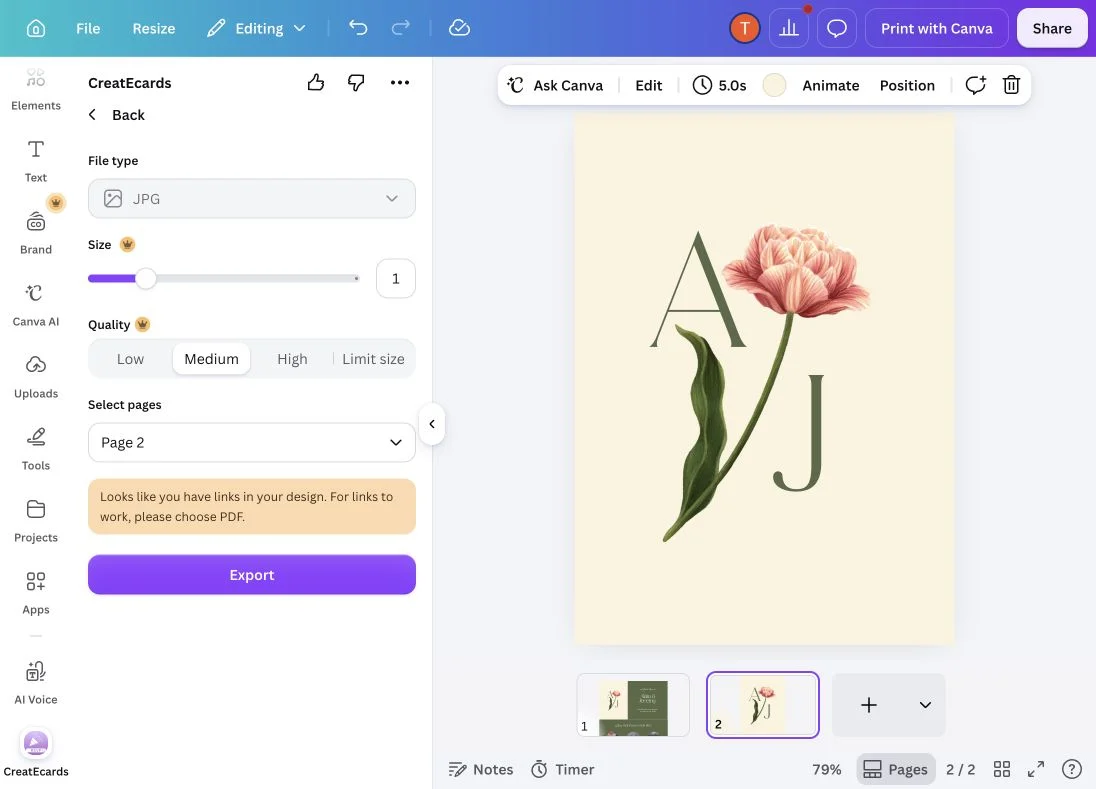
Only the matching invitation image is being synced. The website is published separately through Canva.
After the sync succeeds, follow the handoff to CreatEcards. You can use Continue with MagicFill, reviewing its terms, or choose No thanks, don’t use AI please. Review the event information in the editor before continuing. MagicFill works from the design you synced, so if that image contains only initials and flowers, you’ll need to enter the date, time, timezone and venue yourself. It isn’t reading those details from your separate website.
Keep your RSVP page focused on what guests need to recognize the event and answer. Add the event title and key details, then choose your guest allowances and questions in RSVP form. For example, collect individual meal choices when you need to tell the caterer what each person will eat. Match the page’s colors and banner to the website in Styling, and check that any dates or reply deadlines agree across both pages.
Link your invitation to your website
Guests reading your CreatEcards invitation may want to explore your Canva website before replying. In the CreatEcards editor, open Details → Links → Add a link and add your published Canva website address and a recognizable label, such as Wedding website or Event website. This lets guests explore the website from their invitation, whether they start with the invitation or the website.

The Wedding website button opens the Canva site. The extra editing controls shown here belong to the signed-in host.
When your RSVP page is ready, publish it through Publish & send in CreatEcards. Then return to your website in Canva and select Publish changes to put its RSVP links live. Publish both pages so guests can follow the links between your Canva website and CreatEcards invitation.
Open your live Canva website and follow its RSVP button. It should take you to your CreatEcards invitation. If the opening screen is enabled, select Continue, then check that RSVP opens the reply form. Check that the website link on your invitation takes you back to the Canva website too.
FAQs: Using a Canva event website with CreatEcards
Does the RSVP form appear inside my Canva website?
In this setup, the website’s RSVP button opens a separate CreatEcards invitation. Guests select RSVP there to open the form. Your full event website remains hosted by Canva.
Why do I need a separate invitation design?
That design supplies the image for your CreatEcards RSVP page. It can be a simple design that matches your website, rather than another full explanation of the event. Sync only that invitation design, not the website page.
Do I have to repeat everything from the website?
No. Keep the essential event information on the RSVP page so guests can recognize the occasion and confirm when and where it’s happening. Your longer story, photos and detailed program can stay on the website. Add a return link so guests can find them, and keep any information that appears on both pages consistent.
Can I add the RSVP link before the RSVP page is ready?
Yes. The CreatEcards app’s Link tool provides it before you sync the invitation design. Add it to the website button, then finish setting up and publishing the RSVP page. Publish your website changes, then test its RSVP button and the link back from your CreatEcards invitation.
Where will I see the replies?
In CreatEcards Page Manager, where you can review attendance and the answers collected by your RSVP form. Whether guests open your invitation directly or arrive through the website’s RSVP button, CreatEcards collects and manages their replies.
If I change the event time on the website, will the RSVP page update too?
Update the matching details in CreatEcards as well. These are separate pages, so keep the date, time, venue and reply deadline consistent wherever they appear. Publish website changes in Canva and check both live pages before sharing an important update with guests.
Features and benefits: Pair your invitation with a personal event website
Present the occasion in your own way. Use your Canva website’s layout, photos and videos to share your story and event details, alongside a CreatEcards invitation where guests can read the essentials and reply.
Match your RSVP page to your Canva website. Use a matching invitation design and page colors so guests recognize the same event when they leave the website to reply.
Collect replies in CreatEcards and link guests back to your website. Manage attendance and answers in CreatEcards, while a return link gives guests a way back to the website’s schedule, directions and other details.