CreatEcards’ AI Invitation Maker helps you prepare a design to generate in your own AI chat bot, such as ChatGPT, Gemini or even Google AI mode. You can start with a template that describes the style you want, then add the wording for your event.
You can also make yourself or the person you’re celebrating part of the design. Upload a photo to your chosen AI service and ask it to style the person to match your invitation’s theme. For example, you could ask it to show you in a wedding dress for your wedding invitation, or dress the birthday person to suit a themed party. The AI can adapt their clothing and the style of the image while using the photo as a reference for their likeness. You can then review how they look and ask for changes before using the design.
The maker prepares the prompt; your chosen AI service creates the design. Once you’re happy with the result, save the image and upload it to CreatEcards to build your RSVP page. Your design becomes the invitation guests see, with event information and a reply form alongside it.
Step 1: Choose a design and add your event details
Go to createcards.app/ai, or open Create new in your CreatEcards dashboard and select AI Invitation Maker. The maker has three stages: Design, Generate and Upload.
In AI Invitation Maker’s Design stage, browse the occasion templates or select Browse all to see more. You can filter for an occasion such as a bridal shower, birthday or graduation. Choose a template that suits the feeling you want for your event. The template adds a description of the layout and style to your prompt, which you can change to suit your occasion. You can also describe your own idea in that box.

A template gives you a starting style. Here, The Editorial Bridal describes a black-and-white invitation with large serif lettering and space around the text.
Open Event to add the wording you want the AI to include in your invitation design:
- Enter an Event title, then add the date and time, venue or address, and any additional wording you want on your design, such as the hosts' names or dress code.
- If you're including a photo, choose how you'd like the AI to use it under Handling of your photo. Restyle/redress asks it to adapt your photo to the design's style. Composite asks it to place your photo into the design as it is.
- Select Add details to return to Design. Review your prompt and use the right arrow to continue to Generate.
The event title is required; the other event fields are optional. Include the information you want guests to see on your invitation image. You can add further practical details to your RSVP page later.

Your event information and photo preference are included in the prompt. Upload your photo in your chosen AI service when generating your design.
Step 2: Generate and review the design in your own AI service
With your style and event wording prepared, you’re ready to create the image in your chosen AI service. In AI Invitation Maker, use the right arrow from Design to reach Generate. The choices include Generate in ChatGPT, Google AI and Copy & paste to Gemini. Keep your CreatEcards tab open: you’ll return to it to upload your finished design.
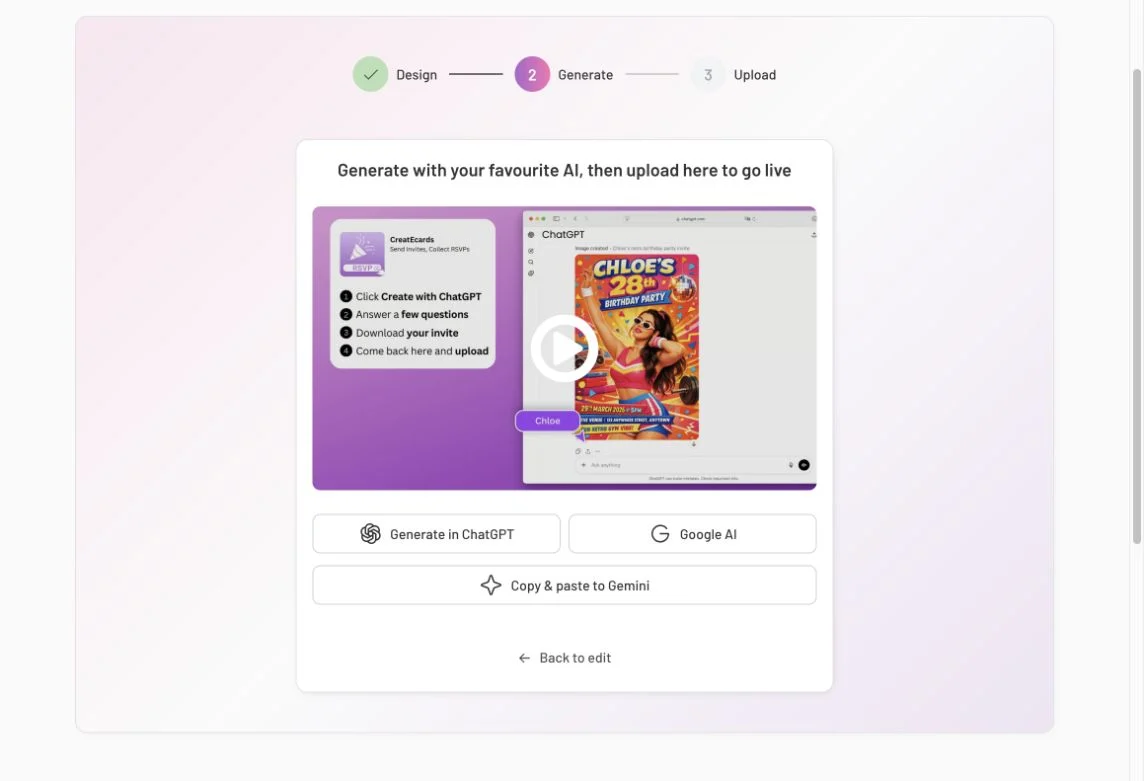
Choose where to generate your design. Your prompt is ready to use with your own AI account.
Click Generate in ChatGPT to open a new ChatGPT tab with your prompt and event details already filled in. Send the message to begin. ChatGPT then guides you through creating your design, including uploading a photo if you're using one.
- Follow the prompts in ChatGPT, adding your photo when asked.
- Look closely at the result. Check names, spelling, dates, times and the address, as well as the layout and how your photo has been used. Ask for any changes you need before saving your image.
- Download the finished design and return to the CreatEcards tab.
The Google AI choice can open Google Search AI Mode and ask you to sign in to your Google account before creating an image. If you want to change your choice, return to CreatEcards, select Back to edit, then use the right arrow to reach the Generate choices again.

Review your finished image before downloading it. The wording inside this image becomes part of the design you upload.
Step 3: Upload your design and set up its RSVP page
Back in AI Invitation Maker, the Upload stage accepts the image you've saved. Use Choose file or drag and drop the file into the upload area. JPEG and PNG are recommended, with a maximum file size of 8MB.
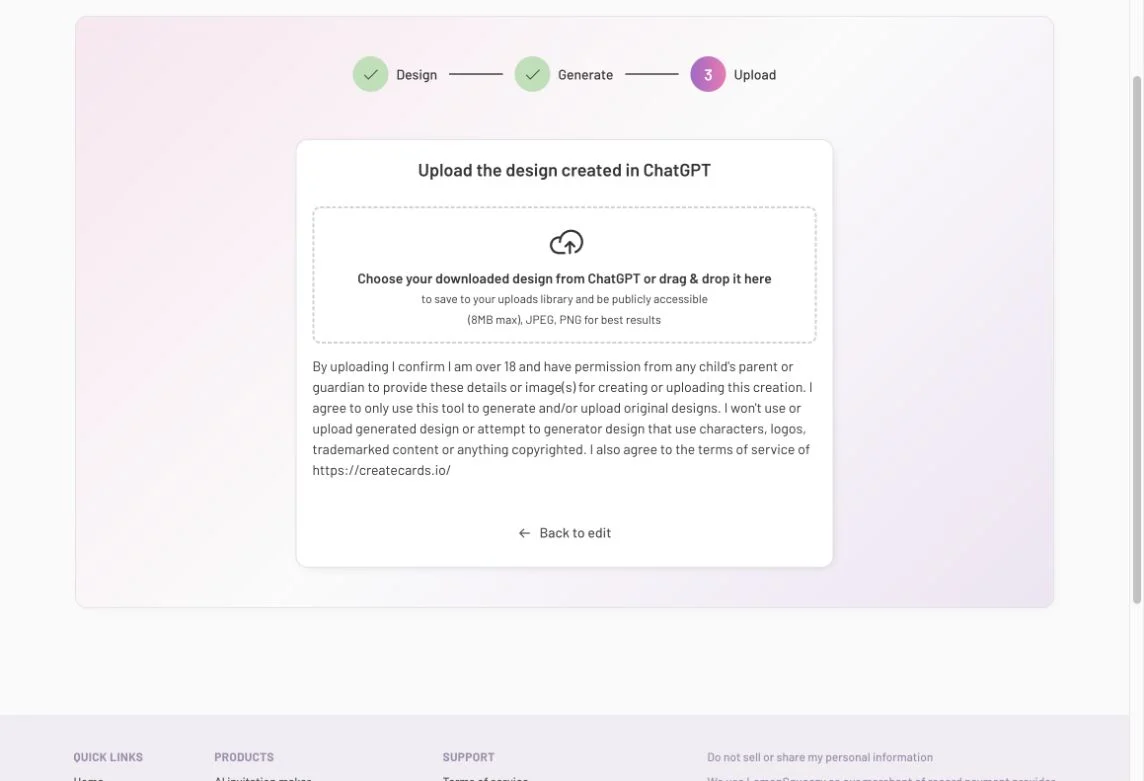
Upload the image downloaded from your chosen AI service. The screen pictured mentions ChatGPT, but this is also the return point when you choose another AI tool in the maker.
Uploading your finished invitation image opens the CreatEcards RSVP page setup. Sign in if needed, then choose Continue with MagicFill if you’d like help filling in event details and choosing page styling from your image. You can also choose No thanks, don't use AI please and enter the details yourself. MagicFill reads your finished design; it is a separate step from generating that design in your AI service.
Your AI invitation design appears on your RSVP page, ready for you to review the event information, choose how guests reply and style the page around it. Check the page's date, time and location against your design before publishing. When those details and settings are ready, open Publish & send and select Publish. After Your page is live appears, use Send & manage to open your invitation’s Page Manager, where you prepare messages and review guest replies.
FAQs: Creating your invitation with AI
Do I need Canva for this?
No. Choose a style and add your event details in AI Invitation Maker, generate your design in your own AI service and upload the finished file to CreatEcards.
Where do I add my photo?
Choose your photo-handling preference in the maker's Event form, then upload your photo to your chosen AI service when generating your design. With ChatGPT, send the prompt first, then follow its guidance to upload your photo. Check the result to make sure the photo has been used the way you wanted.
What if the AI gets a name, date or other detail wrong?
Ask for the correction in your chosen AI service and download the corrected image before uploading it to CreatEcards. Review the RSVP-page fields after MagicFill too. Editing those fields changes the page's event information; it doesn't rewrite the words inside your uploaded image.
What kind of file should I upload?
Upload your downloaded invitation image. JPEG or PNG is recommended, and the file must be no larger than 8MB. If it's larger, reduce the file size before uploading and check that the invitation text is still clear.
Is MagicFill generating another invitation design?
No. Your chosen AI service generates your invitation design. MagicFill reads that finished image to help fill in your CreatEcards RSVP page’s event details and choose matching page styling. Review and edit the results before publishing.
Does uploading make my RSVP page live?
No. Uploading takes you into setup. You still review the details, choose your RSVP settings and publish your page before sending its link to guests.
Features and benefits: Turn an AI design into an invitation guests can respond to
Start with a style you can make your own. A template gives your AI service a description of the invitation’s style and layout. Add your event wording and adjust the prompt where you want a different result, without having to describe every design choice from the beginning.
Include a photo in your design. Choose whether to ask the AI to adapt your photo to the design's style or place it into the composition as it is. This lets you make the person you're celebrating part of the invitation. Review the result before using it.
Turn your AI invitation design into an RSVP page. Upload your design to CreatEcards and add your RSVP form, schedule, location and other event information. Guests can enjoy your design and respond from the same page, while their replies come back to Page Manager.