You can turn your Adobe Express invitation design into an RSVP page using the CreatEcards add-on. Your design appears on the page alongside event details and a form guests can use to tell you whether they’re coming. Their replies appear in CreatEcards Page Manager, where you can check attendance and review answers such as meal choices or dietary requirements.
Open CreatEcards Adobe Express Add-on alongside your design
With your invitation open in Adobe Express, select Add-ons in the left toolbar and find CreatEcards. The directory includes a search field if you need it. Choose Open on the listing to bring up the CreatEcards panel beside your design.
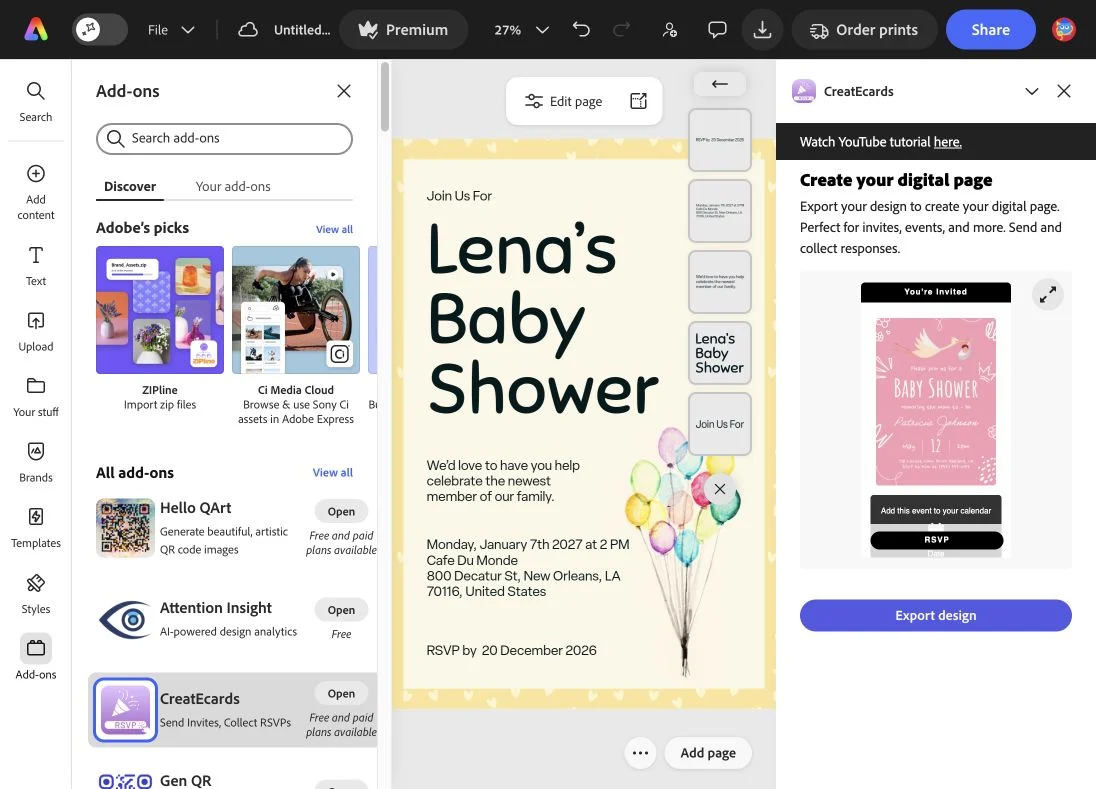
Open CreatEcards from Add-ons. The small pink invitation inside the panel is a sample; the yellow baby-shower design in the editor is the one being exported.
Select Export design in the CreatEcards panel. You’ll be asked which kind of page you want to create. Choose Online invitation for a baby shower, birthday, wedding or other personal occasion. Business event is the option for an event with registration.
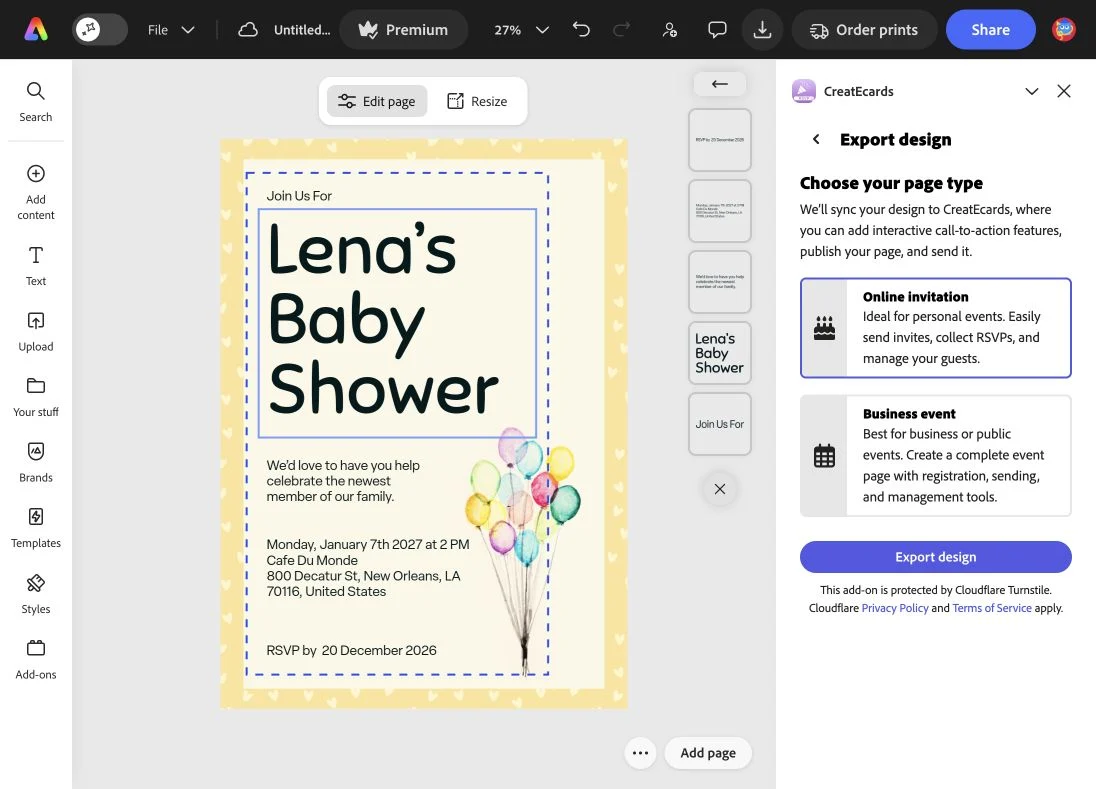
Choose the page type, then use the Export design button beneath it to transfer your invitation.
Bring the invitation into CreatEcards
Select Export design again, beneath the page-type choices. When the panel confirms Export successful, choose Open in CreatEcards. Your design opens in CreatEcards in a new tab, ready for you to set up your RSVP page. Adobe Express stays open so you can return to your design.
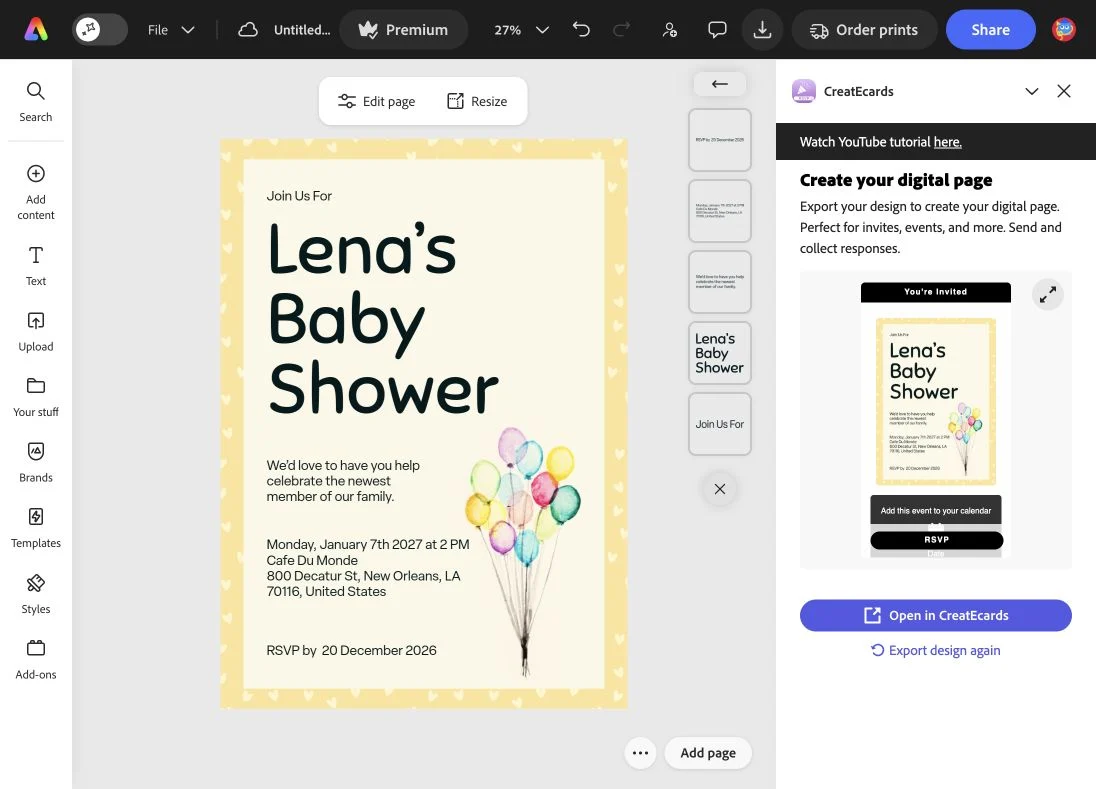
Export successful means your design has transferred. Open in CreatEcards takes you to setup; your invitation isn’t published yet.
On the CreatEcards welcome page, sign in or create an account if needed and check that your invitation design is shown. Continue with MagicFill uses your design to help fill in event details and style your RSVP page to match. Review the linked AI terms before continuing, or choose No thanks, don’t use AI please if you prefer to enter the information yourself.
MagicFill gives you a starting point to review. Select Continue on its review message to reach the editor, then check the event information against your plans. Pay particular attention to the date, time, timezone and venue, and read the description to make sure it says what you want.
Check that the details on your RSVP page agree with those written on your invitation design, including the weekday and date. You edit the page’s event information in CreatEcards. If words inside the design need correcting, make those changes in Adobe Express and use the CreatEcards add-on to transfer the revised design to your existing invitation. Editing a field in CreatEcards won’t change the design itself. See updating your Adobe Express design.
Add the details and reply options for your occasion
Your RSVP page gives you room to explain the practical arrangements without fitting everything into your Adobe Express design. You can add directions to the venue, gift information and answers to questions guests may have, then decide what you need to ask when they reply.
You’ll do this in the CreatEcards editor after exporting your design and continuing through the welcome screen. Start in Details to add your event information. The remaining stages are RSVP form, Styling and Publish & send, with your invitation visible in the preview as you work.
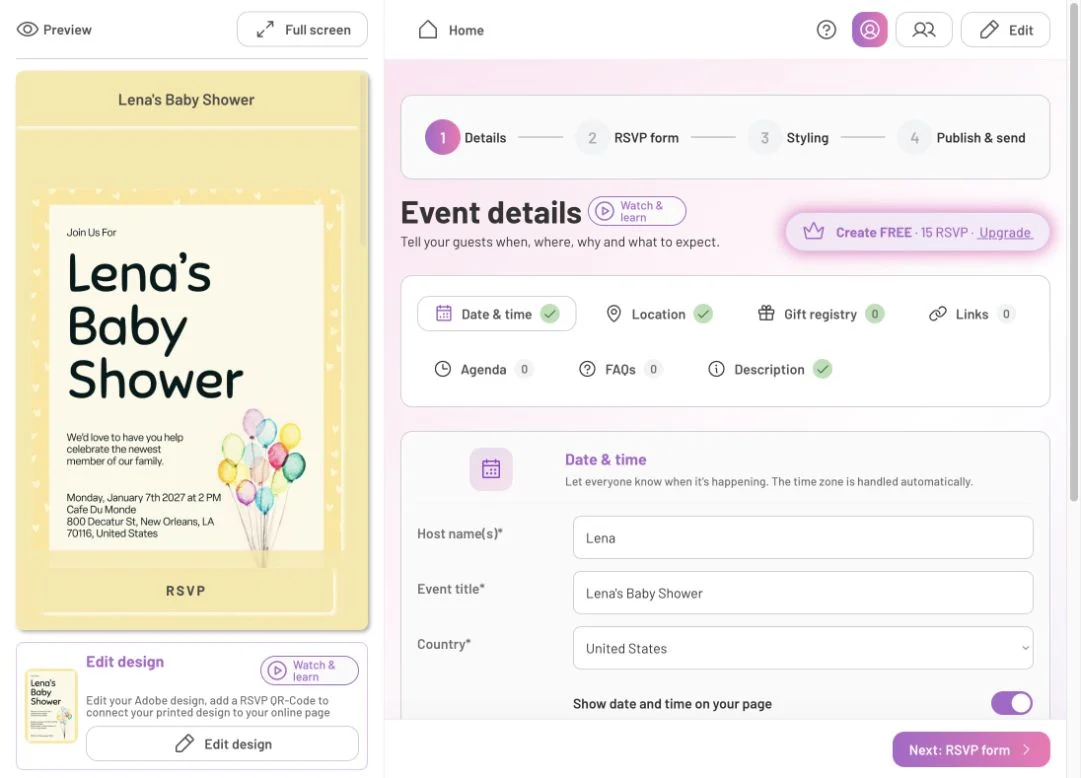
The exported design stays in view while you review the event information. The four stages take you through details, replies, appearance and publication.
In the RSVP form settings, choose Simple RSVP if you need one person to reply for their household or group with attendance counts and shared answers. Choose Detailed RSVP if you need the name of every attendee in a group, including the primary guest and all plus-ones, and a separate set of answers to your custom questions for each person. This is useful when you need to know each attendee’s meal choice or dietary requirements. Add those questions under Custom questions.
Then open Styling to choose colors and a background that complement your invitation design. Adding your event details explains how to include directions, a schedule and other practical information around your design.
Use Full screen above the CreatEcards editor preview to see your invitation as a complete page. If the opening screen is enabled, select Continue to read the details beneath the design.
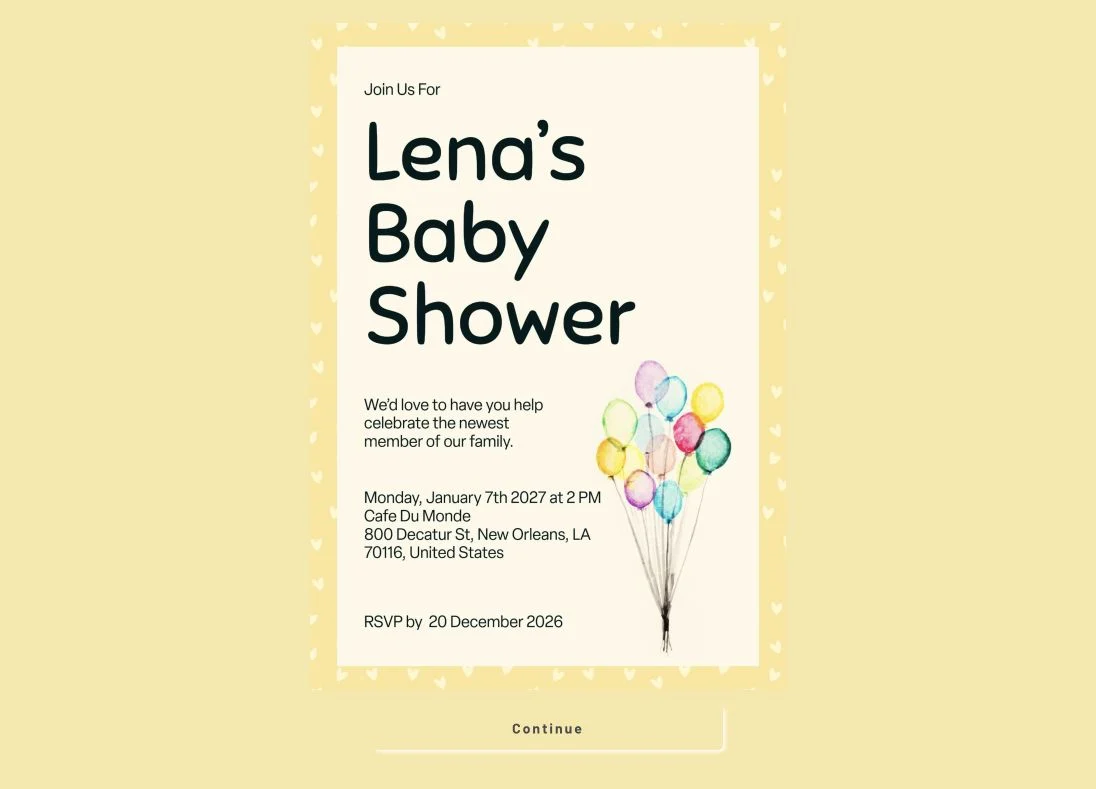
The opening screen presents your design before guests continue to the event details. This example is the host’s unpublished preview.
When you’re happy with your invitation, open Publish & send in CreatEcards and select Publish. Your page is live confirms that guests can open it. Select Send & manage to prepare invitations in Page Manager, then send the link through your chosen email or messaging app. Publishing and access settings explains the page address, PIN and response-detail options.
FAQs: Starting in Adobe Express
Do I need to move my design into Canva first?
No. Open the CreatEcards add-on in Adobe Express and export your design directly from there.
Why does the add-on show a different invitation from mine?
The small invitation shown in the add-on’s opening panel is an example. Your design is the one open in the Adobe Express editor. After exporting, check that your own invitation appears on the CreatEcards welcome page.
Why do I select Export design twice?
The first button opens the page-type choices. After you choose Online invitation, the second Export design button transfers your design. Wait for Export successful, then select Open in CreatEcards.
Does exporting make the invitation live or send it to guests?
No. Exporting brings your design into setup. Review the event details, choose your RSVP settings and publish your page in CreatEcards. You then send its link to guests.
Will MagicFill get all my event details right?
Review its results before publishing. Check the date, weekday, time, timezone and venue, and edit the description to sound like you. If wording inside your design is wrong, correct that in Adobe Express too; changing a CreatEcards field doesn’t rewrite your design.
Features and benefits: Build on the invitation you made in Adobe Express
Use your Adobe Express design on your RSVP page. Export it through the CreatEcards add-on, then choose page colors, a background and button styles that complement your design and event theme.
Give practical information its own space. Add directions, a schedule or gift information around your design, so guests can find what they need without you fitting everything onto the invitation image.
Find out who’s coming and what they need. Choose the guest allowances and questions that suit your event, then review attendance and answers in Page Manager as guests respond.