Publishing makes your invitation available for guests to open and reply to. You can finish preparing the page first, publish when you’re ready, then choose when and how to send its link. Publishing itself doesn’t send a message to anyone.
Open Publish & send, step 4 of the CreatEcards editor, to choose your page’s address and publish it. Here you can also review its language and PIN settings before sharing. You can publish and collect replies on the free plan, then upgrade when you need access to more response details.
Choose your invitation’s address and publish
In the CreatEcards editor, open Publish & send, step 4. If you’re finishing the Styling stage, select Next: Publish & send. The first time you publish, a window suggests a web address based on your event title. You can edit the part after createcards.io/page/ to make it recognizable for your occasion.
- Review the suggested address and change it if needed.
- Check that you’re ready for your page to be live, including the event details and RSVP settings you’ve chosen.
- Select Publish. Look for Your page is live to confirm that your invitation has been published.
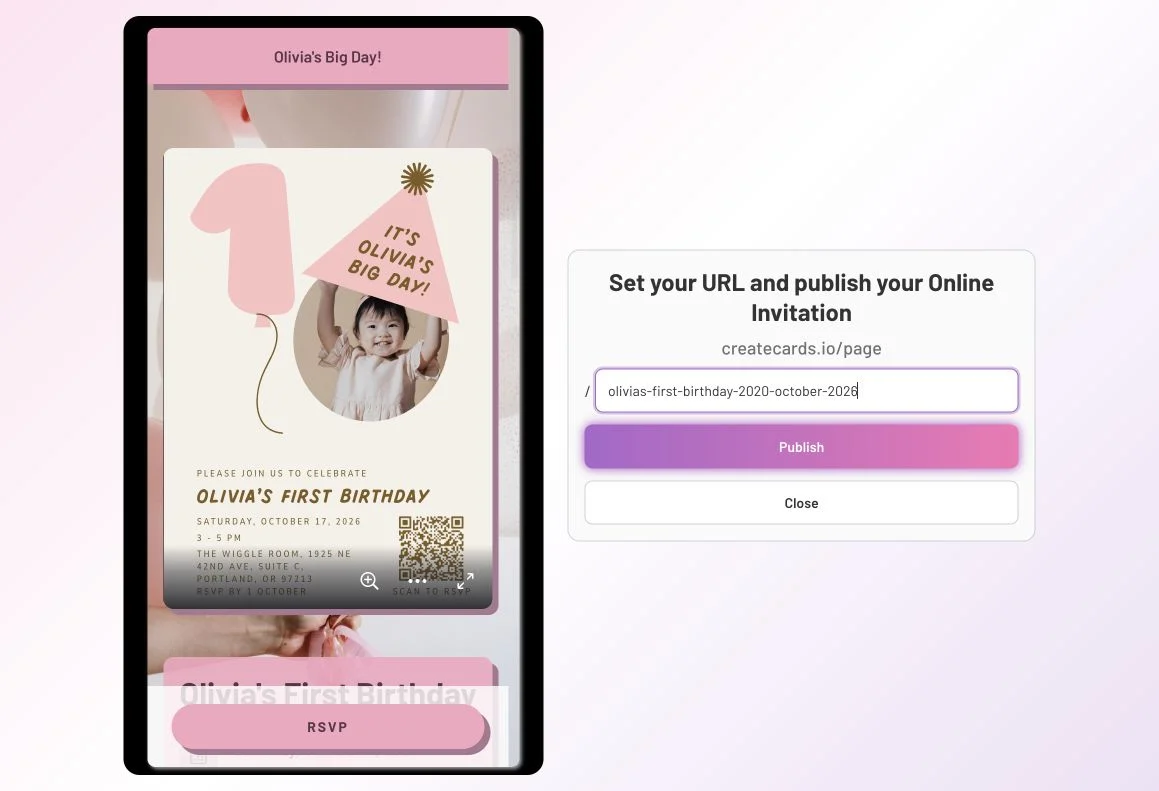
Choose the address guests will use to reach your invitation. Publishing makes the page live; it doesn’t send an invitation message to anyone.
Choose an address you’ll be happy to keep. You can edit it later in Publish & send, but the editor warns that changing it will break links you’ve already shared. Changing event details is different from changing your page’s address.
Decide when to unlock response details
You can send your invitation and let guests reply before deciding whether to pay. Create FREE lets your CreatEcards RSVP page collect replies and gives you a limited preview of response details. After publishing, the upgrade offer explains how you can unlock more guest names, plus-ones and answers for that invitation.
A response allowance counts replies, not individual attendees. If one person replies for a group of four, that uses one response allowance. The three plus-ones don’t use additional allowances or incur a separate charge. For example, 30 responses could represent 30 to more than 100 guests, depending on how many plus-ones are included.
When comparing upgrades, check how many responses you can view in full. Some options cover a set number; others cover every response for your invitation. This allowance controls your access to response details. It doesn’t set your event’s capacity or how many people one group can bring; choose those separately in the RSVP form settings.
If you want to continue on the free plan, select No thanks, maybe later, then Continue. Payment doesn’t control whether guests can reply: your page keeps collecting responses according to your RSVP settings, whether or not you’ve paid. You can upgrade at any time to unlock access to the response details covered by your chosen plan, including replies already received.

The upgrade screen explains what each option unlocks for this invitation. This screenshot is from September 2026; check the offer in your account for current prices and allowances. The response names and count pictured in the offer are an example.
Set the page title, language and PIN protection
In the CreatEcards editor’s Publish & send stage, review Webpage title. This is the name shown in the browser tab, so use wording guests will recognize, such as the celebration’s name.
Choose Default eCard language for your page’s default interface language. The displayed sharing link includes a language setting. Selecting a language changes supported CreatEcards interface text. It doesn’t translate your invitation image or the event information you’ve written.
If you want to protect your page with an access code, turn on Enable PIN protection of your page and enter a PIN. CreatEcards includes that code in the sharing link it generates, so copy the complete link when inviting guests.
Someone who receives that complete link also receives its PIN. Keep this in mind when sharing: the code protects access to the page, but it doesn’t check that the person opening the link is a named guest.
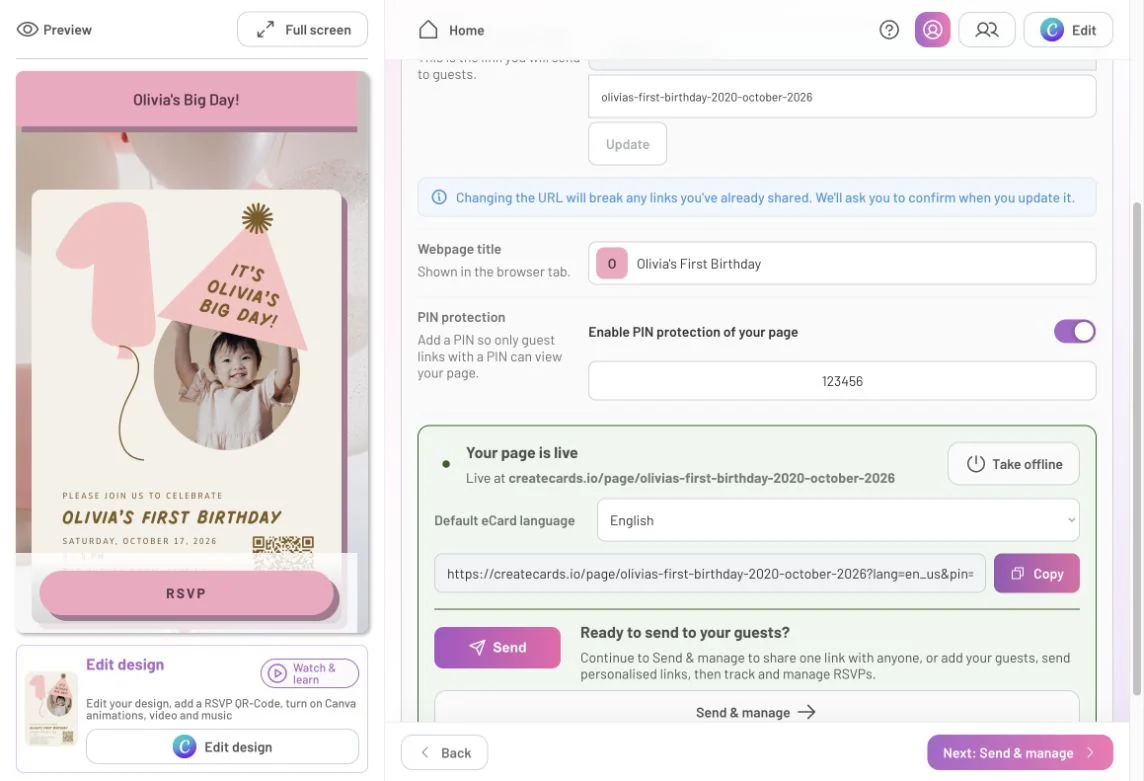
PIN protection adds an access code to the sharing link. A person who receives that complete link also receives its PIN, so share it with the people you intend to invite.
Review these settings before copying the link. If you turn PIN protection off, the generated link no longer includes the PIN.
Confirm the page is live, then prepare to share
After publishing, the CreatEcards editor shows Your page is live, with your invitation’s address, default language and a Copy control. You can copy the link into a message to guests, or select Next: Send & manage to open Page Manager. This is where you manage that invitation’s guest list, prepare messages and review replies.
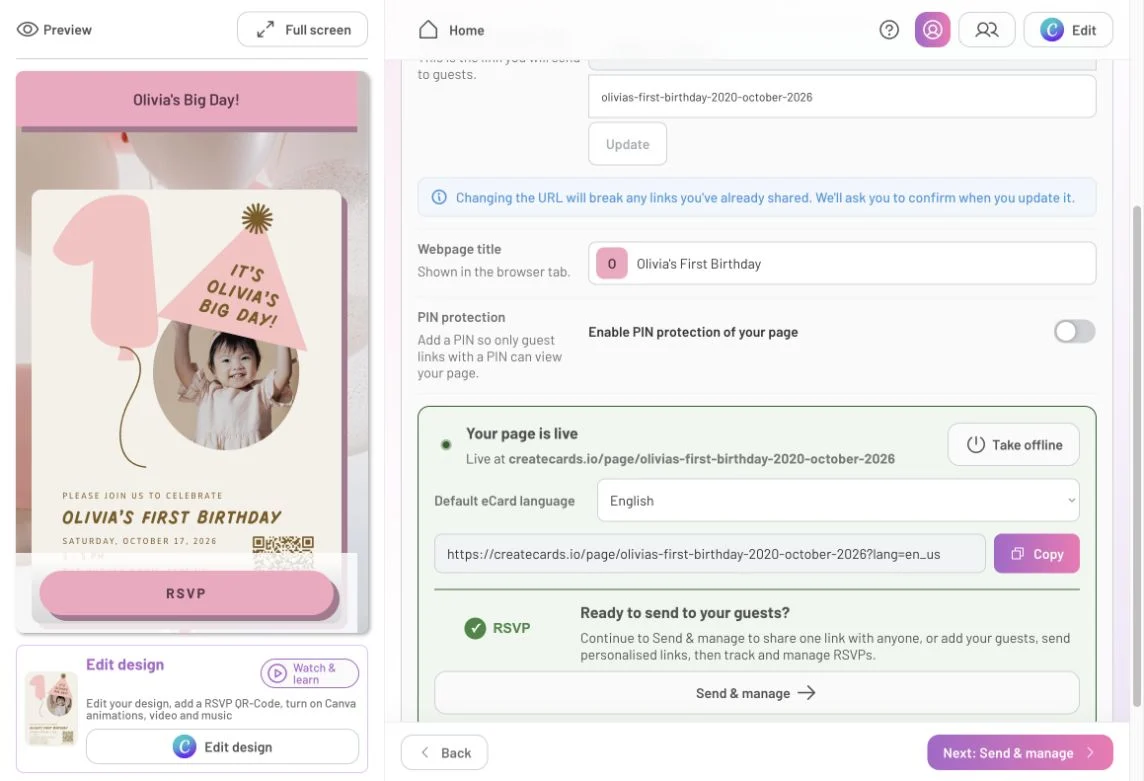
Your page is live confirms that your page is published. Select Send & manage to open Page Manager, where you prepare messages and track replies.
If you need to withdraw your page from view, use Take offline. This is different from pausing replies: to keep the event details available while you stop collecting responses, open RSVP form → RSVP & guests settings in the CreatEcards editor and turn off response collection instead.
FAQs: Publishing and access
Do I have to upgrade before I publish or share?
No. You can publish, share and collect replies on Create FREE, with a preview of responses available to you. Upgrade when you need access to more response details. Check the offer for how many responses each option covers.
Can I upgrade after guests have started replying?
Yes. Your invitation collects replies whether or not you’ve paid, subject to the RSVP settings you’ve chosen. Payment unlocks your access to response details; it doesn’t enable guests to reply. You can upgrade at any time, including after responses arrive, to view the details covered by your chosen plan.
Does my plan’s response allowance set how many people can attend?
No. The allowance counts responses, not individual attendees. One response can include several people, and its plus-ones don’t count as extra paid responses. Event capacity and the maximum people per response are separate settings in your RSVP form.
Does publishing send the invitation to my guests?
No. Publishing makes your page live. You still choose how to share it, either using its link or the options in Send & manage. Copying a link doesn’t send a message either.
Can someone forward a PIN-protected invitation?
The generated sharing link contains the PIN, so forwarding that complete link also passes on the code. PIN protection is not a check of someone’s identity or a guarantee that only named guests will receive the link.
Can I change the page address after sharing it?
You can edit the URL in Publish & send, but changing it breaks previously shared links. Keep the address unchanged when you only need to update event information.
Should I take the page offline when I no longer want replies?
If guests still need the time, location or other details, leave your page live and turn off response collection in RSVP & guests settings. Use Take offline when you want to withdraw your page from view.
Features and benefits: Make your invitation ready to share
Give guests a recognizable place to find the invitation. Choose an address for your occasion and a browser-tab title they’ll recognize when returning to the event details.
Collect replies while you decide when to upgrade. Guests can respond whether or not you’ve paid. Publish and share your invitation, then unlock the response details you need when you’re ready.
Keep event information available when replies are closed. Pausing response collection lets guests return for directions or timings. Taking the page offline gives you a separate choice when you want to withdraw it from view.