You can send your CreatEcards invitation through the email or messaging apps you already use with your guests. Friends might receive it in a group chat, while relatives receive an email. Each message includes a link to your RSVP page, where guests read the event details and reply.
Once your page is published, open Page Manager to prepare your invitations. From the CreatEcards editor, select Next: Send & manage in Publish & send. If you’re returning later, go to Home → Your pages, find your invitation and select Send & manage responses. In Page Manager’s Send mode, choose one shared link or personal links for individual guests or households.
Choose one shared link or personal links
If you just want to put your invitation in a group chat or email it to friends, use One link. Everyone receives the same link, and their replies appear in Page Manager as they RSVP. There’s no guest list to prepare first.
If you want to track your RSVPs and know who has or hasn’t responded, add or upload your guest list to Page Manager first. You’ll then need to send each guest their personal link. That link is what connects their RSVP to their name on your guest list, allowing you to track their response.
Personal links also let you tailor the RSVP settings for each guest or household. You can choose whether they can bring plus-ones or children and set the total number of people their reply can include. You can also choose which contact details they provide: just their name, or their name with an email address, phone number or both. For example, you could invite one household with their children while allowing another guest to bring one adult plus-one.
You’ll find both sending options in Page Manager → Send mode. Choose Personalized to send each guest their own link with the settings you’ve chosen for them. One link uses the same page-wide RSVP settings for everyone.
If you’ve added a guest but send them One link for their RSVP, their response appears separately and their original guest entry remains unanswered. Use their personal link so you can track that reply against your list.
Share the same link with everyone
One link is useful when you want to invite people through a shared conversation, such as a family group chat. Everyone receives the same link and replies using your page’s default guest allowances. You don’t need to enter their names in CreatEcards before sending it.
In your invitation’s Page Manager, open Send mode → One link. Choose the Language, then select Copy link and paste it into your message, email or group chat. That language choice applies to supported page and RSVP controls. Your own message and invitation design stay in the language you wrote them in.
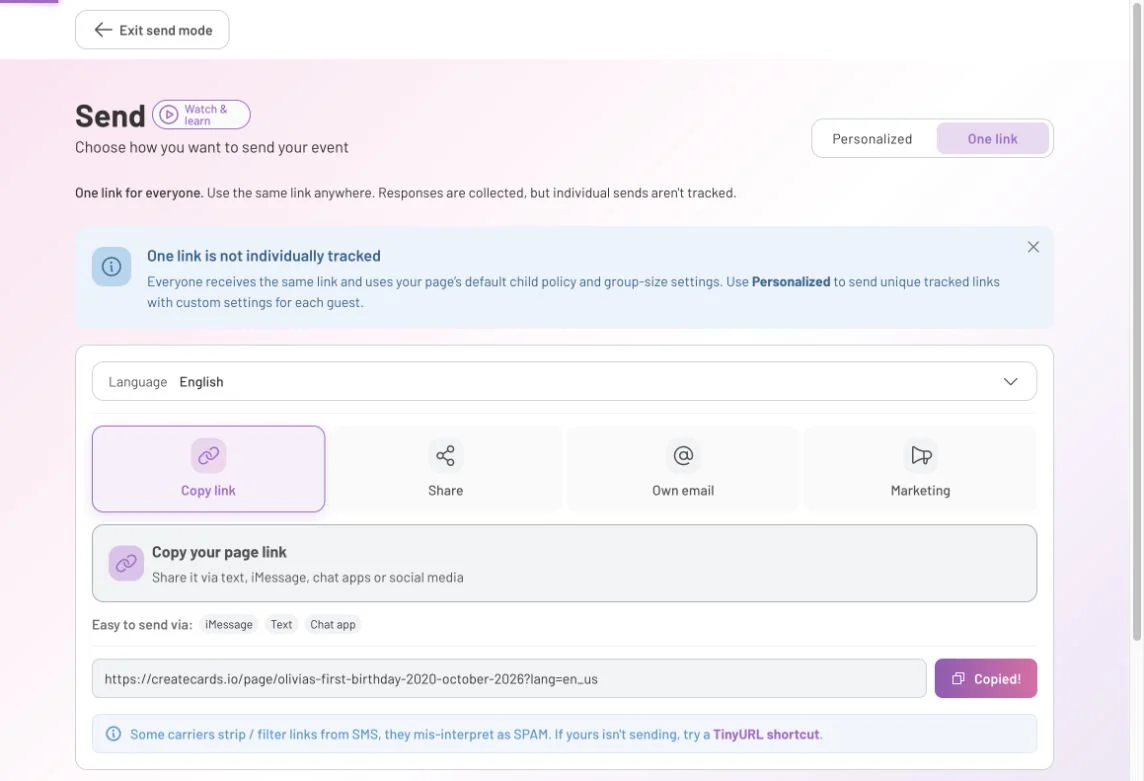
One link collects replies without requiring a guest list first. Everyone opening it uses the page’s default child and group-size settings.
If you’d like help putting your message together, choose Share and select the Invitation template. Add a welcome, the date and place, and a clear request to RSVP. The phone-style preview shows the message alongside the invitation link; edits save automatically.
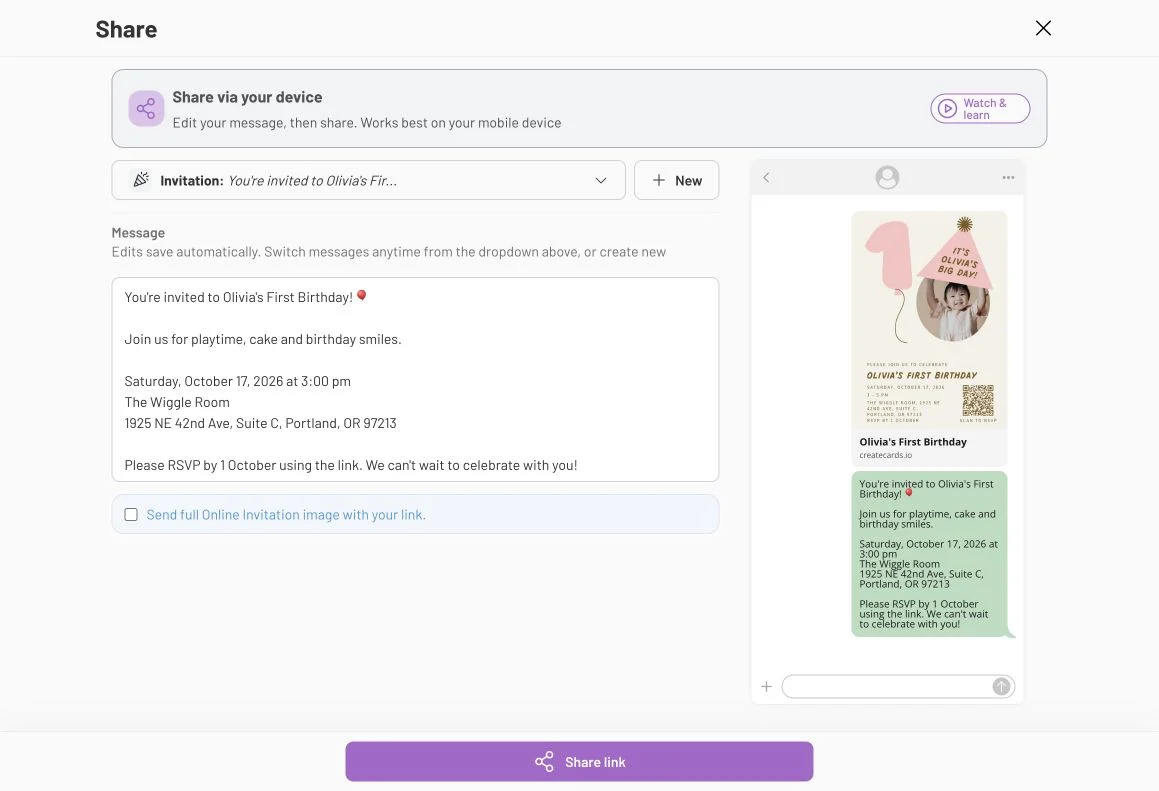
Give guests enough information to recognize the occasion, then direct them to the link to reply. You can also choose the option to include the full invitation image.
Select Share link to continue through your device’s sharing options. Choose the intended conversation or recipient and review your message before sending. If you prefer, use Copy link and compose your message directly in the app you already use with those guests.
Add guests for personal links and individual allowances
Personal links connect each guest’s RSVP to their entry in your guest list, so you can track who has replied and who still needs a reminder. They also let you give different guests or households their own allowances for children and plus-ones. You might welcome one household with their children while inviting another person with one adult plus-one.
In CreatEcards, open Home → Your pages and select Send & manage responses on your invitation. In Page Manager, choose Guests → Add guest.
Add the person who will reply for themselves or their household. For example, you can add one parent as the contact for a family invitation, then set how many people their reply can include.
- Enter their name. You can leave their email and phone number blank if you’ll send the link through a conversation you already have.
- Add a tag, such as “Close family,” if it will help you organize your list.
- Expand the RSVP settings beneath Tags. Choose the contact details they must provide, whether children and plus-ones are allowed, and their Max party size.
- Select Add guest to save their entry. This doesn’t send an invitation.

The guest’s settings can differ from the page defaults. Here, a maximum party size of seven allows the person replying and up to six others.
Asking a guest to provide an email address when they RSVP is different from entering their email yourself. You can leave the contact field blank when adding them and still require it in their reply.
If your guest list is already in a spreadsheet, Bulk add lets you prepare it for upload instead of entering each guest separately. In Page Manager:
- Open Bulk add and choose Download template to see how to arrange your list.
- Prepare the list in that format and save it as a CSV file. The upload window accepts up to 500 guests in a file no larger than 8MB.
- Select your CSV file or drag it into the upload area, then use Add guests to submit it.
Check your guest list afterward. Adding guests prepares their entries; you still need to send each guest their personalized link.
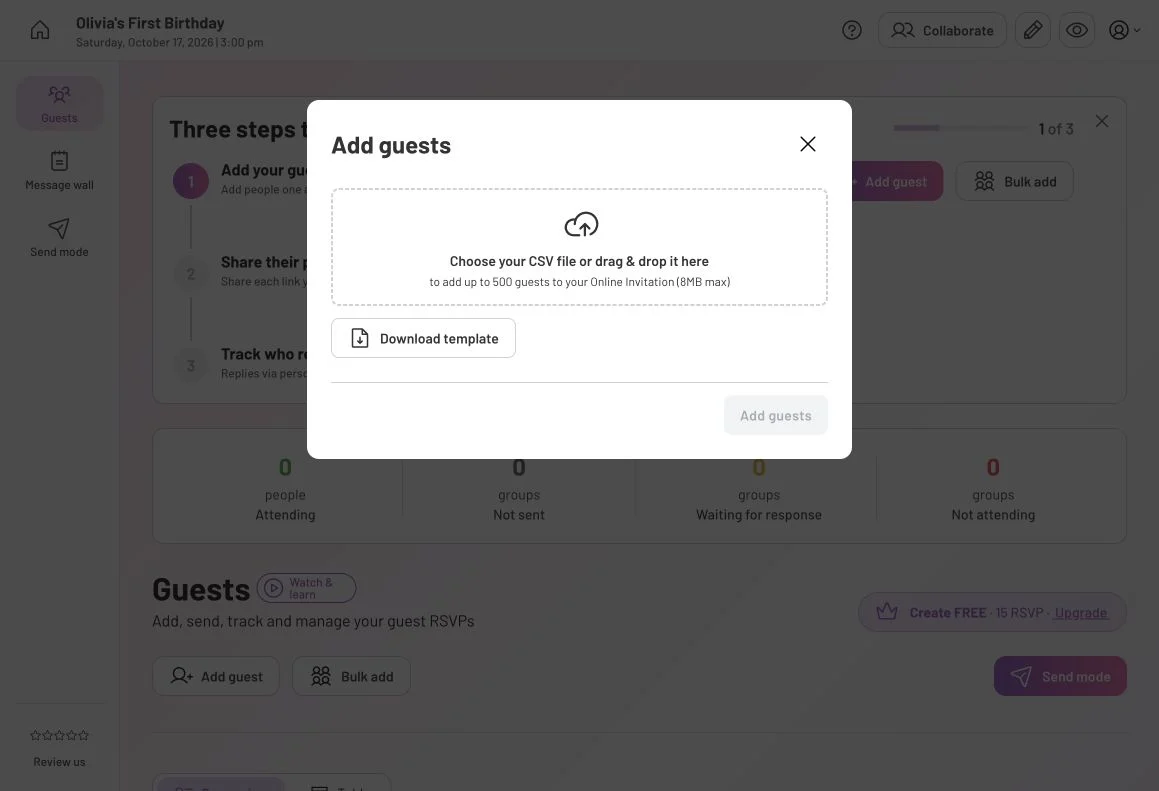
Download the template before preparing your guest list. This window provides the upload area and shows the file and guest limits.
Send each guest their own link
When inviting guests you’ve added to Page Manager, send each guest their personalized link. Their response will update the entry you’ve already created. If you send them One link instead, their reply creates a separate entry, leaving the original guest entry unanswered and showing them twice in your list.
To send their personal links:
- Open Send mode → Personalized and choose a language under Send in.
- Use Add message to choose your message. You can select a saved Invitation message and use Manage to edit it before returning to your guest list.
- With Copy selected, use Copy link only or Copy message on the intended guest’s row.
- Paste it into your email or messaging app, check the recipient and message, then send it to that guest or household.
- Return to Page Manager and use Mark sent for that guest. This records that you’ve sent the invitation; it doesn’t send it for you or confirm that the recipient has read it.

Use the copy action on the correct guest’s row. Emma’s Copied confirmation and Not sent status show that copying and recording a send are separate actions.
You can also choose SMS, WhatsApp or More apps instead of Copy. Review the recipient and message in the destination app before sending, then return to Page Manager to mark the invitation sent. Keeping these records up to date helps you distinguish invitations still to send from replies you’re waiting for.
Send invitations in your guests’ language
For guests who speak different languages, you can choose the language of CreatEcards’ built-in page and RSVP text before sending their invitation link. For example, Spanish-speaking relatives can see Continuar instead of Continue. Their links still open the same event, and their replies are collected together. Your own message, invitation design and event description stay in the language you wrote them in.
In your invitation’s CreatEcards Page Manager, open Send mode and use the language control for your sending method:
- One link: Choose a language under Language, then copy the link. For example, select Español for Spanish-speaking relatives and copy that link into their message. Then choose English and copy the English link for guests who prefer it.
- Personalized: Choose a language under Send in, then copy the intended guest’s link or message.
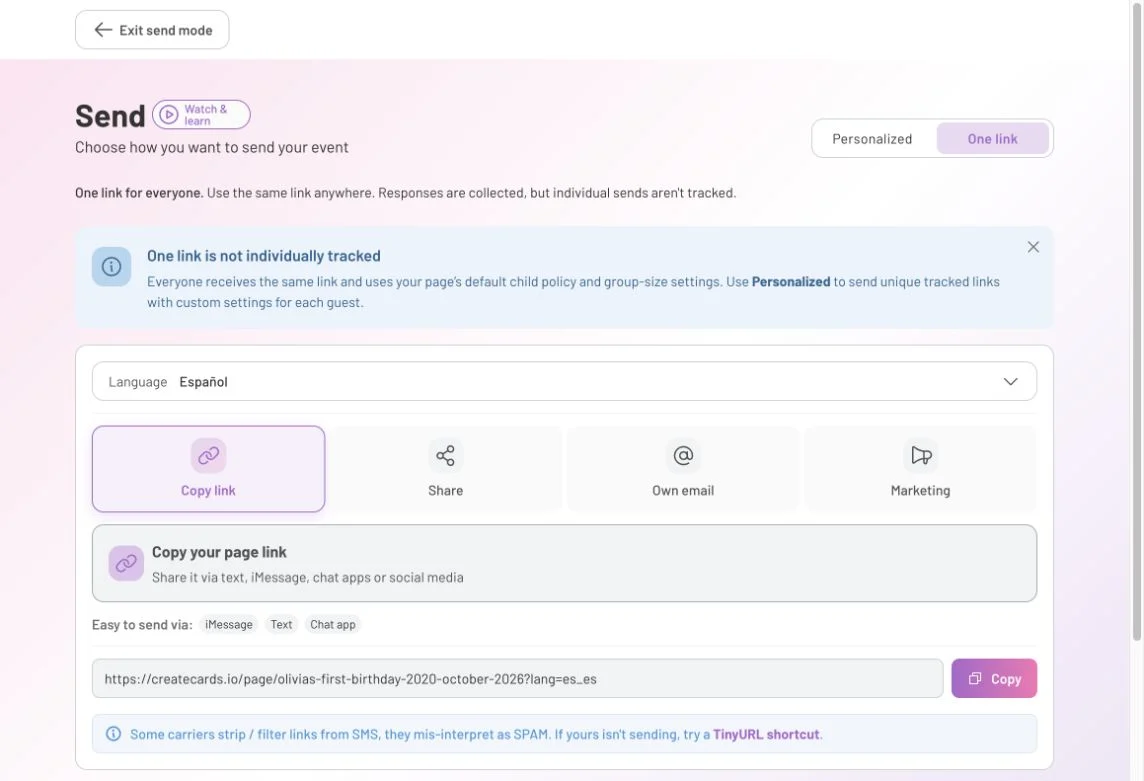
Choose the language before copying. The link opens the same invitation with that language selected for the page and RSVP interface.
For Own email, choose the language in One link before preparing the email. The invitation link in the email keeps that choice. If you’re emailing guests who prefer different languages, prepare a separate email for each language group, with the corresponding link and wording. Each email still uses a shared link, rather than a different personalized link for each recipient.
The language setting changes CreatEcards’ built-in wording. It doesn’t translate your email message, invitation design or the event information you’ve written. Write the welcome and practical details in language your guests understand, and review your custom questions and FAQs too. For a mixed-language event, you could include both languages in important details such as directions and what to bring.
Questions you may have
Why is a guest listed twice?
This can happen if you added the guest first but they replied through One link instead of their personal link. Their reply appears separately while the original guest entry remains unanswered.
It also happens if someone submits another RSVP after already replying, even through a personal link. To change a reply, guests should use Edit response in their Hub or contact you if they didn’t join.
Do I have to add everyone to a guest list first?
No. Choose One link to share without adding guests first. Add guest records when you want personal links, individual RSVP settings and a list you can use to track invitations and follow up.
Can different households have different plus-one limits?
Yes. Add the household’s main guest, expand their RSVP settings and set the child policy, plus-one policy and maximum party size. Send that guest their personal link so they receive those settings. The maximum includes the person replying.
Do I need someone’s email address to create their personal link?
No. You can add a guest without entering an email or phone number and copy their link into a conversation you already use. You can also choose to ask for contact details when they RSVP.
Does Copy or Mark sent mean the invitation has been delivered?
No. Copy prepares the link or message for you to use. Mark sent records that you’ve sent it; it isn’t delivery or read confirmation. Complete the send in your email or messaging app before marking it sent.
Can I invite people in different languages to the same event?
Yes. Choose Language in One link or Send in in Personalized before copying the link for those guests. For Own email, prepare a separate email for each language group. The links lead to the same event with different interface languages; translate your own message and event information separately.
To send your design in an email, prepare a formatted invitation.