Create a formatted invitation to send from your email account
Your email can show guests the invitation design and practical details before they open the RSVP page. CreatEcards helps you put that formatted email together, including the link guests will follow to reply. You then copy it into your own email account and send it from there.
To prepare it, open Send mode → One link → Own email in your invitation’s Page Manager. Everyone receiving this email gets the same invitation link. For the initial invitation to guests you’ve added to Page Manager, send their personal links separately so you can track who has replied. You can use Own email for an event reminder after they’ve responded.
In the CreatEcards email editor, choose Invitation under Choose from your emails, or start a new email. Edit the welcome and RSVP link wording. The insert controls let you add your event’s date and time, venue, address, title or logo without retyping those details. Check the preview to see how the message and design fit together.
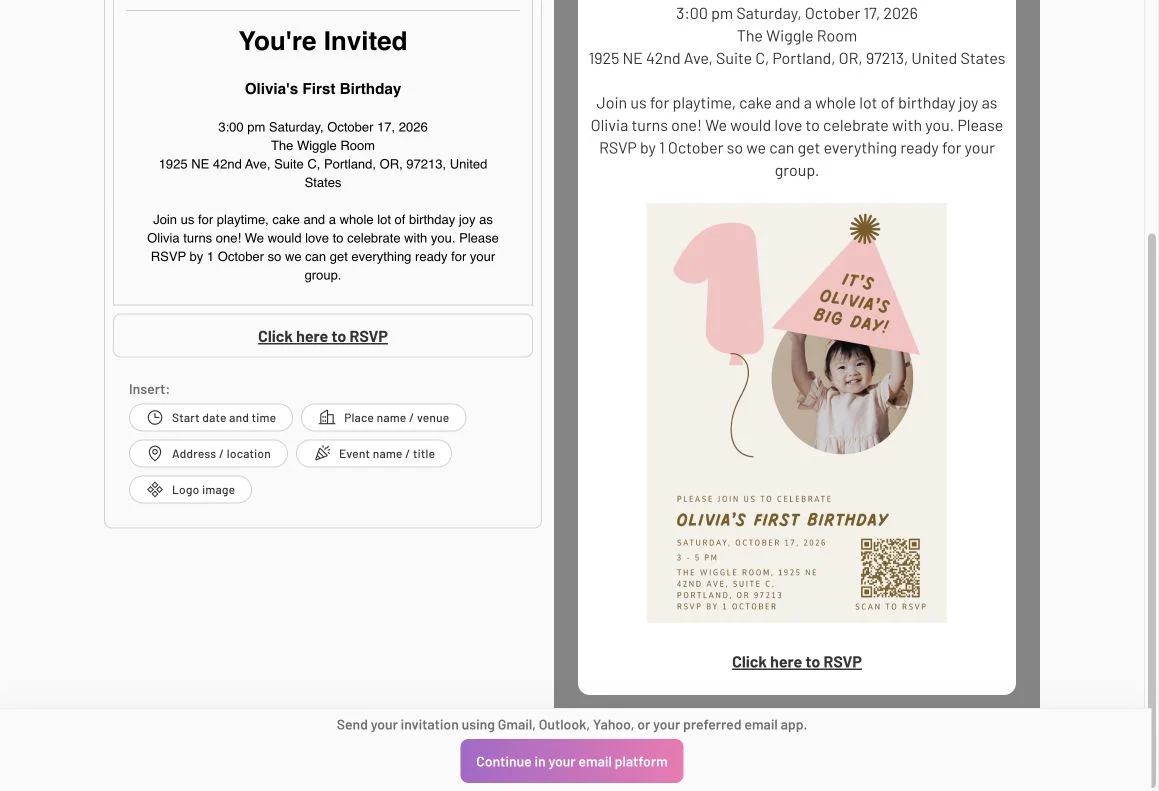
The email gives guests a preview of the occasion and a link to the RSVP page. The wording around your design is editable.
When your invitation looks right in the preview, move it into your email account:
- Select Continue in your email platform. The next window confirms that the email design has been copied.
- Choose Gmail, Yahoo or Outlook, or use Copy email for another email app. Open a new email and paste the design into its body.
- Add a subject and your recipients. Use Bcc when emailing several guests so their addresses stay hidden from one another.
- Check the pasted layout and RSVP link, then send from your email account.
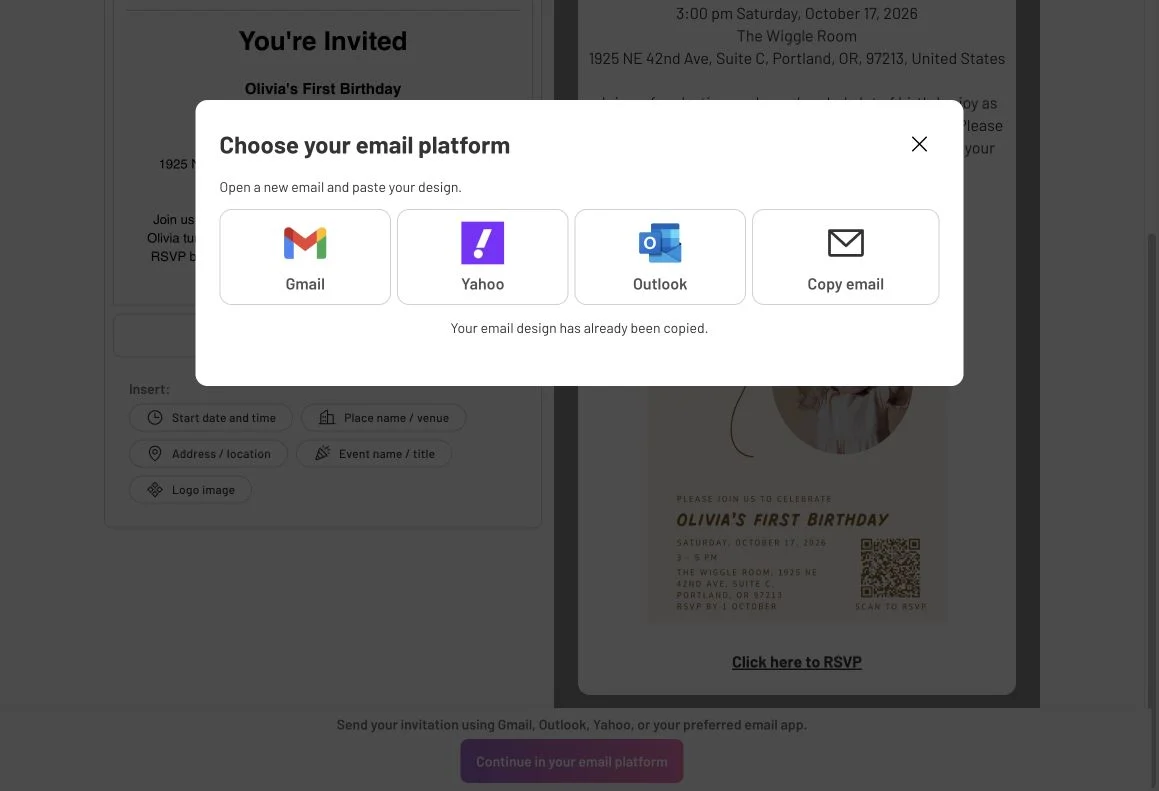
Copy the prepared invitation into a new email, then review and send it from your email account.
Prepare your email in Yahoo
You can prepare your invitation in CreatEcards, then copy it into Yahoo Mail to send. Own email uses one shared invitation link for all recipients. For Personalized invitations, send each guest their own link separately.
- In your invitation’s Page Manager, open Send mode → One link → Own email and prepare your email. Make any wording changes here before copying it into Yahoo.
- Select Continue in your email platform → Yahoo.
- In Yahoo Mail, open New message and paste your invitation into the message body.
- Add a subject that names your occasion, such as “Olivia’s First Birthday: You’re Invited.”
- Add your recipients. When emailing several guests, select Cc Bcc and put their addresses in Bcc so they stay hidden from one another.
- Check your recipients and subject, then scroll through the email to confirm that your event details, full design and RSVP link are included. Send from Yahoo when you’re ready.
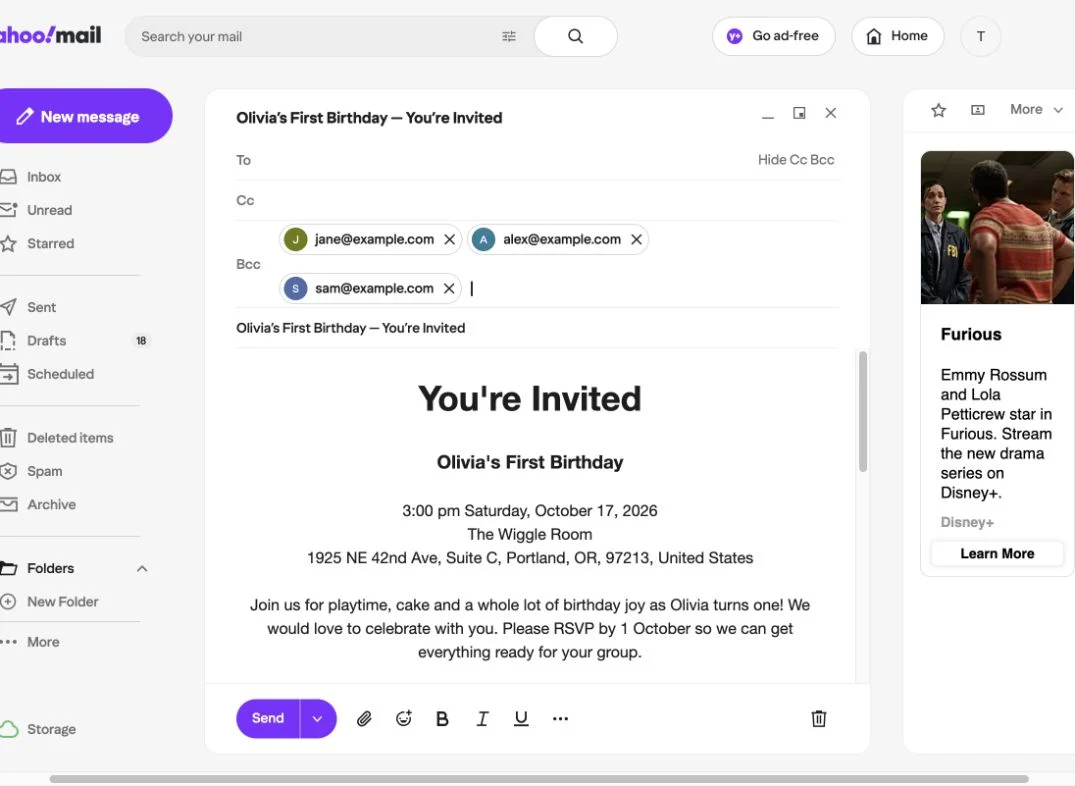
Bcc keeps recipients’ addresses hidden from one another. This example shows a prepared draft, not a sent email.
Saving a draft leaves it ready to return to later; it doesn’t send your invitation.
Questions you may have
Does CreatEcards send the email for me?
With Own email, you send it from your own email account. CreatEcards prepares your formatted invitation for you to copy. Open a new email, paste it into the body, add a subject and recipients, then review and send. Opening your email app or copying the invitation doesn’t send it.
Will everyone in my email receive the same invitation link?
Yes. Own email uses One link, so everyone receives the same invitation link. For an initial invitation, this suits collecting replies without adding a guest list first. If you’ve already added guests and want to track who replies, send their personal links separately.
After guests have replied, you can use Own email to send them a shared event reminder. They can follow its link to read the event details. To change their RSVP, they need to use the Hub or contact you; submitting the form again creates another response.
How can I email several guests without showing their addresses to one another?
Put the recipients in Bcc so they can’t see one another’s email addresses. In Yahoo, select Cc Bcc to show that field. Everyone receives the shared invitation link prepared through Own email.
For individual guest links, see personalized invitations.