Your guests open the CreatEcards invitation in their browser, read the event details and complete the RSVP form. They don’t need to install an app or create an account to reply. Guests who choose to join the free Hub can find their invitations and update their responses there later.
What guests see when they open the invitation
Guests may first see your invitation in a conversation they already use with you, such as iMessage or WhatsApp, or in their email inbox. Your message introduces the occasion and gives them the practical details, while your invitation design sets the mood. Include the invitation link so they can open the page and reply.
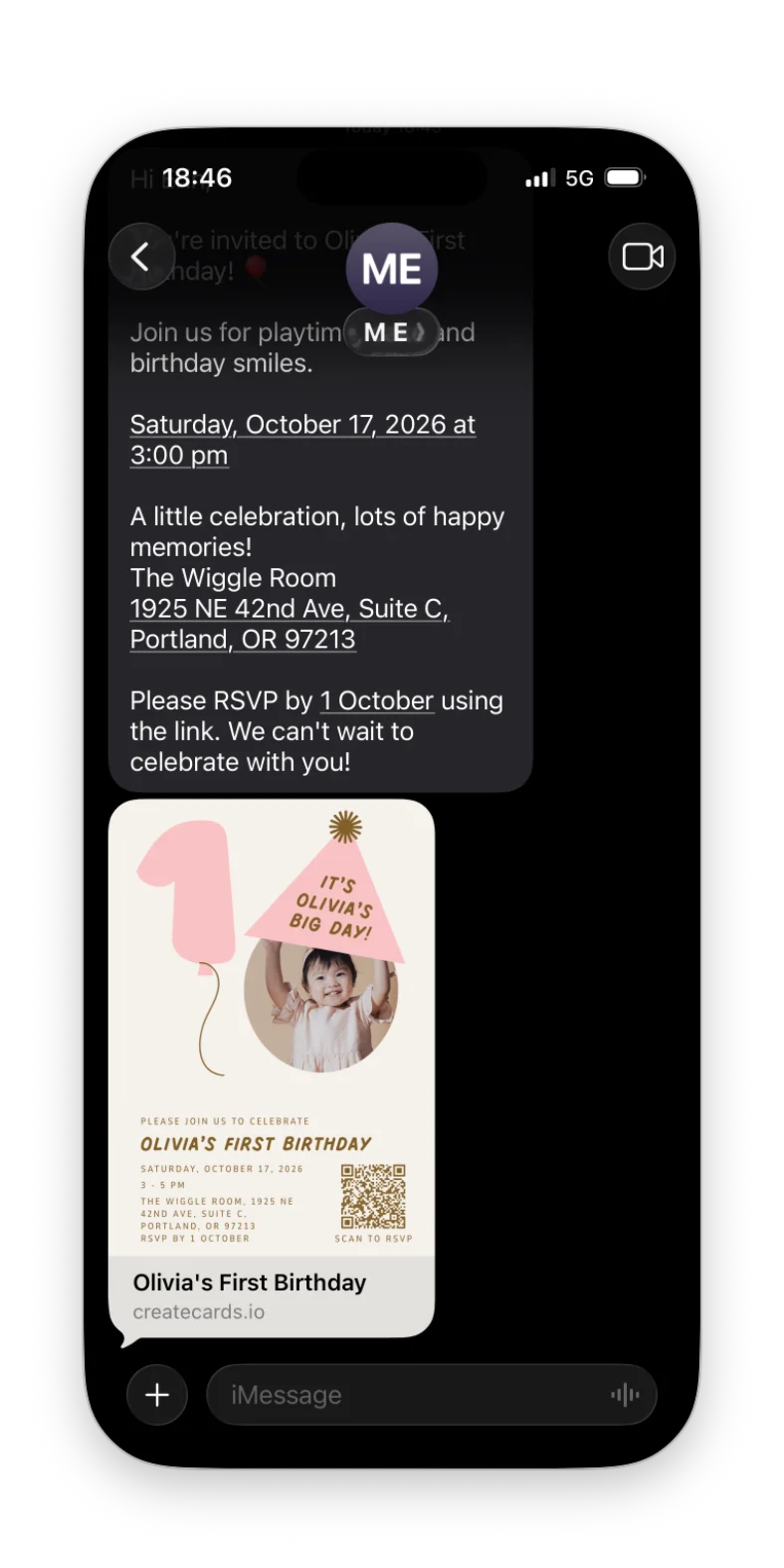
In iMessage, the invitation link appears as a preview with the design and event name. Guests can tap it to open the invitation.
In WhatsApp, the invitation can appear with a preview of the design above your message. Guests read your greeting and event details in WhatsApp, then follow the link to your CreatEcards RSVP page to reply.

This WhatsApp example shows the invitation preview above the message. Guests follow the invitation link to open the RSVP page.
When the opening screen is enabled, the invitation design greets guests before they reach the event details. On a phone, they tap Continue to read more and reach the RSVP button.
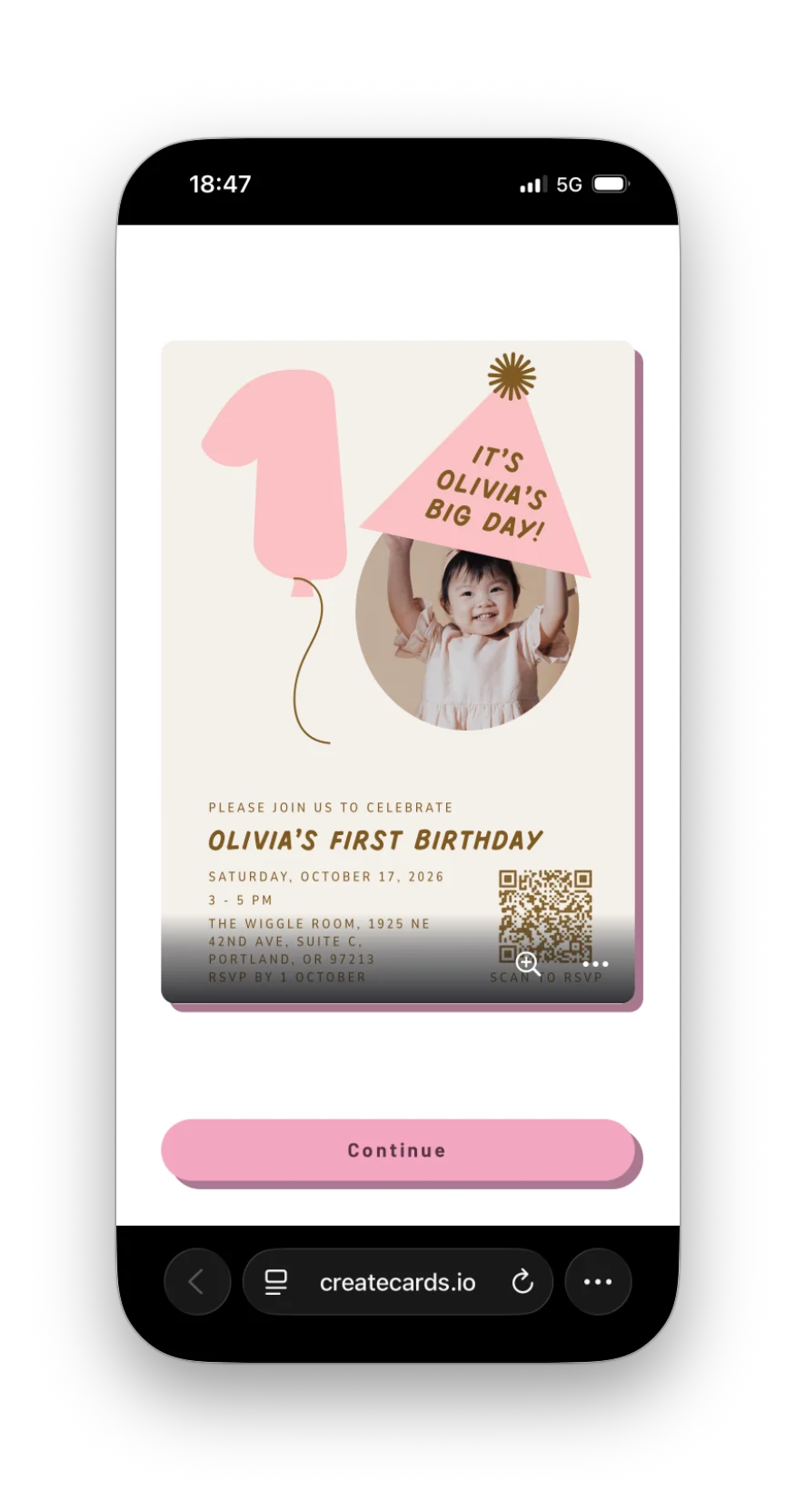
The invitation opens in the phone’s browser. Continue takes guests from the design to the event information.
When guests receive an invitation by email, they select its RSVP link to open the CreatEcards invitation in their browser. The Yahoo example below uses Click here to RSVP. The opening screen appears if you’ve enabled it.

The email’s RSVP link takes guests to the invitation. They can read about the event before starting their reply.
On the page, guests can scroll through the date, venue, schedule and other information you’ve added. They can open FAQ answers to check things such as dress code or whether siblings are welcome. The RSVP button stays visible as they scroll, so they can reply when they have the information they need.
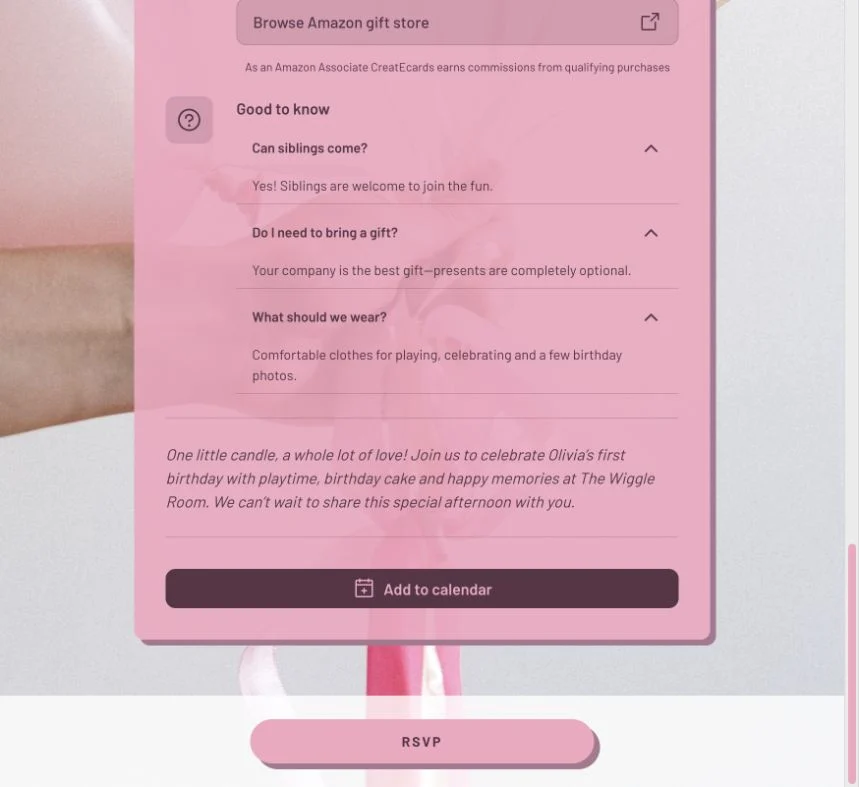
Guests can read your answers on the invitation before deciding how to reply.
Read and reply in a familiar language
When you send a CreatEcards invitation link with a language selected, guests see the page and RSVP controls in that language. For example, a Spanish-language link shows Continuar on the opening screen and Añadir al calendario for the calendar option.
If you’ve enabled Show multi-language selector on page in the CreatEcards editor’s Styling panel, guests can use the globe on the invitation to choose another available language for the page and RSVP interface. This doesn’t translate your invitation design or the event information you’ve written. Add any translations your guests need to your design, description, FAQs and custom questions.
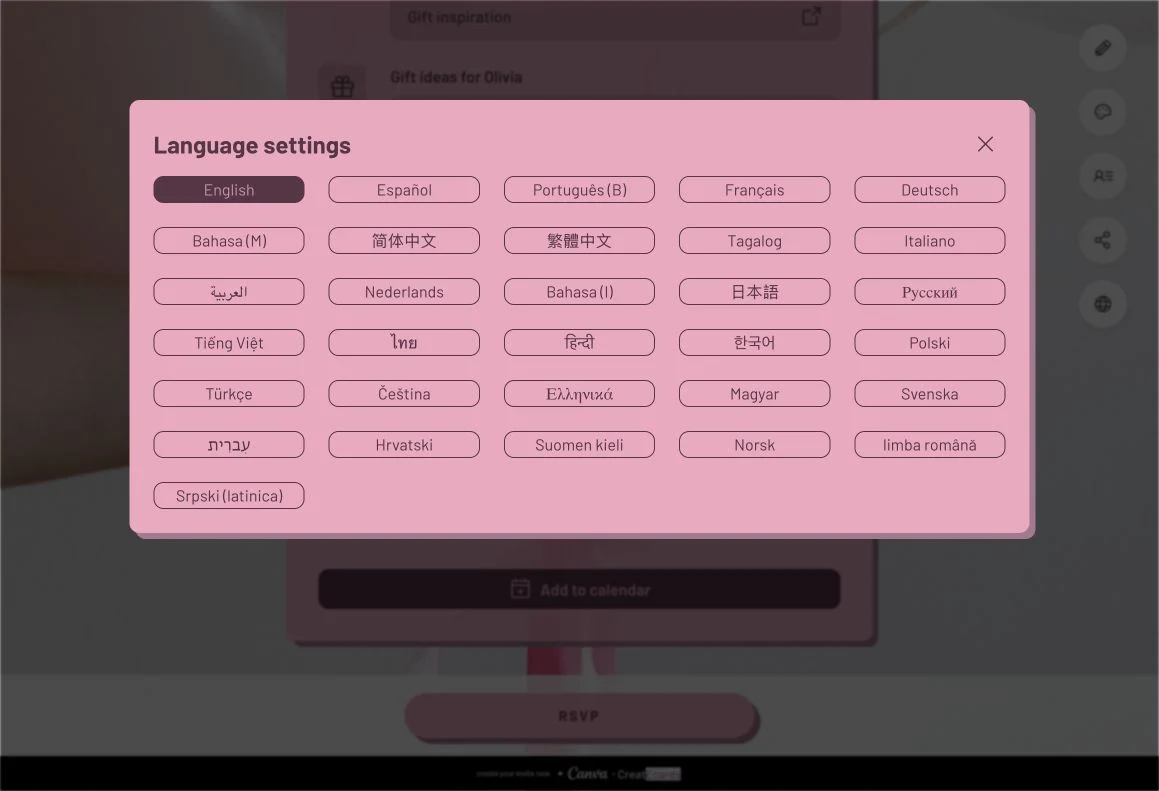
The globe opens Language settings on the invitation. This host preview shows the available choices; guests see the selector when you enable it in Styling.
How guests send their reply
Once guests have read about the event, they select RSVP on your invitation page to tell you whether they’re coming. The form asks for the contact details and answers you chose during setup, and lets them include other people according to your guest allowances.
A personal invitation link may greet the guest by name. They check their details, choose their attendance and continue through the form. Their answer reaches you when they finish submitting the RSVP.
When guests are attending
In the invitation’s RSVP form, guests who can come choose Yes, I/we will be attending at the Attendance step. What they complete next depends on the form you’ve chosen and the guest allowances you’ve set. A family replying through Simple RSVP gives you a headcount; with Detailed RSVP, the person replying adds each attendee by name so you can keep their answers separate.
The examples below use Children allowed, where adults attend as guests and can bring children. For a children’s party using Children’s Event, the RSVP collects the children’s names, even when adults accompany them to supervise.
- With Simple RSVP, guests enter how many people are coming, including themselves. When children are allowed, they provide adult and child counts, then answer your questions for the group.
- With Detailed RSVP, the main guest completes their own answers and selects Save. They then use Add group member (plus one) for each person coming with them, entering the name, selecting Adult or Child where available, and answering your questions for that person. They save each person before continuing.

With Simple RSVP and children allowed, Daniel enters the number of adults and children coming in his group.
For example, Emma is attending with Lily. She answers the questions for herself first, then adds Lily as a child and records Lily’s own dietary and accessibility needs. You receive separate answers for each of them, rather than having to work out which person a household answer describes.

These answers are saved against Lily’s name. The sample questions still say “your group”; when setting up Detailed RSVP, word your questions for each person.
After saving, Emma can see both names in the group list. This is the point to check that everyone coming has been included before selecting Next. Saving a group member keeps their details within the form; the full RSVP still needs to be submitted.

The list shows Emma as the primary guest and Lily as a child. Next continues toward submission.
When guests can’t attend
In the invitation’s RSVP form, guests who can’t attend choose No, I/we cannot come at the Attendance step. They can leave an optional private message for you before submitting their reply. They still need to finish submitting the reply so you know their answer.

Declining is a reply too. Guests can let you know they can’t make it and include a personal note.
Finish the reply and check its confirmation
Before submitting, guests can choose how they’ll return to their reply if plans change. The free Hub lets them find the invitation and edit their response themselves later. They can also submit without an account, but will need to contact you to request a change.
At the final stage of the RSVP form, they have two options:
- Reply without an account: choose Skip and submit to submit the RSVP. If plans change later, they’ll need to contact you to update their reply.
- Join the Hub: complete signup, then review the RSVP and select Submit. Joining gives them a place to find the invitation and edit their reply themselves later. Signup alone doesn’t submit the RSVP.
Guests who already have a Hub account can sign in at this stage instead of creating another account, then continue to review and submit their RSVP.
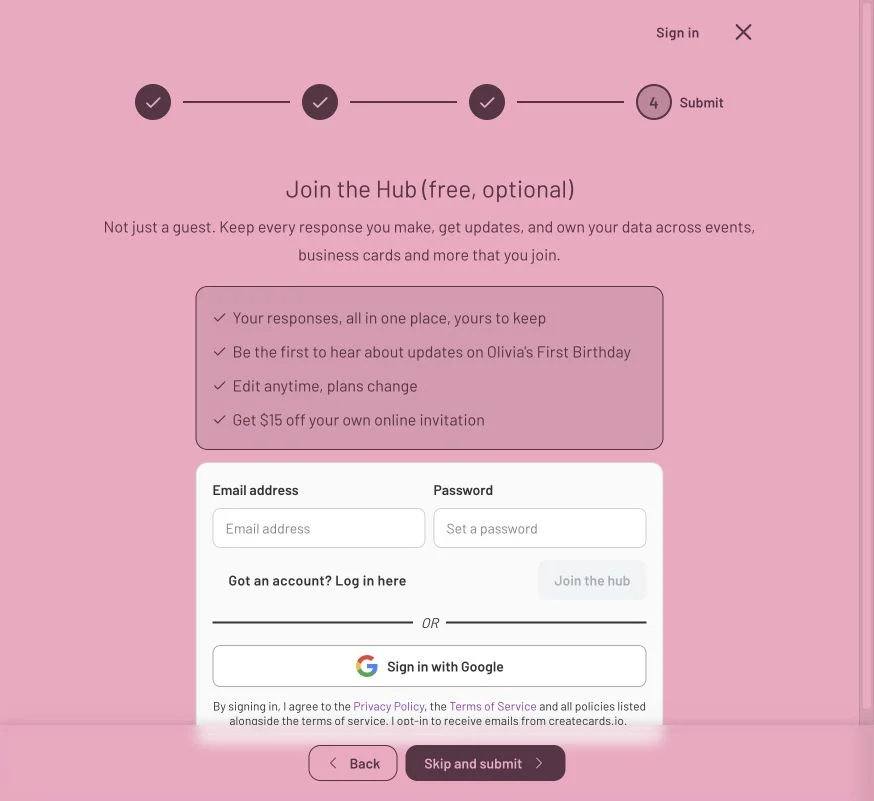
Guests can submit without joining the Hub. Those who join still complete the final RSVP submission. Check the current Hub offer for any reward details.
Guests who join or sign in to the Hub continue to Ready to submit?, where they check their attendance and group totals before selecting Submit. In Emma’s example, the summary shows 1 Adult • 1 Child, matching the two people she added.

Ready to submit is the review step. Selecting Submit completes the reply.
The confirmation Done! Thanks for your RSVP tells guests their answer has been submitted. It appears after a completed reply, whether they’re attending or declining. Guests who have joined the Hub can use Visit the hub to find the invitation and their response again.

This is the completed-reply confirmation, shown here after Jane’s decline. Visit the hub opens her saved responses.
Questions you may have
How do guests RSVP from an email, iMessage or WhatsApp invitation?
They follow the invitation link to open your CreatEcards RSVP page in their browser. If there’s an opening screen, they select Continue. Guests can read the event details and FAQs before choosing RSVP and completing the form. They submit their reply on the CreatEcards page, rather than by replying to your email or chat message.
Can guests choose another language when they open the invitation?
If you’ve enabled the language selector, guests can select the globe and choose an available language for the page and RSVP interface. Your design, event details and custom questions stay in the language you wrote them in.
How do guests know their reply has been submitted?
They see Done! Thanks for your RSVP after submitting the form. Choosing their attendance, saving a plus-one or joining the Hub doesn’t finish the reply on its own. They need to continue to the final submission and check for that confirmation.
Can guests leave a message if they can’t attend?
Yes. They can choose No, I/we cannot come and add an optional private message for you. They finish submitting the form so their decline is recorded. The message isn’t posted publicly on the invitation.
Do guests need an account to RSVP?
No. When the Hub signup appears, they can choose Skip and submit to reply without creating an account. This applies whether they’re attending or declining. If they choose to join the Hub, they review their response afterward and select Submit to finish.
Guests who join the Hub can find and change an existing response.