Help guests return to their invitations
Guests may need to check the venue again, remind themselves what they replied or let you know their plans have changed. The free CreatEcards Hub keeps invitations they’ve replied to together, with their current attendance status and a way to reopen each invitation.
Guests can join the Hub when replying. Once their RSVP is submitted, they can return there to read the event details or update their existing response, including their attendance, answers and private message.
After submitting, they can select Visit the hub, or return to Hub → Responses when signed in. Each invitation card shows the event name, date, venue and their attendance status, with View online invitation and Edit response controls. This is separate from Your pages, where hosts find the events they’re organizing.

The response card gives guests a way back to the event and the answer they’ve already submitted.
The Hub also has a Rewards area where guests can view offers available to their account and check what’s required to claim them. The invitation card also displays calendar, gift and personal-data controls, separate from editing the RSVP.
Change a reply through the Hub
A guest who originally declined may find they can come after all, or someone attending may need to change a meal answer or add an allowed plus-one. Guests who joined the free Hub when replying can make these changes themselves. Those who didn’t join need to contact you to update their response.
To change a reply, the guest signs in to CreatEcards and opens Hub → Responses. They find the invitation and select Edit response. This reopens their existing RSVP with the saved details, so they can review what they previously submitted before making changes.
Opening an invitation link and completing the RSVP form again creates another response, even if the link is personal. Guests should use Edit response in the Hub to change the reply they’ve already made.
- Check the name and continue to Attendance to update whether they’re coming.
- Review the questions and private message. When changing from a decline to attending, replace an earlier apology if it no longer fits.
- If plus-ones are allowed, add the people coming with them. With Detailed RSVP, use Add group member (plus one) and complete each person’s name and answers, saving each one.
- Continue to the final review, check the attendance and adult/child totals, then select Submit. Saving a person’s details is a step within the form; Submit completes the updated reply.
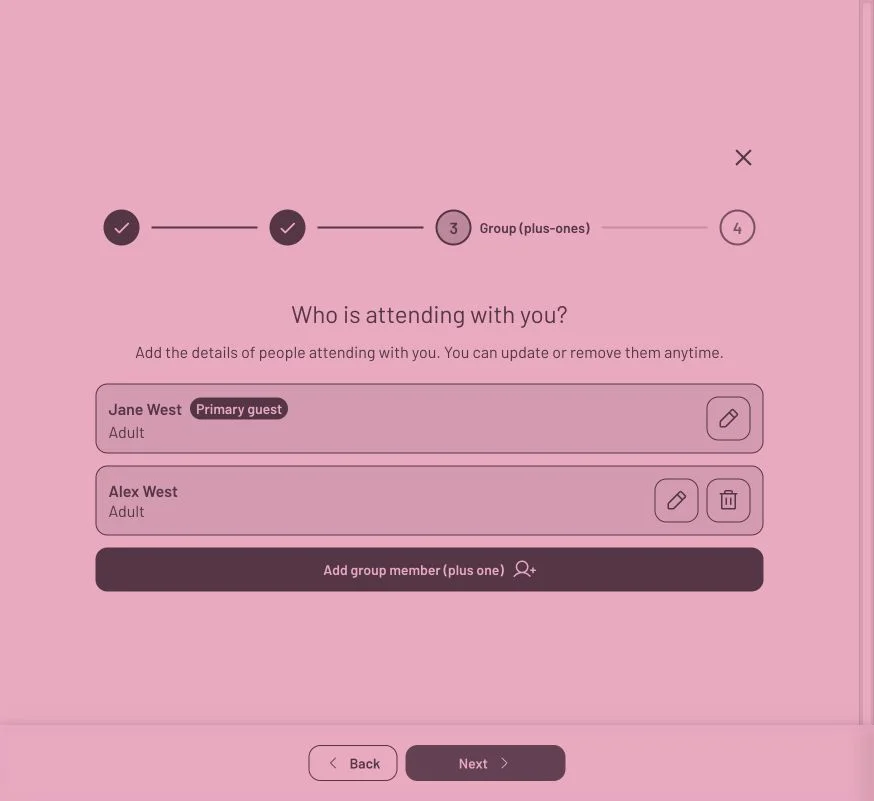
Jane’s updated reply includes Alex as a named plus-one. Each person has their own answers, and the group is reviewed before submission.
After the confirmation, Visit the hub returns to the invitation card. Its status reflects the updated reply. In this example, Jane’s original Not attending card now says Attending, with the same event still listed once.

The existing response is updated, so the guest can see their current attendance status when they return.
Questions you may have
Can guests change their RSVP by replying again through their invitation link?
No. Submitting another RSVP creates a duplicate response, even through a personal link. Guests who joined or signed in to the Hub when replying should use Edit response there. Other guests need to contact you so you can update their existing reply.
Can guests change their reply if they didn’t join the Hub?
No. Guests who skip Hub signup need to contact you if their plans change or they need to correct an answer. Joining the free Hub when replying lets them return and edit their response themselves.
What does joining the Hub give guests?
The free Hub gives them a place to return to invitations they’ve replied to and see their attendance status. If their plans change, they can open the invitation again or edit their existing response. Joining is optional.
Where do guests find the invitation again?
Guests who joined the Hub when replying can sign in and open Hub → Responses. On the event’s card, View online invitation opens the details and Edit response lets them change their reply. This is separate from Home → Your pages, where you find the events you’re hosting.
Can guests change their reply if they can come after all?
Yes. Guests who joined or signed in to the Hub when replying can open Hub → Responses and select Edit response on the event’s card. They can change their attendance, review their answers and update any private message that no longer fits. They then continue to the final review and select Submit. Guests who replied without a Hub account need to contact you to make the change.
Can guests add someone to their reply later?
Yes, within the plus-one allowance you’ve set. Guests who joined or signed in to the Hub when replying can open Edit response there. With Detailed RSVP, they choose Add group member (plus one) and complete the person’s name and answers. They save those details, then continue to the final review and select Submit. Guests who replied without a Hub account need to ask you to update their response.