As replies arrive, you can use them to plan how many people to cater for and what each guest needs. Your invitation’s Page Manager brings those replies together, whether guests received their links by email, text or another messaging app.
Start with the attendance summary for adult and child totals. Use the guest list to check who has replied, then open Table to read the answers to your custom questions. This lets you move from an overall headcount to the meal choices, dietary requirements or other arrangements you need to prepare.
Check who’s coming and how many people that means
Sign in to CreatEcards, open Home → Your pages and select Send & manage responses on your invitation. This opens its Page Manager. If you’re still preparing messages, choose Exit send mode to return to the guest overview.
At the top of Page Manager, you can see how many adults and children are coming. When you add guests and send personal links, the guest records also help you see which people or households still need an invitation, haven’t replied or aren’t attending. Keep Mark sent up to date after sending each invitation.
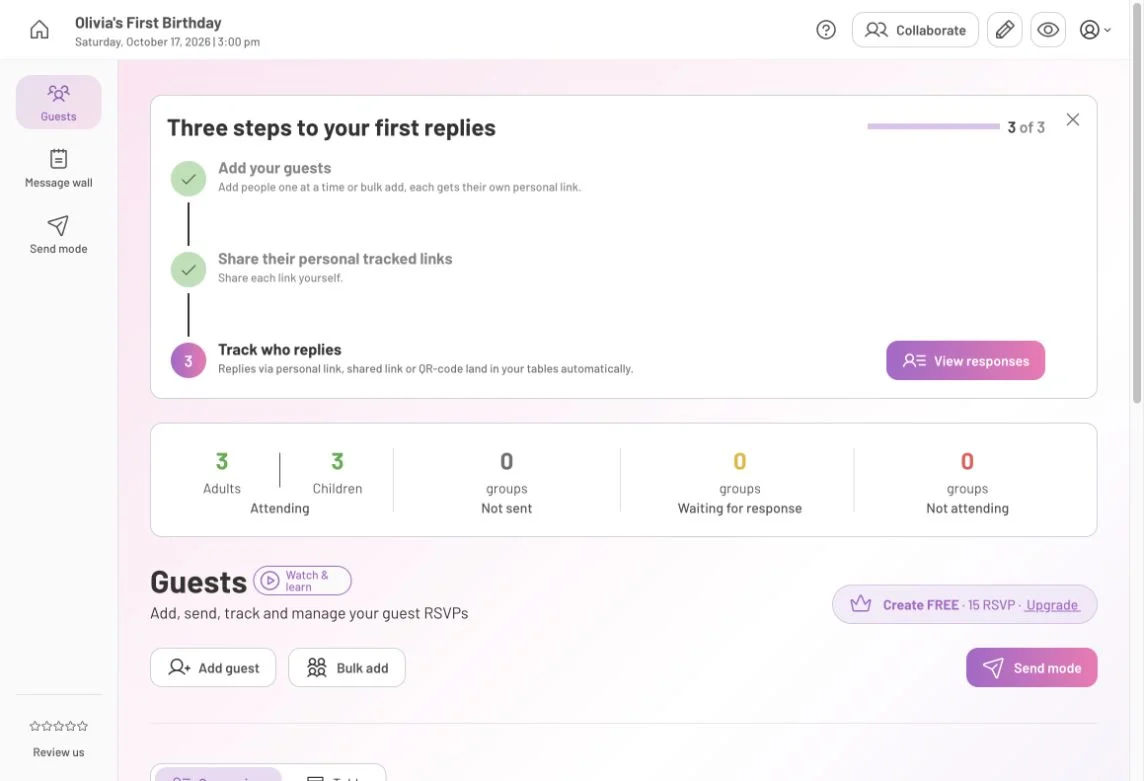
In this example, two responding groups account for six attendees: three adults and three children. Use attendance totals when planning how many people to cater for.
In Group view, each card shows the name of the person replying, whether they’re attending, and how many adults and children are coming with their group. For example, Daniel’s card shows that he’s attending with a group of two adults and two children. Any tags you’ve added, such as “Close family,” appear on the card too.

Daniel’s card shows his reply, his group’s adult and child counts, and the Close family tag. This earlier view shows Emma before she replied.
Switch to Table when you want to read answers to your custom questions. With Detailed RSVP, you’ll see every attendee’s name and their answers. With Simple RSVP, the group appears under the name of the person who replied, with one set of answers for everyone in that group.
To find a particular guest, search by their name. To review confirmed guests, choose Attending in the Status filter; choose Waitlisted when you want to review guests waiting for a place. Use Sort → Date responded to arrange replies by response date, or Sort → Name to find people in alphabetical order. Other sort options include date added, email and party size.
For personal invitations, use these records alongside Mark sent to check who still needs an invitation and who has been invited but hasn’t replied. Mark sent is your record of sending, not a delivery or read receipt.
Read the answers you need for food, seating and access
A headcount tells you how many people to expect. The answers to your custom questions help you understand what to arrange for them, such as a vegetarian meal or a quieter place for a child.
Open Table in your invitation’s Page Manager to read those answers alongside the guest names. With Detailed RSVP, each attendee has their own answers. With Simple RSVP, one set of answers covers the household or group, so read it in that context. In the example below, Emma and Lily have separate answers, while Daniel has answered for his whole group.

Emma’s vegetarian meal and Lily’s request for a quiet space appear against their names. Daniel’s answer applies to his group. These are sample responses.
If you change from Simple to Detailed RSVP after people have replied, their earlier answers stay as they were. A group reply won’t gain individual names that you didn’t collect.
Your plan determines how many response details you can view. Your invitation continues collecting replies whether or not you’ve paid, subject to your RSVP settings. You can upgrade when you need access to more of those details.
Record or change a reply for a guest
A guest might tell you they’re coming by phone, reply in a message or ask you to complete the form for them. You can record that answer in CreatEcards so it stays with the replies you’re using to plan your event.
In CreatEcards, open Home → Your pages and select Send & manage responses on your invitation. Then find the guest in Page Manager:
- They haven’t replied: choose Submit for guest and complete their RSVP on their behalf. If they aren’t on your list yet, use Add guest first.
- They already have a recorded reply: choose Edit response to update it. The control changes from Submit for guest once a response exists.
This also lets you help guests who skipped Hub signup and can’t return to edit their reply themselves. Use Edit response for changes to their RSVP; the pencil control changes their invitation settings.
Download your guest data
You can download your guest data when you want to work with it in a spreadsheet. In CreatEcards, open Home → Your pages and select Send & manage responses on your invitation. In its Page Manager, select Download above your guest list to save the data as a CSV file.
Read the personal messages guests left for you
Guests can leave you a personal message when they RSVP. CreatEcards brings these notes together in your private Message wall, where you can read each message alongside the guest’s name and attendance status. The messages aren’t displayed publicly on your invitation.
To find them, open Home → Your pages in CreatEcards and select Send & manage responses on your invitation. Then choose Message wall from the left navigation in Page Manager.

Personal notes live in Message wall. Dietary and other custom-question answers are in the response table.
Invite someone (a co-host) to help you manage the event
You can share the work of organizing with a partner, relative or friend by inviting them to collaborate on your invitation. This gives them access to help manage that event. Adding them as a guest is a separate action for collecting their RSVP.
In CreatEcards, open Home → Your pages and select Send & manage responses on your invitation. In its Page Manager:
- Select Collaborate at the top.
- Enter the person’s email address and select Add / invite.
- Check their status in Manage collaborators. Invited · awaiting acceptance means they still need to accept the invitation.
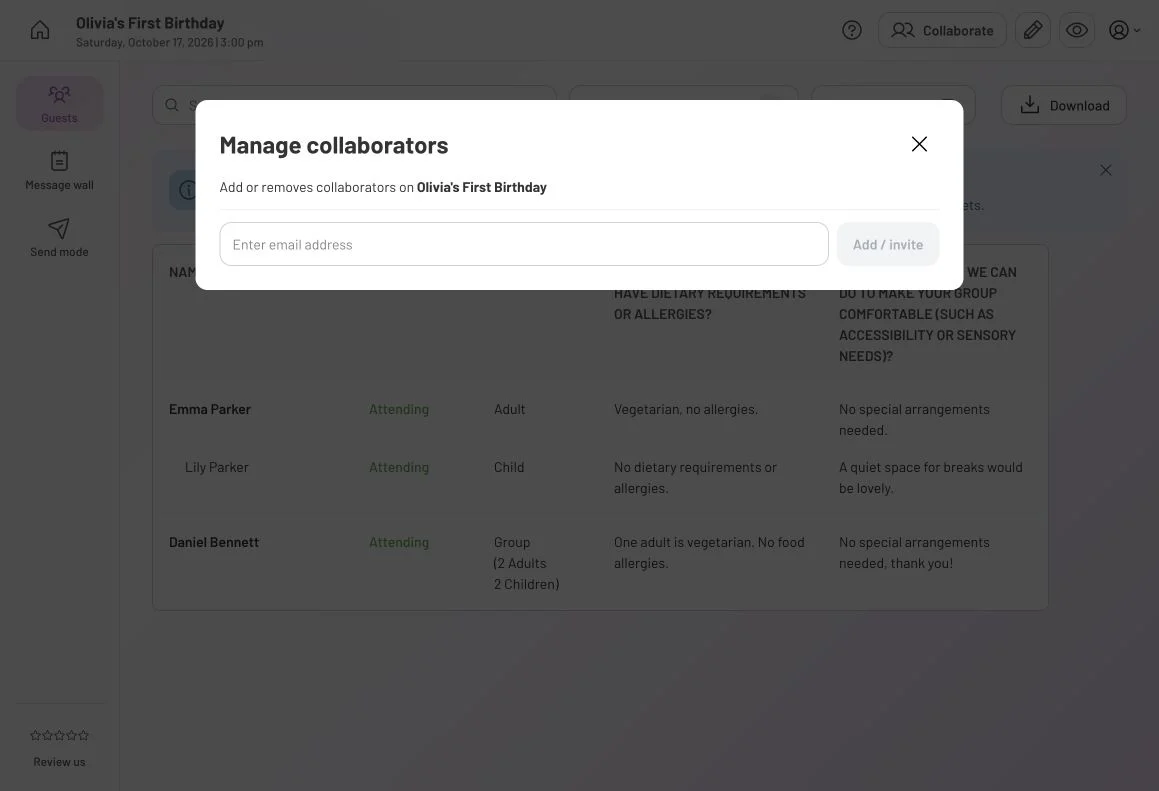
Invite the person helping with the event through Collaborate. This is separate from adding them as a guest who will RSVP.
For a pending invitation, the dialog also offers Resend, Copy invite link and Cancel. Check the status before assuming your co-host has joined.
Questions you may have
Where can I find each person’s dietary answer?
Open Table in Page Manager. With Detailed RSVP, answers appear against each named attendee. With Simple RSVP, the answer belongs to the whole responding group, so it may describe more than one person. Changing the form later doesn’t add missing names to earlier group replies.
Can I record a reply someone gave me by phone or message?
Yes. Find the guest in Page Manager and choose Submit for guest to complete their RSVP. If they already have a recorded reply, use Edit response to update it instead.
Can I download my guest data?
Yes. Select Download above your guest list in Page Manager to export a CSV file you can open in a spreadsheet.
Where are the messages guests wrote with their RSVP?
In your invitation’s CreatEcards Page Manager, open Message wall. It holds personal notes left with replies, separately from the custom-question answers in Table. It isn’t a public guest message board.
Is adding a co-host the same as adding a guest?
No. Use Add guest for someone you’re inviting to attend and Collaborate for someone helping manage the event. A collaborator marked Invited · awaiting acceptance hasn’t accepted the invitation yet.
For follow-up messages, see send RSVP and event reminders.