Send RSVP reminders and event reminders
You may need to ask guests for an RSVP before finalizing your plans, or remind people who are coming about the time, venue and what to bring. CreatEcards provides a message template for each purpose. You edit the wording, then send it through your own email or messaging app.
To get started, open Home → Your pages in CreatEcards and select Send & manage responses on your invitation. This opens Page Manager.
Remind guests to RSVP
If you added your guest list before sending invitations, check Page Manager for people who haven’t replied. Send those guests a Reminder to RSVP with their personal link, so their response connects to the guest you added. Keep Mark sent up to date to distinguish people you’ve invited from those you haven’t contacted yet.
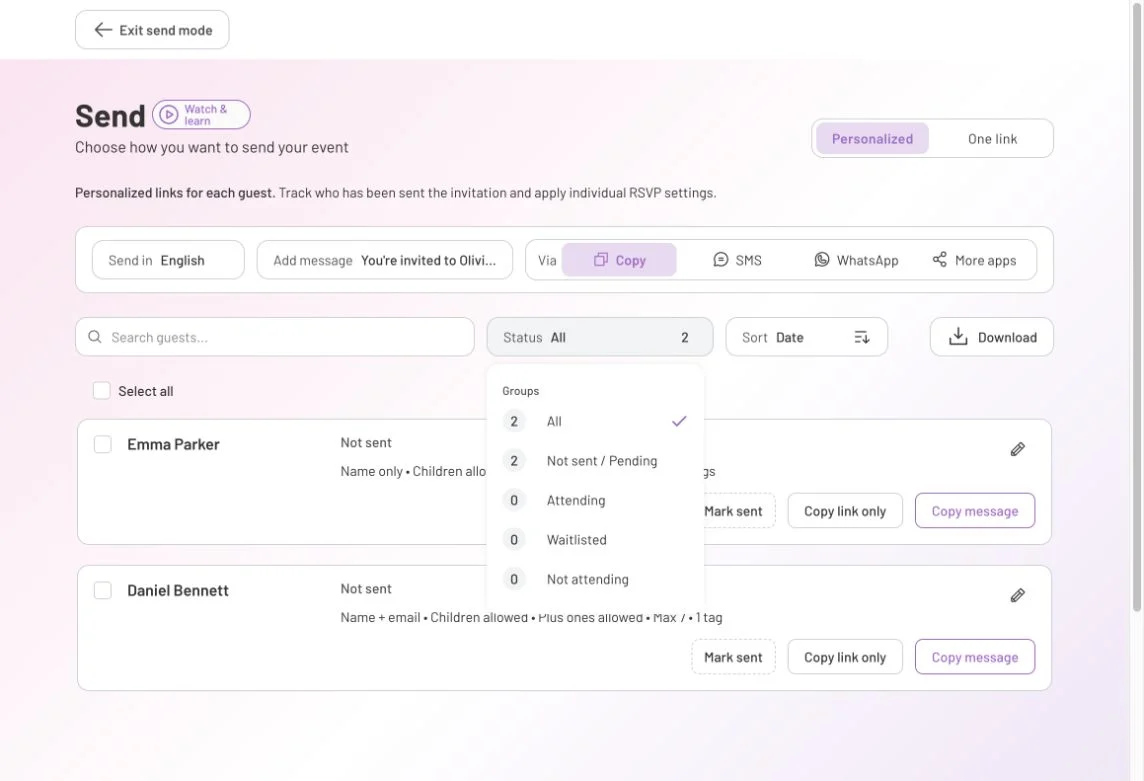
In Send mode → Personalized, open Status to filter your guest list. Not sent / Pending helps you find guests who have not yet replied; check Mark sent to see whom you have already contacted.
If you shared One link without adding a guest list, compare the replies with the people you invited. You can then send the same link in a reminder to anyone you’re still waiting to hear from. Include your reply-by date so they know when you need an answer.
Send a reminder before the event
Once guests have replied, you may want to remind them of the start time, explain where to park or tell them what to bring. Choose the Event reminder template and add the details they’ll need.
You can send everyone the same message with One link, or send individual messages using personal links, which can include each guest’s name. You can use either option even if guests originally replied through One link: once their response appears in Page Manager, you can message them individually from there.
Guests can follow the reminder’s invitation link to read the event details. If they need to change their RSVP, direct them to Edit response in their Hub, or ask them to contact you if they didn’t join. Completing the RSVP form again creates another response, even through a personal link.
Prepare and send your message
Open Send mode in Page Manager. Choose your sending option, then select Reminder to RSVP or Event reminder:
- Individual messages: Open Personalized → Add message and choose your template. Use Manage to edit it, then select Back to sending. With Copy selected, use Copy message on the intended guest’s row. Paste it into your email or messaging app and check the name, link and recipient before sending.
- One shared message: Open One link → Share, choose your template and edit it. Use Share link to continue to your messaging app.
- One formatted email: Open One link → Own email and select the template under Choose from your emails. Edit it, then use Continue in your email platform. Open a new email in your account and paste the prepared email into its body.
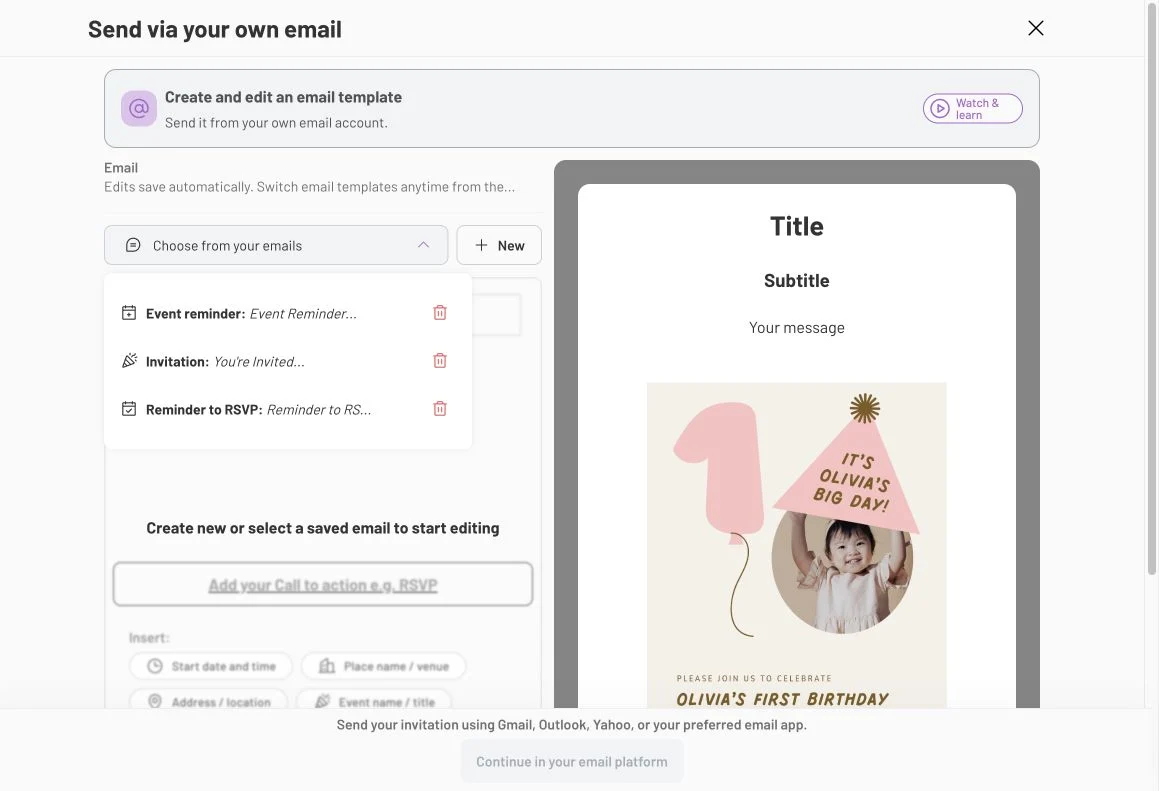
Under One link → Own email, Choose from your emails includes both Event reminder and Reminder to RSVP. Select the one that matches the message you need to send.
Review the message and recipients, then send from your email or messaging app. Choosing a template doesn’t schedule or send a reminder automatically.
Questions you may have
How do I know who hasn’t replied?
If you added guests and sent personal links, check your Page Manager guest list for people you’ve invited who haven’t replied. If you shared One link, compare the names in your replies with the people you invited, such as the households in your family chat.
Will choosing a reminder template send it automatically?
No. Reminder to RSVP and Event reminder provide wording you can edit. Choose the recipients and complete the send through your email or messaging app, just as you did with the invitation.
For attendance totals and guest answers, see manage invitation responses.