You can return to your CreatEcards invitation as your plans develop, whether you need to add parking directions, change the time or update your design. Open the existing page to keep working on the same event. Guests can continue using the link you’ve shared as long as you keep its web address unchanged.
Find your invitation on the dashboard
Sign in to CreatEcards and open Home. Under Your pages, find your invitation by its name or use Search your pages. Its card shows the design, page name and status, such as Live.
Choose the action that matches what you want to do:
- View to open your invitation and check what’s on the page.
- Edit to change event information, RSVP settings or page styling.
- Send & manage responses to return to your guest list, messages and replies.
- Collaborate to invite someone to help manage your event.
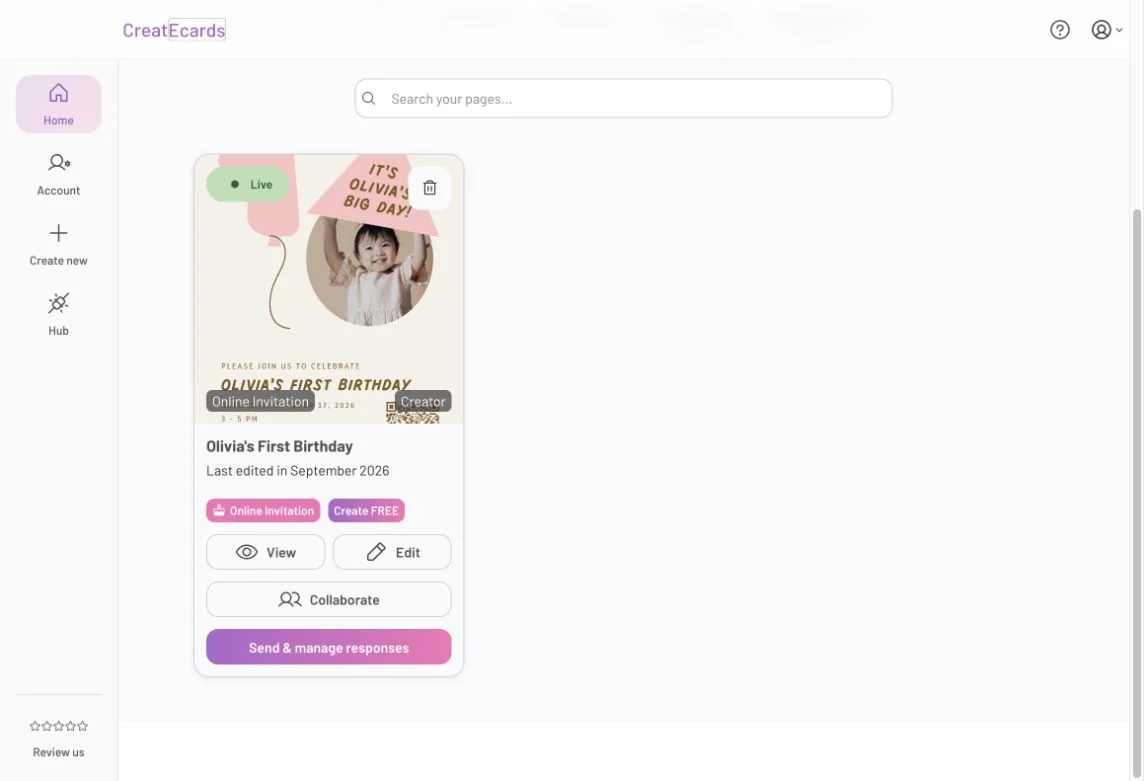
Your invitation’s card brings the page, editor and response management together. Choose Edit when you want to change the existing invitation.
Update the information guests need
You can keep your RSVP page useful as arrangements become clearer. Add directions when the venue confirms them, answer a question several guests have asked, or update the timing if your plans change. Guests can return to the same page for the latest information.
In CreatEcards, open Home → Your pages, find your invitation and select Edit. Choose the editor stage for what you want to change:
- Details: Update your date, time, location, description, agenda, links, gifts and FAQs.
- RSVP form: Change your reply deadline, guest allowances and questions.
- Styling: Adjust your page’s appearance.
For example, if the venue tells you to use a side entrance, add the directions to the location information or a page FAQ. If the event starts later, update the start time and check whether the old time also appears in your description, agenda or invitation design.
Changes you make in the CreatEcards editor apply immediately to your published RSVP page. You don’t need to publish again. Keep the URL in Publish & send unchanged so previously shared links continue to work. After editing, return to your invitation’s card under Home → Your pages and select View. Read your page as a guest would and check that the information agrees throughout.
Changes to your page don’t rewrite an email or message you’ve already sent. For an important change, such as a new venue or start time, send guests a short update with the invitation link so they know to check the latest details.
Update a Canva design on the same invitation
If you want to add wording, change a photo or adjust the layout of your invitation design, make those edits in Canva. You can then sync the revised design to your existing CreatEcards invitation, keeping it on the same RSVP page.
Start from the invitation you want to update so you return to its original Canva design:
- In CreatEcards, find your invitation under Home → Your pages and select Edit.
- Beneath the editor’s page preview, open Edit design → Edit in Canva.
- In Canva, change your design’s wording, images or layout.
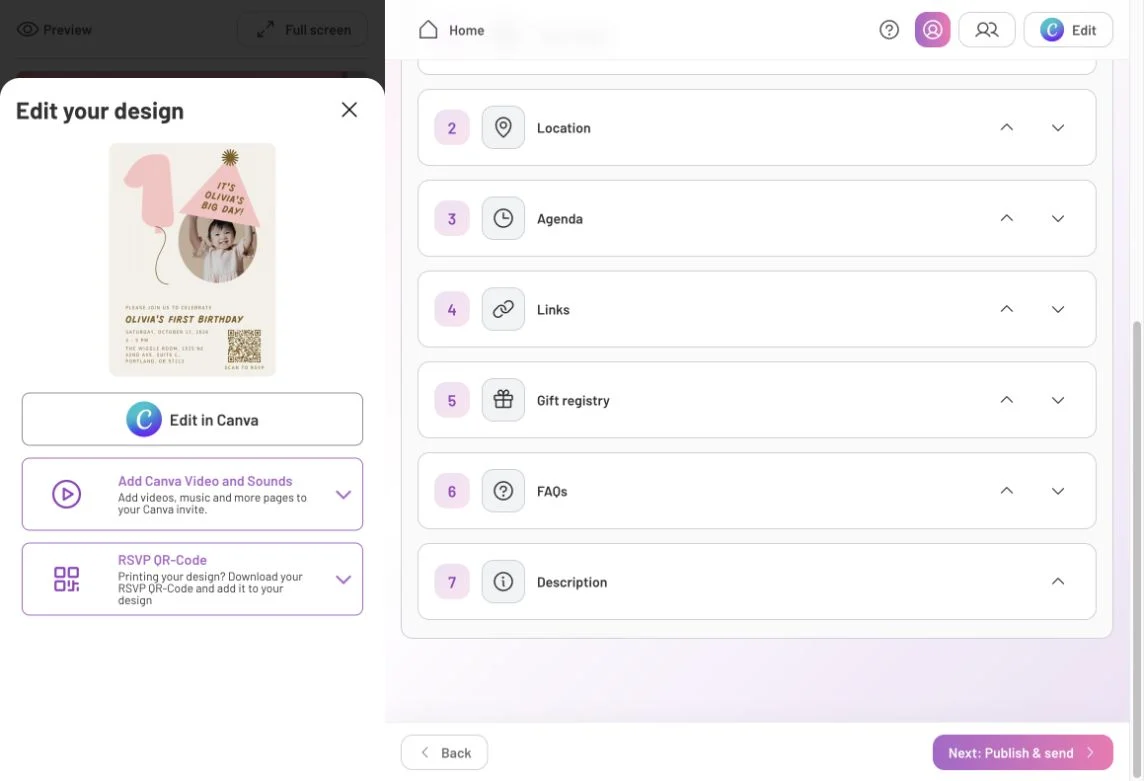
Edit in Canva takes you back to your design. Event information around it is edited separately in CreatEcards.
After making your changes, send your design back to CreatEcards using either of these options. You only need to use one:
- From the main CreatEcards app: Open Apps → CreatEcards in Canva and select Sync design. Follow the sync and export prompts, then open the link back to CreatEcards.
- From Canva’s Share menu: Open Share → CreatEcards, check the selected design page and select Publish now. Follow Check it out to return to CreatEcards.

The Share-menu option lets you choose the design page and send it to CreatEcards with Publish now.
When CreatEcards shows You’ve made updates to your Canva design, select Sync changes to apply your edits to the existing invitation.
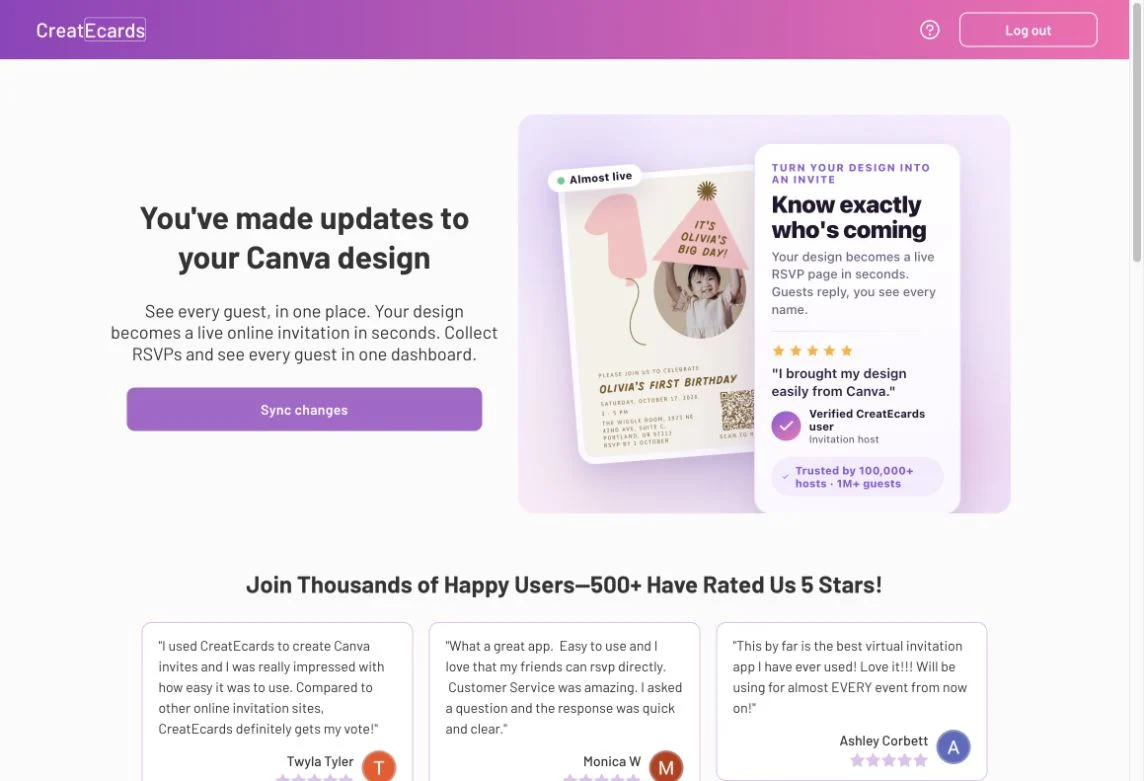
Sync changes applies the revised design to the invitation you already created.
Check the revised design in the editor preview alongside your page colors, background and event details.

The design now includes RSVP by 1 October. The reply deadline in the RSVP form still needs to match it.
A date written on your design and a date set on your page are separate. If you change the event time in Canva, review Details → Date & time too. If you add an RSVP deadline to your design, set that deadline in RSVP form. Check both before asking guests to use the updated invitation.
Update an Adobe Express design
You can update your Adobe Express design on the invitation you’ve already created. Return to your design in Adobe Express, make your changes, then use the CreatEcards add-on to transfer the revised design back to your existing invitation.
To check the result, open Home → Your pages in CreatEcards and select View on your invitation. If you changed a date, time or other event information in the design, select Edit and update the matching page fields too. Keep the invitation’s web address unchanged so guests can continue using the link you’ve shared.
Replace an AI invitation design
You may want to correct wording in your AI design or ask your AI service for a different result. Make those changes in the service where you generated the image, then save the version you want guests to see. CreatEcards lets you replace the image on your existing invitation, so you can keep using the RSVP page you’ve already set up.
- Save your revised image from your AI service.
- In CreatEcards, find your invitation under Home → Your pages and select Edit.
- Open Edit design beneath the editor’s page preview. For an AI design, this area offers an upload option.
- Upload your revised image and check it in the page preview.
Check that any date, time or reply deadline on your new design still matches your page’s event details and RSVP settings. For a published invitation, return to Home → Your pages and select View to check the updated page guests will see. Keep its web address unchanged so their invitation links still work.
FAQs: Returning and making changes
Can I edit an invitation after it’s live?
Yes. Find your invitation under Your pages and select Edit. Changes to your event details, RSVP settings and styling apply immediately to your published page, with no need to publish again. Use View to check the result.
Will guests need a new link?
Not when you’re editing the existing invitation and keeping its web address unchanged. Changing the URL in Publish & send breaks previously shared links, so leave that address as it is when updating event information.
Does changing the date on my design update the page’s date too?
No. Review the matching field in CreatEcards as well. An event date or time belongs in Details → Date & time; the deadline for replies belongs in RSVP form. The wording inside your design needs to agree with those settings.
Does editing the page change the words inside my invitation image?
No. Edit your design where you created it, then update the image on your existing invitation. Use the CreatEcards app in Canva or the add-on in Adobe Express to transfer your changes. For an AI design, upload your revised image through Edit design in the CreatEcards editor. Changes to your page’s event details don’t rewrite the words inside your design.
Should I tell guests when something changes?
For a change that affects their plans, such as the date, time or venue, send an update with the invitation link. The page can show the new information, but emails and messages you’ve already sent still contain the old wording.
Features and benefits: Keep your invitation useful as plans change
Keep guests coming back to the same place. Update the existing invitation while keeping its web address, so guests can use the link they already have to check current details.
Add practical information as you confirm it. Put new directions, timings or answers on your page without creating another invitation. Send a short message when guests need to know that something important has changed.
Update your design without creating a new RSVP page. Transfer your changes from Canva or Adobe Express, or upload your revised AI image to your existing invitation. Check that your design matches your page’s event details and RSVP settings.