A company event needs a clear invitation and a way to collect registrations. With CreatEcards, you can turn a branded design into an event page for colleagues, clients or the wider community. Your page presents your design alongside the information attendees need, with a Register button for signing up.
Your flyer can introduce the occasion while the page explains the rest: the program for an awards night, arrival instructions for a client breakfast or what to bring to a workshop. You have two registration choices: collect answers with CreatEcards’ built-in form, or use the paid External link option to send attendees to a form your organization already uses.
Turn your branded design into an event page
For a design you’re creating in Canva, open it in the Canva editor. Select Apps → CreatEcards and select Sync design. Choose Business Event, then Sync to CreatEcards. Complete the export and follow the link to begin setting up the registration page.
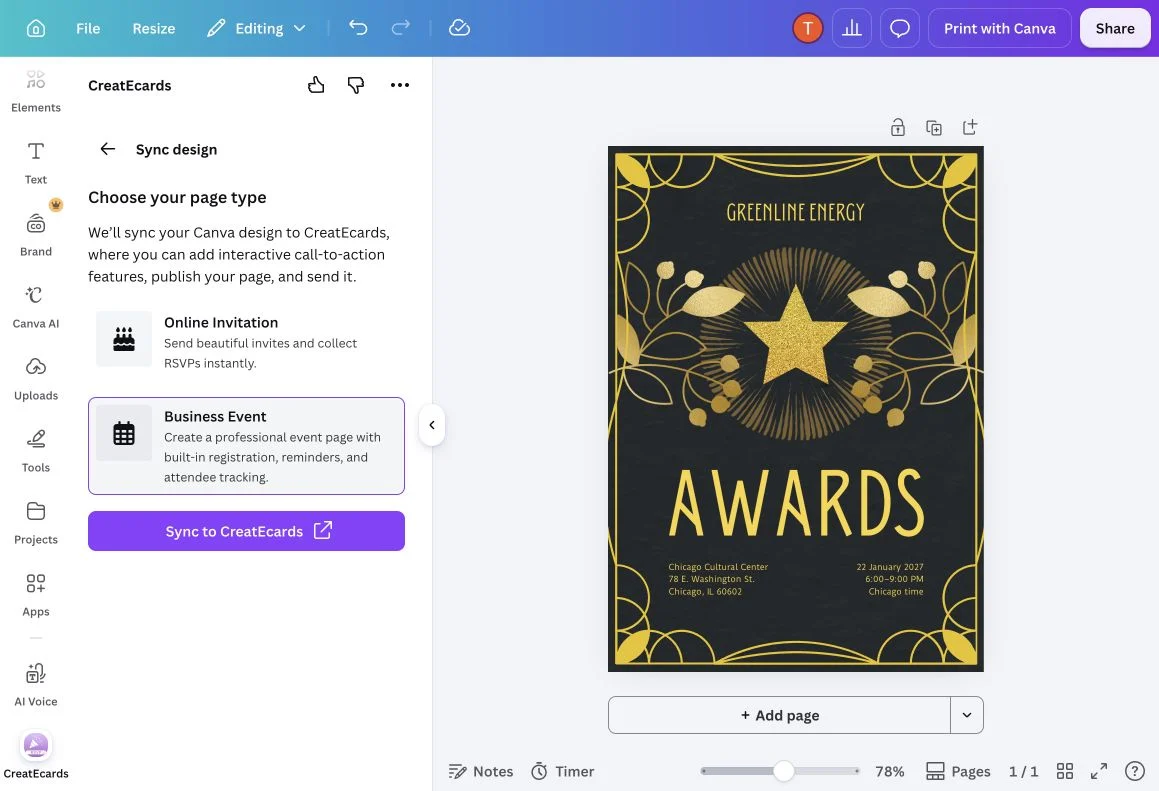
The design sets the look of your event. Choosing Business Event brings it into a page with registration and attendee information.
On the CreatEcards welcome page, sign in if needed. Continue with MagicFill helps fill in event details from your design; No thanks, don’t use AI please lets you continue without it. You can then review the information beside your design and fill in anything attendees will need that didn’t belong on your flyer.
In the Details settings, use Agenda to show the program, such as arrival, dinner and presentation times for an awards night. Use FAQs to explain dress code or parking. For a workshop, use Links to share preparation material and Description to explain what participants should bring. These sections let attendees find the information they need before registering.
The editor guides you through Details → Registration → Branding → Publish. Begin with the event information, choose how people will register, then adjust your page’s appearance to suit your brand before publishing. Check the date, time, timezone and venue as you go. If your design shows when the event finishes, add that end time to the page’s date and time fields too.

Your design stays in view as you add the information around it. Attendees will use the Register button to sign up.
Collect the information you need to prepare
Think about what you need to know before people arrive. A client lunch may need a name and dietary requirements for each attendee. A community event may only need one reply from each household and a headcount.
The built-in registration form keeps attendee details and answers in your event’s Page Manager. In Registration, step 2 of the business-event editor, choose how much detail each registration should collect. The controls use the labels Simple RSVP and Detailed RSVP:
- Simple RSVP lets one person provide attendance counts and shared answers for their household or group.
- Detailed RSVP collects every attendee’s name, including the primary guest and all plus-ones, with a separate set of custom-question answers for each person. Use it when you need to know which meal or arrangement belongs to which attendee.
In Registration → Custom questions, add the questions you need for your event. Use a Choice question for a selection such as meal options, or a Text question when attendees need space to explain an accessibility requirement. Decide which answers are required. Choosing Detailed RSVP collects a separate set of answers for each attendee; it doesn’t create the questions automatically.
Keep using your organization’s own registration form
You may already have a form your team relies on, with questions and records organized in another system. You can keep using it while giving attendees a branded event page in CreatEcards. The paid External link option makes the page’s Register button open that form.
To connect your organization’s form:
- Open Registration, step 2 of the CreatEcards business-event editor.
- Select External link.
- Paste your form’s address into External form URL and review the Button label.
- Check your external form. This is where attendees will enter their details, so add any meal, access or other questions there.

Attendees discover the event on your CreatEcards page, then use Register to open your form. Their submitted answers stay in the system hosting that form.
When you’re ready to check attendance, use your external form’s registration list. Those answers aren’t recorded in CreatEcards Page Manager. If you send personalized invitation links, Page Manager marks a recipient as opened when they click Register, but they may still leave the form without submitting it. Check for a completed registration before counting them as attending or following up.
Choose a plan for one event or ongoing use
The way you pay can reflect how often you organize events. You might need full response details for a single annual celebration, or a subscription for workshops and client events throughout the year.
Select the Upgrade badge in the CreatEcards business-event editor to compare the one-event option with subscriptions for ongoing use. Review the features, allowances and billing terms shown in your account before choosing.
If you’re collecting registrations in CreatEcards, your page can collect replies before you pay. You can upgrade when you need to unlock response details. If you’re using External link, you’ll need a suitable paid plan to use that feature, and you’ll read the submitted answers in your external system.
Give colleagues the access they need
You may have several people organizing their own events, while others help with one particular occasion. CreatEcards has two ways to give colleagues access. Team membership lets them use your team subscription for pages they create. Collaboration lets them help manage a particular page you invite them to work on.
Add team members when colleagues need to create their own pages. They can independently create event pages and cards, then use the team subscription to upgrade them. For example, one colleague could organize staff workshops while another manages client events, both using the same team subscription.
Being on the team doesn’t automatically give them access to all the events you or other members have created. Each page can remain owned and edited by the person organizing it, so sharing a subscription doesn’t mean sharing every event.
Add collaborators when you want someone to help with a particular page. In CreatEcards, open Home → Your pages, find the event and select Collaborate to invite the colleague who needs to work on it with you. You choose access page by page. A team member can also be a collaborator: if the colleague running client events needs help with an awards night, they can invite another team member to collaborate on that event.
When colleagues need to use a shared subscription for their own pages, set up a team in your account. Creating the team is separate from buying a subscription, so you can name it before choosing a plan:
- Open the account icon in the CreatEcards editor.
- On Your Account, expand Team and subscription and select Create new team.
- Give your team a name your colleagues will recognize, such as your company or department.

This example team has been created but has no subscription yet, so Add / invite is disabled. It shows where you manage members, not a completed member invitation.
Adding members requires a suitable paid plan. Once your team has one:
- Use the member controls in Team and subscription to enter your colleague’s email.
- Choose their role and select Add / invite.
FAQs: Business events and registration
Can I use my organization’s existing registration form?
Yes. Choose External link in Registration and enter your form’s address. This feature requires a suitable paid plan. Attendees use the Register button on your event page to open that form.
Will external registrations appear in Page Manager?
No. The external form collects the answers, and they aren’t recorded in CreatEcards Page Manager. Review completed registrations in the system that hosts your form. Choose the built-in registration form if you want to collect and manage the answers in CreatEcards.
Where should I add meal or accessibility questions when using an external form?
Add them to your external form, where attendees will register. Check that form’s questions and settings before sharing your event page.
Does opened mean someone has registered?
For an external-form event using personalized links, opened means the recipient clicked Register. It doesn’t confirm a completed registration. Check the external form’s responses to see whether they submitted it.
How do I invite a colleague to help with one event?
In CreatEcards, find your event under Home → Your pages and select Collaborate. Invite the colleague as a collaborator. This gives them access to help manage that event. If they’re already a team member, you still invite them to collaborate on the specific page.
Can team members see and edit all our events?
No. Team membership lets them use the team subscription to create and upgrade their own pages. Access to other people’s events is separate: invite them as collaborators on the pages you want them to help manage.
Can someone be both a team member and a collaborator?
Yes. They can use the shared subscription for their own pages and collaborate on other events when invited. You control who works on each page separately from who shares the subscription.
Does creating a team start a paid subscription?
No. You can create and name a team before it has a subscription. Adding members requires a suitable paid plan. Review the current offer and subscription details in your account before choosing one.
Features and benefits: Fit registration around how you work
Present the event and give attendees a way to register. Use your branded design on a page with the agenda, venue information and practical answers. Attendees can read what’s planned, then select Register to complete your chosen form.
Keep registrations where your team needs them. Use CreatEcards Page Manager for built-in responses, or connect your existing form with the paid External link option so your team can keep managing answers in its usual system.
Share a subscription while keeping control of each event. Team members can create and upgrade their own pages using the team subscription. Each organizer decides who else can help with their pages by inviting collaborators, so colleagues can work independently or together as needed.