Your invitation design introduces the occasion. Your CreatEcards RSVP page gives guests the practical information they need to be part of your event: where to go, when to arrive, what to bring and what to expect. In Details, step 1 of the CreatEcards editor, you can add that information around your design. A birthday invitation might need parking directions and a short party schedule; a wedding weekend might also need accommodation links and answers about dress code.
If you’ve already created your page, open Home → Your pages in CreatEcards and select Edit on your invitation to return to these settings. Changes to a published page apply immediately.
Bring your event details into the editor
After bringing your invitation design into CreatEcards from Canva, Adobe Express or AI Invitation Maker, sign in or create an account to continue setting up your RSVP page. Choose Continue with MagicFill to fill in details from your design and give your page colors that suit it. If you prefer not to use AI for this step, the welcome screen also offers No thanks, don’t use AI please.
With MagicFill, you’ll first see a preview of your invitation. Select Continue to open the editor, where you can check and change the information before publishing. The four stages are Details, RSVP form, Styling and Publish & send. Your page preview stays beside the controls so you can see how your changes look to guests.
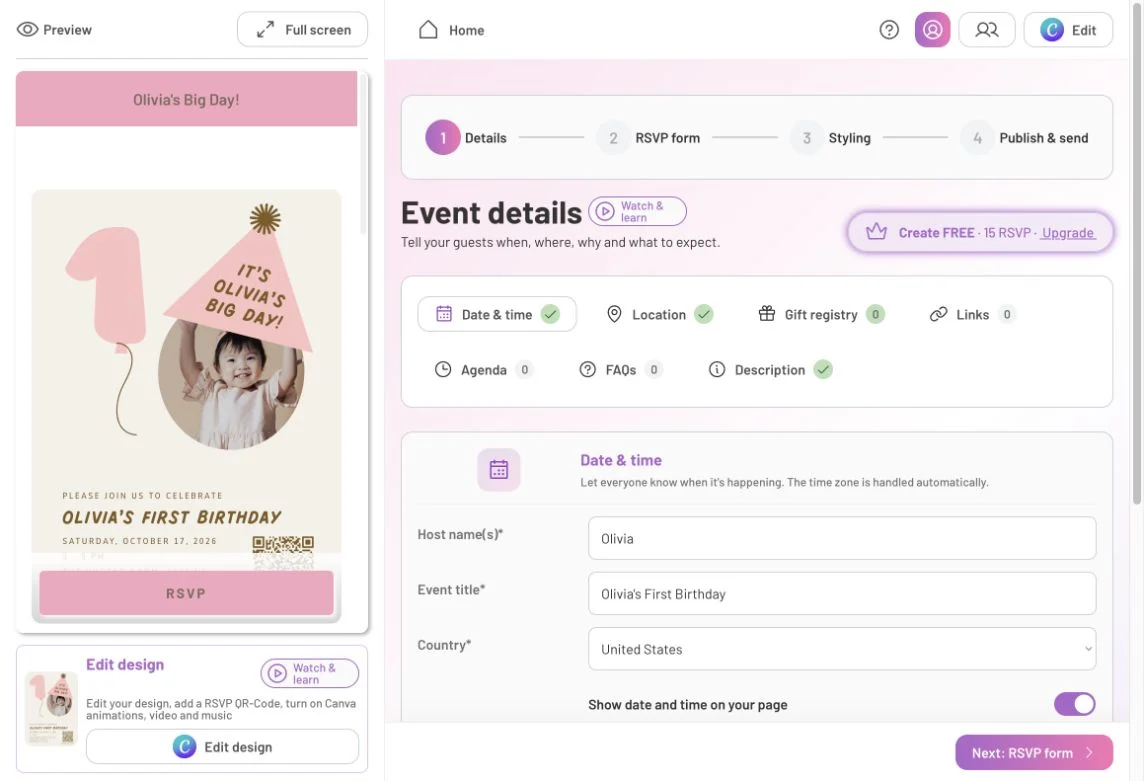
Work through the event information in Details, then use Next: RSVP form when you’re ready to choose how guests reply.
Check when and where your event is happening
In the CreatEcards editor, open Details → Date & time to set when your event takes place. These fields supply the event information around your invitation design, so guests should see the same date and time in both places. If MagicFill has filled them in, check them against your plans. Changing a page field doesn’t change the words inside your design.
- Check the host name, event title and country, then review the start date, time and timezone. Use Set timezone if needed and check the Verify date/time prompt.
- If guests need to know when your event finishes, use Add event end time. Check this separately even if your design already shows a time range.
- Within Details, open Location and choose In Person, Online or Do not provide location. For an in-person event, review the venue and address, and add a Maps link to help guests find the right place.
For a venue with more than one entrance, the street address may not be enough. You can add directions in the description or an FAQ, such as which gate to use or where to park.
Add the information guests will look for
Your description gives you space to welcome guests and explain what you have planned. You might introduce who you’re celebrating, describe the gathering or let guests know what to expect when they arrive.
In the CreatEcards editor, open Details → Description and write your message. If MagicFill has supplied a starting description, read it through and change anything that doesn’t sound like you or match your plans.
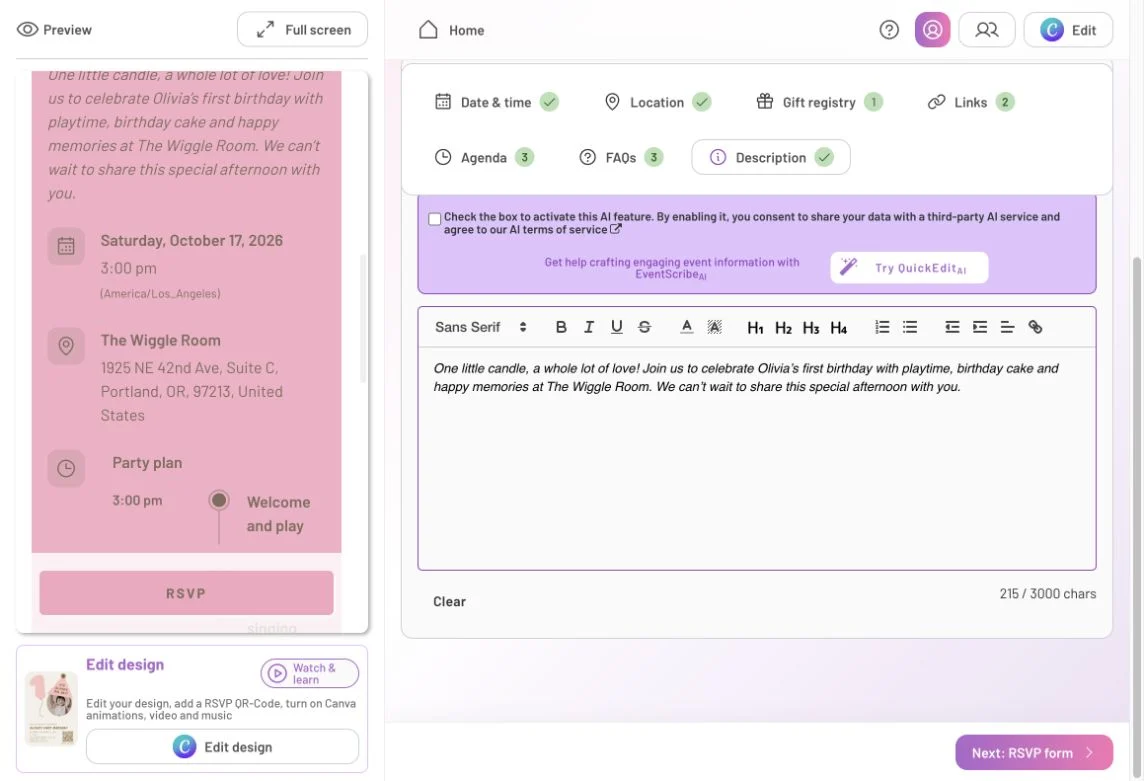
Edit the description in your own words and check how it reads alongside the event details in the preview.
A welcome message can introduce the celebration, while separate sections make practical details easier to find again. In Details, choose the sections your event needs:
- Agenda: Add a time and activity for each part of your event, with an optional description. For a birthday, that might be arrival and playtime at 3 pm, then cake at 4 pm. You can give the section a friendly title such as “Party plan.”
- Links: Select Add a link for useful destinations, such as venue information or accommodation. Give each link a name that tells guests what it opens.
- FAQs: Select Add a question and write an answer. Use these for questions such as “Can siblings come?”, “What should we wear?” or “Where can we park?” You can rename the section “Good to know.”
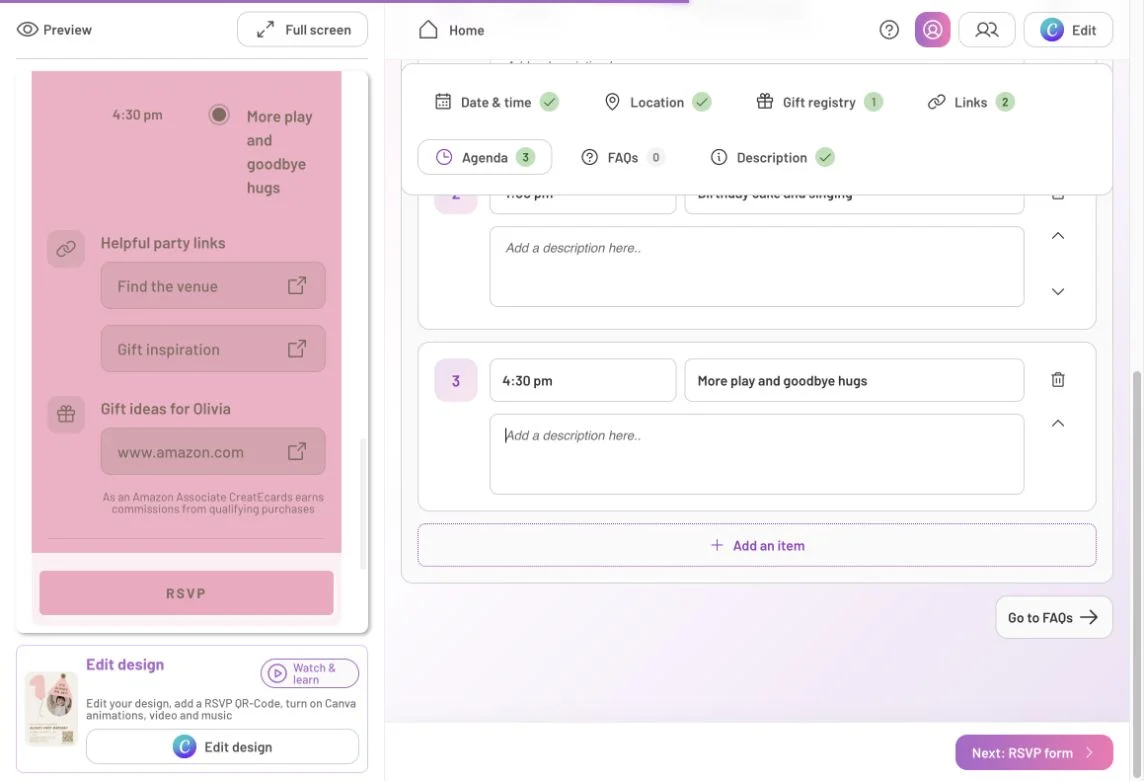
Each agenda item has a time, activity and optional description. Use Add an item for the next part of your event, and check its placement in the preview.
Your page’s FAQs answer guests’ questions about your event. You write both the question and the answer, such as where to park or what to wear. To ask guests for information, such as their dietary needs, use RSVP form → Custom questions instead. Those answers come back with their replies.
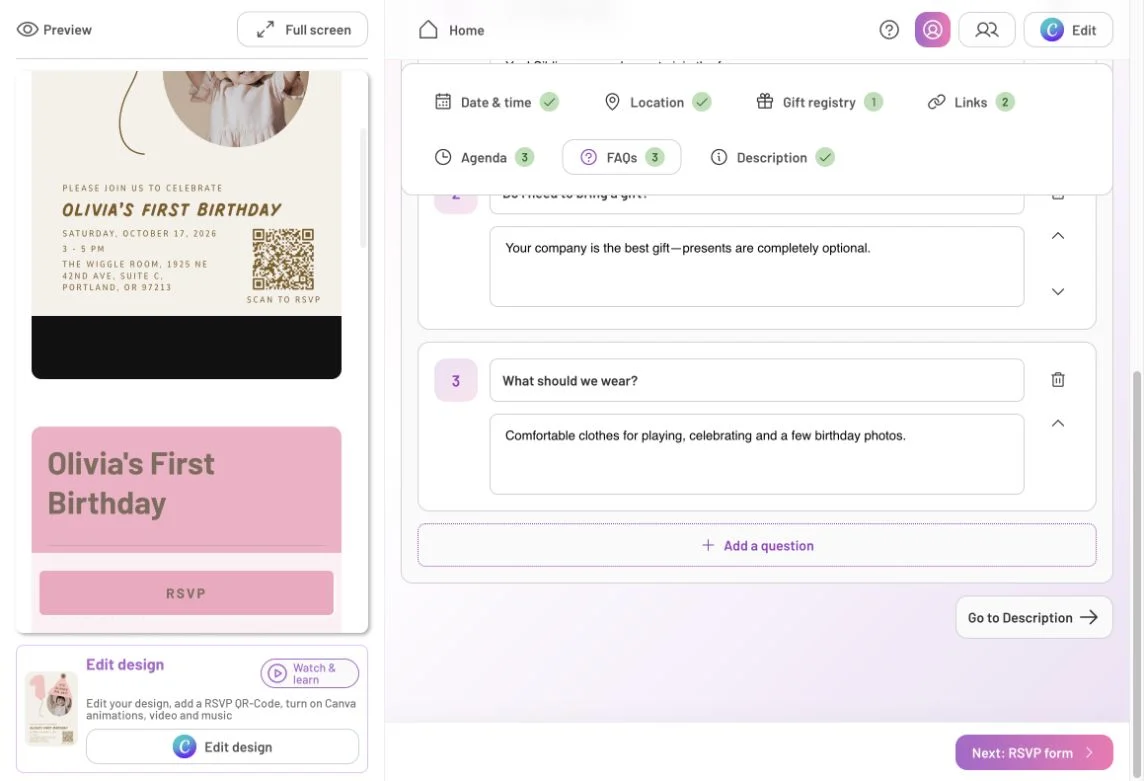
Write each question and its answer in Details → FAQs. Use the arrows to change their order or Add a question to include another.
These sections are optional. A casual gathering may only need a short description, date and location; a wedding weekend may benefit from an agenda and helpful links. Scroll through the preview as you add content to check that it’s useful and easy to follow.
Decide what guests should see about gifts
Whether you have a registry, welcome small gifts or prefer no presents, your invitation can explain your wishes. In the CreatEcards editor, open Details → Gift registry to choose what guests see. Check this section even if you haven’t added a registry: No registry? Include Amazon gift suggestion link can display suggestions when the registry count is zero.
Choose the settings that match your wishes:
- Add your registry: Enter its name and link so guests can find it from your invitation.
- Turn off Amazon suggestions: Switch off No registry? Include Amazon gift suggestion link.
- Hide the gift section: Turn off both the Amazon suggestion setting and Guests can bring gifts, then check your preview.
You can still explain “No gifts, please” or “Gifts are optional” in your description or FAQs.

Check both gift settings. Amazon links shown on the page include a disclosure that CreatEcards earns commission from qualifying purchases.
When your event information is ready, select Next: RSVP form to choose what guests provide when they reply.
FAQs: Adding your event information
Can I change what MagicFill has written?
Yes. Review and edit the event fields and description in Details before publishing. Check names, date, time, timezone and location even when they look complete. Changes to these fields don’t alter the words inside your invitation design.
Do I have to use AI or fill in every section?
The welcome screen offers No thanks, don’t use AI please if you prefer not to use MagicFill. Agenda, links and FAQs are optional; include the information that helps guests understand and attend your event.
Where should I explain parking, dress code or whether siblings can come?
Use your page’s FAQs for information guests may want to find quickly. Write the question and its answer in Details → FAQs. If you welcome siblings, also check that your RSVP guest policy allows children and the intended group size.
Do guests answer the questions I put in FAQs?
No. In Details → FAQs, you write answers for guests to read on your invitation. To collect their answers, add questions in RSVP form → Custom questions. For example, explain the dress code in FAQs and ask for meal choices in the RSVP form.
Why are Amazon gift suggestions showing when I haven’t added a registry?
The Amazon suggestion setting is separate from your registry links, so a count of zero doesn’t necessarily mean the gift section is empty. Open Gift registry and switch off No registry? Include Amazon gift suggestion link if you don’t want it. To remove the gift section, turn off Guests can bring gifts too, then check the preview.
Features and benefits: Give guests the information to make plans
Give guests more than fits on your design. Keep your invitation image focused on the celebration, with room on your RSVP page for directions, timings and other details guests need to make plans.
Make practical details easy to find. Give the schedule, venue links and common questions their own place on your page. Guests can return to check where to park or when the cake is being served without searching through a long invitation message.
Explain gifts in a way that suits your occasion. Add a registry link, choose whether to show suggestions, or remove the gift section and explain your preference in your own words.