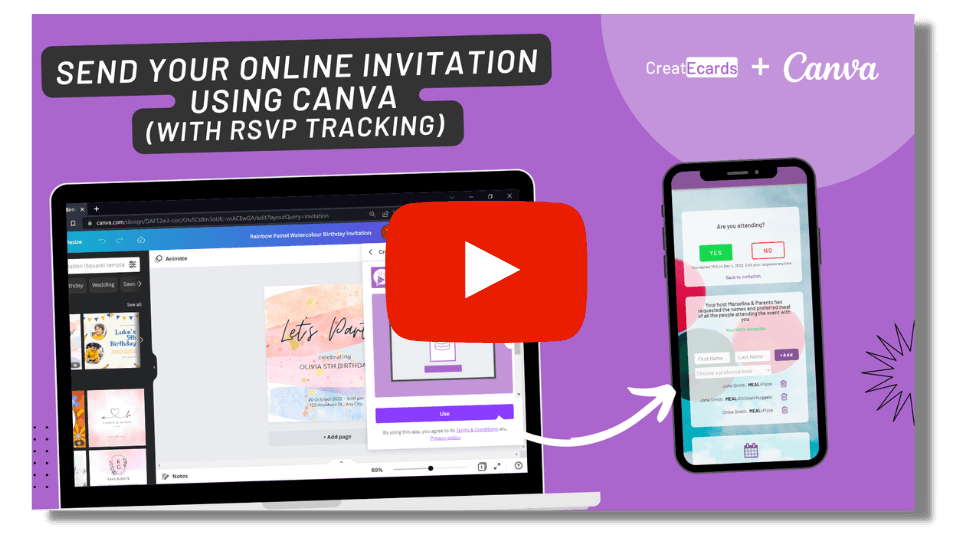
How to Collect RSVPs with your Canva Invitations using the CreatEcards App in Canva
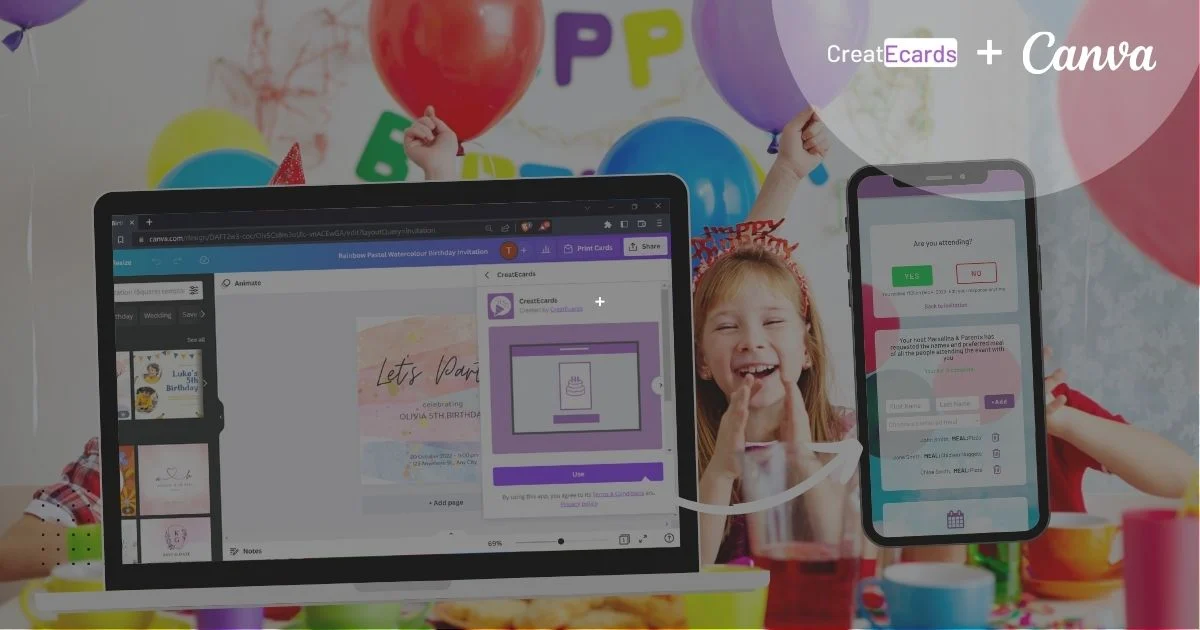
Unlock the secret to stunning online invitations with RSVP tracking! Discover how Canva and CreatEcards work together to create e-vites that will leave your guests in awe and RSVPing in seconds.
In this guide
Unlock the secret to stunning online invitations with RSVP tracking! Discover how Canva and CreatEcards work together to create e-vites that will leave your guests in awe and RSVPing in seconds.
Learn how to:
- Design eye-catching invitations with Canva's user-friendly platform and extensive template library
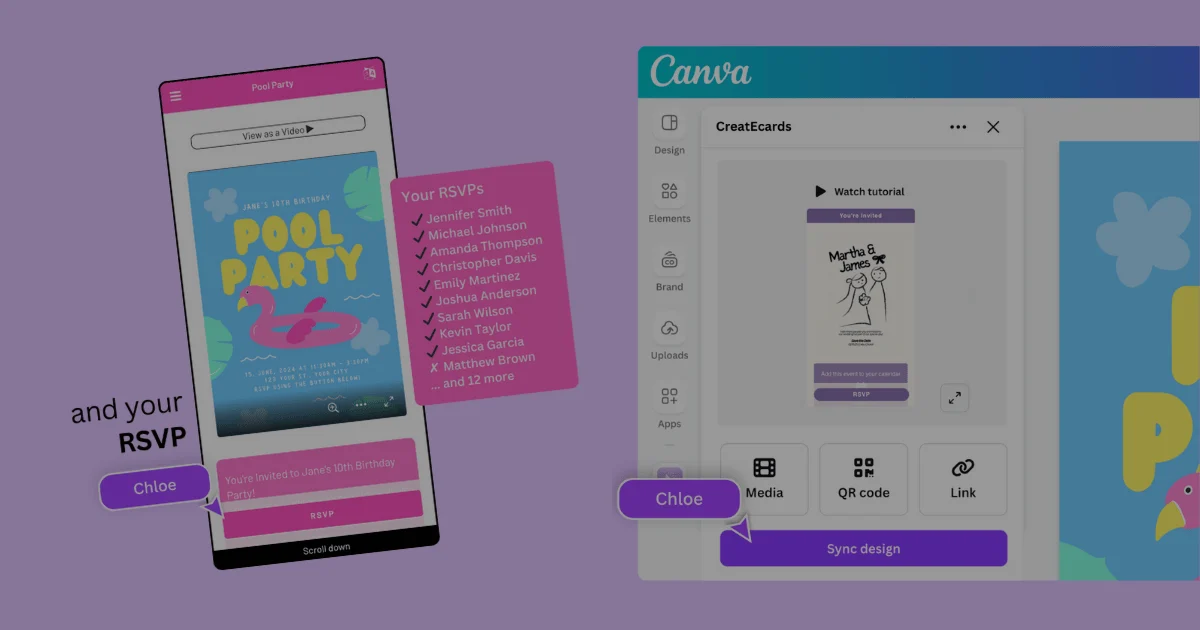
- Publish your Canva invitation to CreatEcards for interactive RSVP tracking features
- Personalize your online e-vite with event details, calendar links, and gift registry links using CreatEcards
- Send your e-vite effortlessly through various platforms with a unique share link
- Easily manage RSVP responses and download the data for further organization and analysis
Pro Already? Launch Straight into an Invitation Design Experience in Canva
Introduction
Planning a memorable event starts with the perfect invitation. An eye-catching and well-designed invitation not only sets the tone for your event but also excites your guests and encourages them to RSVP. In today's digital world, online invitations are increasingly becoming the go-to option for many event planners, as they offer convenience, flexibility, and ease of distribution. Canva, a user-friendly design tool, has made it incredibly simple to create visually stunning invitations that cater to various occasions. And now, with the integration of CreatEcards, you can elevate your Canva invitations by adding interactive RSVP tracking features. In this blog post, we will guide you through the process of designing and sending your online invitations using Canva and CreatEcards, ensuring a seamless and stress-free experience.
Designing Invitations with Canva
Canva is a powerful and easy-to-use graphic design platform that offers a plethora of design templates, elements, and tools to help you create stunning invitations for any event. Here's how you can design your perfect invitation with Canva:
A. Exploring Canva's templates for invitations
- Visit Canva's website (www.canva.com) and sign up for a free account, or log in if you already have one.
- On the Canva homepage, search for "invitations" in the search bar or browse through the available categories to find the invitation template that best fits your event theme.
- You will find a wide range of templates for various occasions such as birthdays, weddings, baby showers, and more. Both free and premium templates are available to suit different budgets and design preferences.
No time to browse? Launch straight into a Canva invitation design experience
B. Customizing your invitation design
- Once you've selected a template, click on it to open the Canva editor, where you can customize the design elements to match your event theme and personal style.
- Edit the text by clicking on the text boxes and typing your event details, such as the date, time, and venue. You can also change the font style, size, and color to suit your design.
- Enhance your invitation by adding images, illustrations, or other design elements from Canva's extensive library. You can also upload your own images to personalize the design further.
- Adjust the background color, add filters, and apply various effects to create a cohesive and visually appealing invitation.
With your invitation design ready, it's time to make it interactive and trackable using CreatEcards.
Publishing Your Invitation to CreatEcards from Canva
With your invitation design ready in Canva, it's time to publish it to CreatEcards and add the interactive RSVP tracking features. Follow these simple steps to publish your Canva design to CreatEcards:
A. Accessing CreatEcards from Canva's Share menu
- In your Canva editor, click on the "Share" button located at the top-right corner.
- In the Share menu, click on the "More" tab to access additional sharing options.
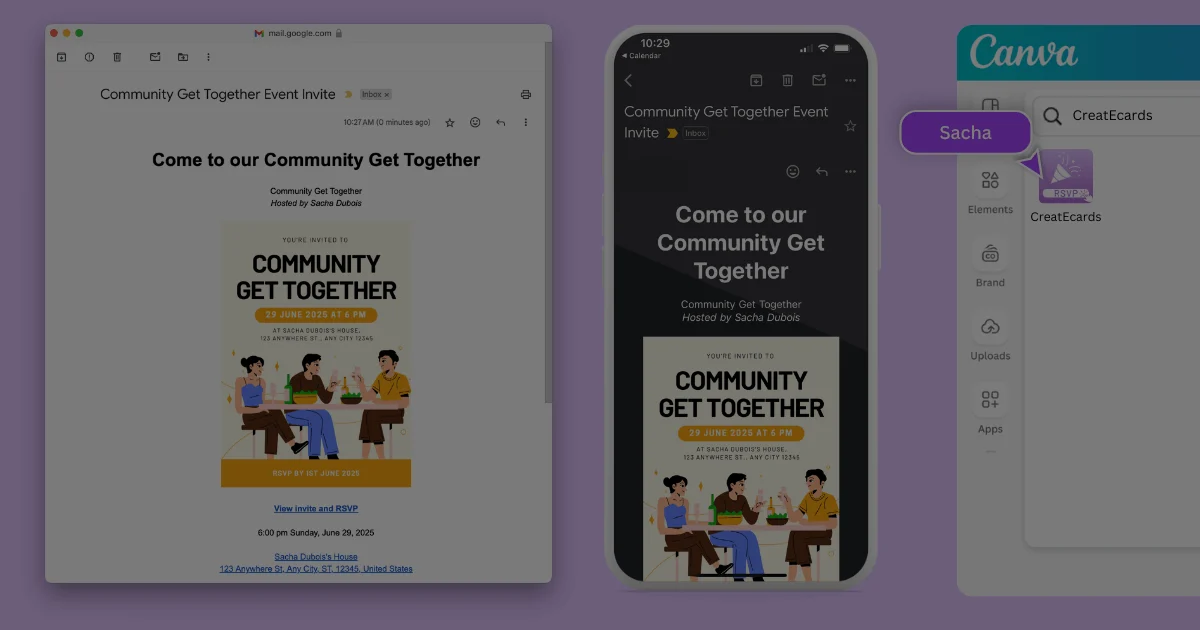
- Look for the CreatEcards app by typing "CreatEcards" in the search bar.
B. Choosing the right pages for your e-card
- After finding the CreatEcards app, click on it to start publishing your invitation to CreatEcards.
- Choose the page(s) you want to include in your e-card. You can include up to two pages for your invitation, allowing you to provide additional information or visuals to your guests.
C. Opening CreatEcards website and logging in
- Check the selected invitation pages, select Publish now, then Check it out to continue in CreatEcards. This transfers the design; it does not publish your RSVP page for guests.
- If you haven't already, sign up for a CreatEcards account or log in to your existing account to proceed with personalizing your online invitation.
Personalizing Your Online Invitation with CreatEcards
After publishing your Canva design to CreatEcards, you can add interactive elements and personalize your online invitation even further. Here's how to customize your e-vite using CreatEcards:
A. Entering event details On the CreatEcards website, enter the necessary details for your event, such as the date, time, location, and RSVP information. This ensures that your guests have all the relevant information at their fingertips.
B. Adding calendar and location links To make it easy for your guests to remember the event and find their way, add calendar links (e.g., Google Calendar or iCal) and location links (e.g., Google Maps) to your e-vite. This enables guests to quickly add the event to their personal calendars and access directions to the venue.
C. Including gift registry links If you've set up a gift registry for your event, such as Amazon (paid link), Babylist, or any other platform, you can include the registry links in your online invitation. This makes it convenient for your guests to browse and purchase gifts for the occasion.
With your online invitation personalized and ready, you can now send it to your guests and effortlessly track their RSVPs using CreatEcards.
D. Customizing the background and colors Personalize your e-vite by choosing a background and color scheme that matches your event theme. CreatEcards offers various options, allowing you to create an online invitation that complements your Canva design.
Sending Your Canva Evite with CreatEcards
Now that your online invitation has been designed with Canva and personalized with CreatEcards, it's time to send it out to your guests and manage RSVPs. Here's how to share your e-vite and track responses using CreatEcards:
A. Sharing the e-card link via various platforms Once you’re satisfied with your personalized e-vite, open Publish & send and select Publish. After Your page is live, use Send & manage to prepare your invitation link for sharing. You can send this link to your guests using various methods, such as chat apps, social media, iMessage, or text message. This flexibility makes it easy to reach your guests and ensure they receive your invitation.
B. Tracking RSVP responses with CreatEcards As your guests receive the e-vite and submit their RSVPs, CreatEcards collects all the responses for you. You can easily access this information by logging in to your CreatEcards account and viewing your event dashboard.
C. Downloading RSVP responses to a CSV file To make managing RSVPs even more convenient, CreatEcards allows you to download all the responses to a CSV file. This feature enables you to easily import the RSVP data into other applications, such as spreadsheet software, for further analysis and organization.
By using Canva and CreatEcards together, you can create, send, and track your online invitations with ease, ensuring a smooth and enjoyable event planning experience.
Conclusion
Creating and sending online invitations has never been easier, thanks to the seamless collaboration of Canva and CreatEcards. By designing your invitations with Canva's user-friendly platform and personalizing them with CreatEcards' interactive features, you can create stunning e-vites that are sure to impress your guests. With the added convenience of RSVP tracking and the ability to share your invitations across various platforms, managing your event becomes a breeze.
We encourage you to try Canva and CreatEcards for your next event, whether it's a birthday party, wedding, baby shower, or any other special occasion. Experience the simplicity and effectiveness of these tools in making your event planning process enjoyable and stress-free.
Make the design work for the event
Keep the design you made and add the live page that collects and tracks the response your project needs.
Continue with CreatEcards