Canva Invitations with RSVP? Meet the CreatEcards App That Makes It Happen
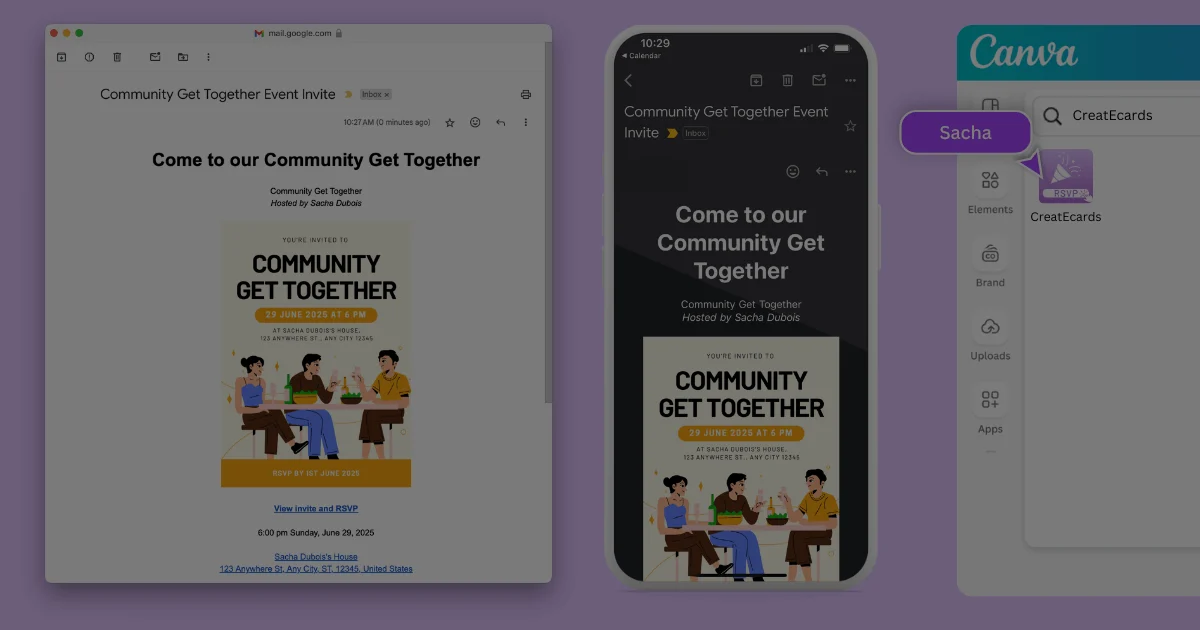
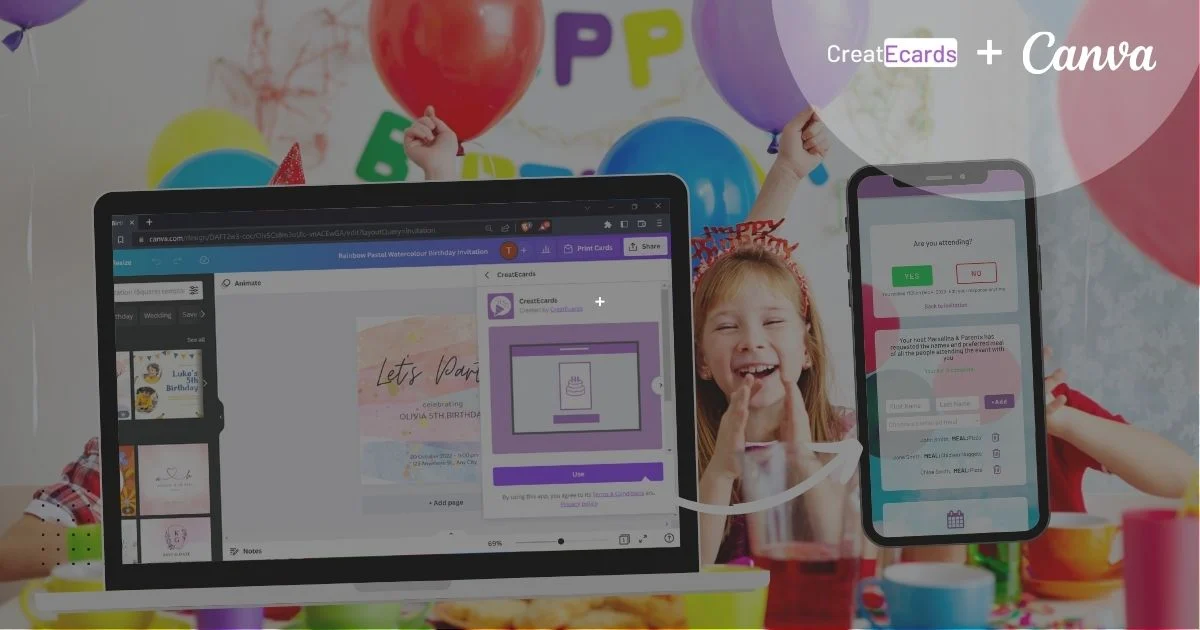
Canva lets you design beautiful invitations. But with the CreatEcards app, you can do more. Turn any Canva invite into a live event page with RSVP tracking, guest info collection, calendar links, and shareable options. This guide shows you how it works in just a few clicks.
In this guide
Canva lets you design beautiful invitations. But with the CreatEcards app, you can do more. Turn any Canva invite into a live event page with RSVP tracking, guest info collection, calendar links, and shareable options. This guide shows you how it works in just a few clicks.
Key Takeaways
- You can collect RSVPs from any Canva invitation by using the CreatEcards app.
- The CreatEcards app works inside Canva and syncs your design to an online event page.
- Guests can RSVP online, add plus-ones, and submit dietary or custom info.
- Your online invite includes event details, calendar links, maps, and optional gift registries.
- You can share your invite via link, email, or QR code, and track responses in your dashboard.
- CreatEcards supports weddings, birthdays, business events, and more.
Can You Really Collect RSVPs with a Canva Invitation?
If you’ve ever designed an invitation in Canva whether it’s for a birthday, wedding, or baby shower — you’ve probably run into this problem:
“How do I actually send this and collect RSVPs?”
Canva Forms can collect RSVP answers, but it doesn’t track who has replied, help you send the invitation to your guest list, or let you set different RSVP options for each guest group. You can make a beautiful design, but you’re left managing your guest list manually in group chats, emails, or spreadsheets.
That’s where the CreatEcards app inside Canva comes in.
With just a few clicks, you can turn any Canva invitation into a smart online event page. It includes RSVP collection, event details, gift registry links, and more. All built into a shareable page, no tech skills needed.
🎥 The quick video below shows how simple it is to go from Canva design to online invitation, starting in Canva and finishing your RSVP page in CreatEcards.
👉 Watch the tutorial:
How to Make Canva Invitations with RSVP | CreatEcards App This video walks through the entire process in under 2 minutes. Once your design is synced, you’ll get a shareable link or QR code that brings your invitation to life.
We’ll also include a deeper video later in this article that shows what happens after syncing — including how to adjust RSVP settings, collect guest info, and send your invite. Now let’s walk through the first step.
Step 1: Create and Personalize Your Canva Invitation
To get started, open Canva and search for an invitation template that fits your event. You can choose from thousands of professionally designed options for birthdays, weddings, baby showers, business events, or even casual get-togethers.


Once you find a design you love, click to open it and start personalizing. Edit the names, date, time, location, and any other details to make it your own.
You can also change fonts, colors, or add personal touches like emojis or photos. Anything you can design in Canva works perfectly with the CreatEcards app.
For this example, we used a fun summer pool party invite. But the process is the same no matter what kind of event you're hosting.

When you're happy with the design, you're ready to make it interactive. That’s where the CreatEcards app comes in — it’s what turns your static image into a real RSVP-enabled invitation.
Let’s jump into that in the next step.
Step 2: Add an RSVP QR Code or Link with CreatEcards
Once your design is ready in Canva, it’s time to connect it to the CreatEcards app. This is where your invitation becomes more than just a design.

In the Canva editor, go to the Apps menu on the left side. Type "CreatEcards" into the search bar and click the app icon when it appears.

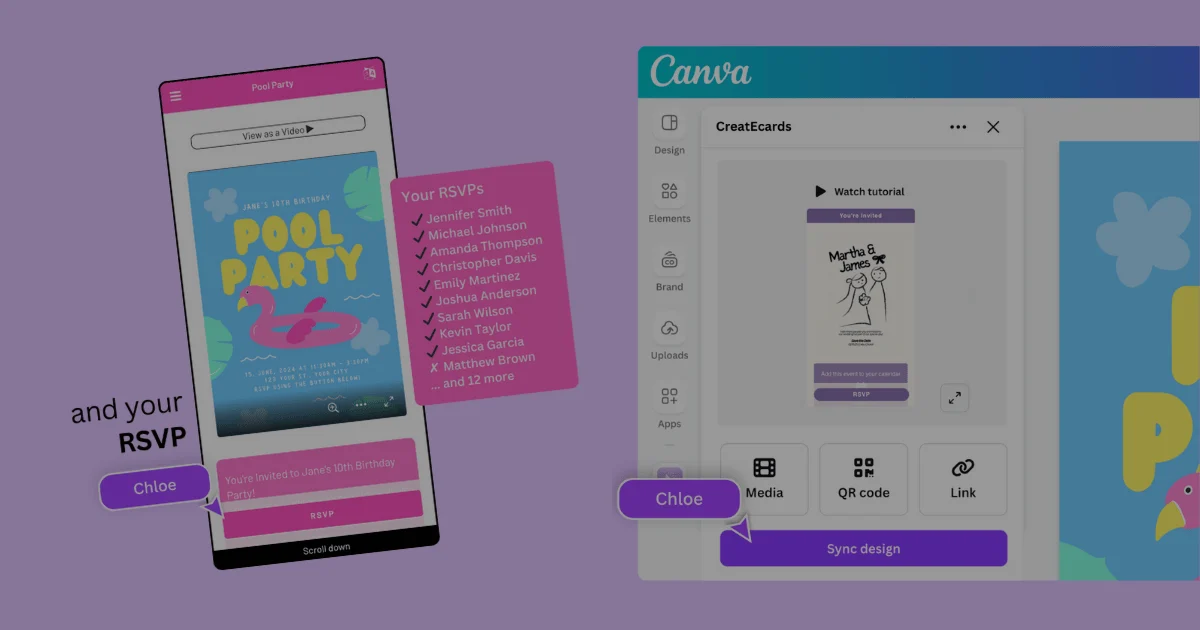
This will open the CreatEcards app panel inside Canva. From here, click Sync Design, then choose Online Invitation as the page type.
The app will guide you through exporting your design. You don’t even need a CreatEcards account yet. Your design opens in CreatEcards so you can review the event details, RSVP settings and styling before publishing the page for guests.

Want to print your invitation or hand it out in person? You can also use the CreatEcards QR code designer, built right into the Canva app. Just choose a style, select your colors, and drop the QR code into your design. Guests can scan the code to RSVP online in seconds. After you publish the RSVP page in CreatEcards, guests can open its link or QR code and reply.

Next, we’ll show what happens after syncing, and how your online invitation page gets built out.
Step 3: MagicFill Builds Your Invite Page with RSVP Features
After syncing your design from Canva, you’ll land on the CreatEcards website. This is where the magic happens.
If you choose Continue with MagicFill, it helps fill in event details and style your page from the Canva design. Review the date, time and location before publishing. Add your guest list separately if you want personal invitation links.
The result is a beautiful RSVP-ready webpage that matches your Canva design but includes interactive features your guests can use. You can also:
- Add RSVP questions like dietary preferences
- Set plus-one limits or allow entire families
- Turn gifting on or off
- Edit the look and feel of the invite page to match your event vibe
And if you missed something in your Canva design? No problem. You can go back, make changes in Canva, then re-sync your design. When CreatEcards shows your updated design, select Sync changes to apply it to the existing invitation. Review matching event details separately and keep the same page URL.
When the details and RSVP settings are ready, open Publish & send and select Publish. Next, let’s take a look at everything your online invite includes once it is live.
What’s Included in Your Online Invite
Once your design is synced and your event page is live, CreatEcards gives you everything you need to manage your event like a pro.
Here’s what your guests will see — and what you’ll be able to control:
✅ Smart RSVP Form
- Guests can respond with a click, include plus-ones, and answer any custom questions you set.

📍 Event Info Block
- Includes location, start time, a map link, and an “Add to Calendar” button that works for Google, Apple, and Outlook.


🎁 Gift Registry
- Add a registry link such as to your Amazon or babylist registry

🍽 Meal and Dietary Preferences
- Ask guests if they’re vegetarian, gluten-free, or want chicken, fish, or beef. You choose the questions.
🖼 Design Match
- The page automatically uses your Canva design, so your branding and style carry through seamlessly.
👥 Guest Management Dashboard
- You’ll get access to a private dashboard where you can see who’s RSVP’d, see their responses, and make edits if needed.
Everything is editable, even after publishing. You can update guest limits, change event details, or resend the invite link at any time. In the next section, we’ll show you a side-by-side comparison of what Canva offers by itself versus what you get when you add CreatEcards.
Canva Only vs. Canva + CreatEcards (Comparison Table)
Canva is an incredible design tool, but when it comes to actually sending invitations and tracking RSVPs, it stops short.
Here’s how it compares when paired with CreatEcards:
With Canva Only:
- You can design a beautiful invitation
- You can export as an image or PDF
- You can share your design manually (email, group chat, print)
- You cannot collect RSVPs or track guest responses
- No calendar links, maps, or event page functionality
With Canva + CreatEcards:
- You can design in Canva as usual, then sync it to an online event page
- You get built-in RSVP tracking and guest response management
- Guests can see event details, add the event to their calendar, and view maps
- You can collect dietary info, meal preferences, or other custom questions
- You can include a gift registry or custom call-to-action button
- You get a live dashboard to view and manage all responses in one place
- You can share your invite via link, email, or QR code
With CreatEcards, you don’t have to manage replies manually or ask guests to email you back. Every response is organized and available in your dashboard.
Try It Yourself — Watch the Tutorial
You don’t need to be a designer or event planner to create something beautiful and functional. With Canva and the CreatEcards app, your next invitation can look great and collect RSVPs with ease.
Watch the quick tutorial below to see just how simple it is.
👉 Main Tutorial (Short and Sweet)
Canva Digital Invitation Tutorial (Yes, with RSVP) Learn how to personalize your Canva design and turn it into an RSVP-enabled online invite in under 2 minutes.
👉 Bonus Tutorial (Full Setup Walkthrough)
Plan a Summer BBQ Invite with Canva + CreatEcards This extended guide shows how to:
- Add a QR code to your Canva invite
- Use MagicFill to auto-build your event page
- Customize RSVP settings, dietary options, and guest limits
- Send your invite and track responses in real time
Make the design work for the event
Keep the design you made and add the live page that collects and tracks the response your project needs.
Continue with CreatEcards