Host a Memorable Open House with Canva Invitations
Keep the new-home invitation you made in Canva, collect responses, and share the address, map, timing, household guidance, and host-provided details from one live page.
Free to start. No credit card required.

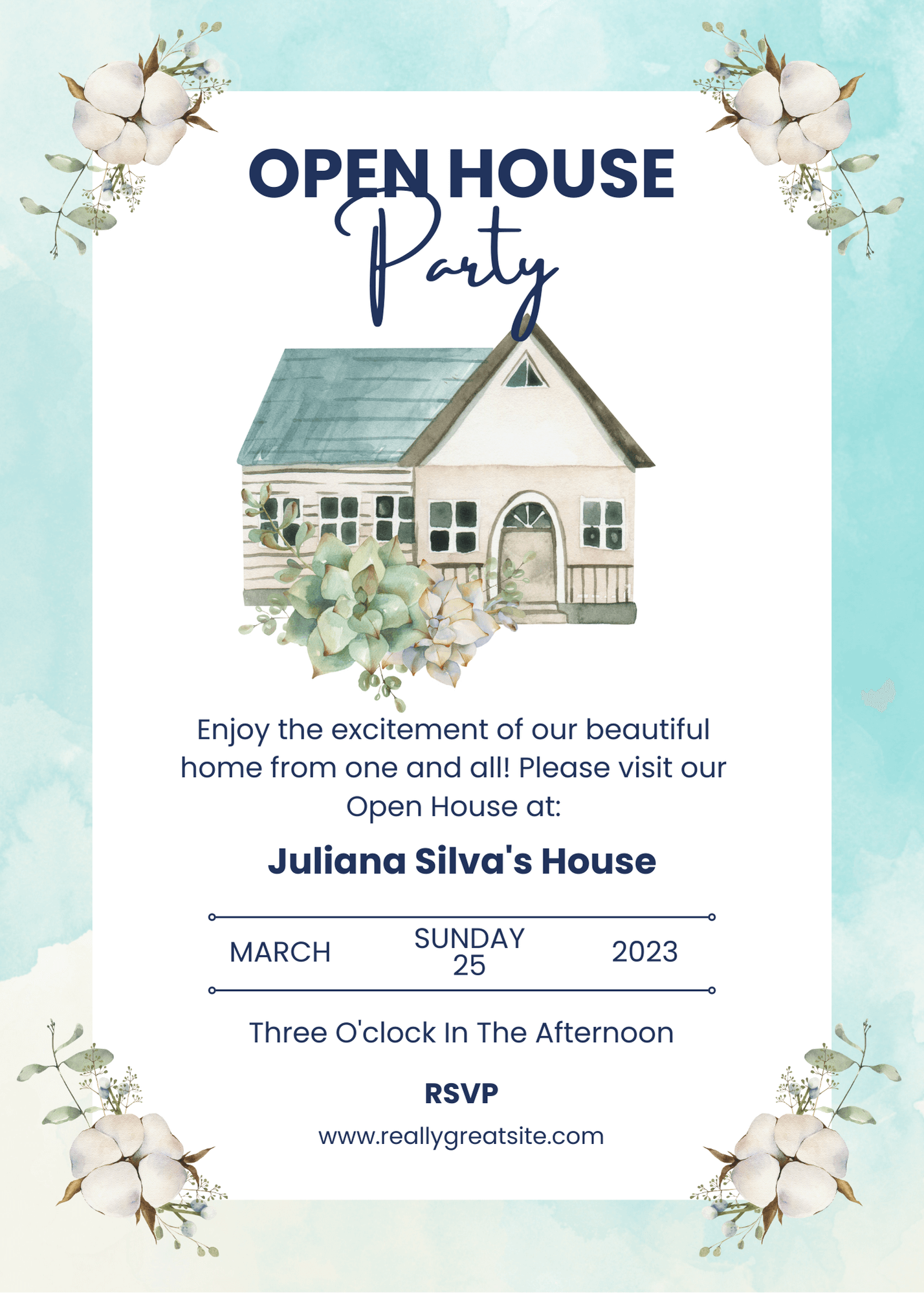

Personal open house invitation with online RSVP
What is a personal open house invitation with online RSVP?
A personal open house invitation with online RSVP keeps the Canva design, new-home party details, and guest responses together on one live page.
Give guests one page for the invitation, address, party times, map, and RSVP. Keep attendance and practical answers together for your housewarming.
Keep the Canva design
Sync through CreatEcards
Collect household responses
Turn the Canva open house invitation into one live page
Keep the new-home design, then add household responses and the practical information guests need.
Turn the Canva open house invitation into one live page
Keep the new-home design, then add household responses and the practical information guests need.
Simple or Detailed RSVP
Collect the level of guest detail your open house needs
Use Simple RSVP for adult and child totals plus one set of answers for the household. Use Detailed RSVP to name every guest and collect answers for each person.
- Choose household totals or named guests
- Collect group-level or per-person answers
RSVP & responses setting
How responses will be collected
What your guest sees
Attendance
RSVP & Responses Setting
How responses will be collected
One live invitation page
Keep your Canva design, RSVP, and open house details together
Turn the Canva open house design into one mobile-friendly page for responses, the address, maps, parking, arrival guidance, host information, and later updates.
- Update practical details without replacing the shared link
- Keep the same shared link as plans change
Event details
Tell your guests when, where and what to expect
What your guest sees
Your invitation, details and response in one place
Event details
Tell your guests when, where and what to expect
Custom questions
Ask questions once per household or for every named guest
With Simple RSVP, collect one set of answers for the household. With Detailed RSVP, ask each named guest about food, dietary needs, accessibility, children, or another practical detail.
- Use text or multiple-choice questions
- Choose household-level or per-person answers
Host setup
Add your questions
Custom questions
Ask anything and collect the details you need
What people see
A few quick questions
Printable QR code
Make your printed Canva invitation open the same live page
Add the CreatEcards QR code to your design before syncing. Publish your page, then scan a test print.
- Use the QR code on printed invitations or signs
- Show updated details without reprinting the design
Your printed design
Live page
The housewarming planning outcome
A clear guest count and one reliable page for the open house party
Household attendance
Keep every invited guest attached to the correct response.
Reliable directions
Give guests one link for the current address, map, timing, and arrival notes.
Useful guest details
Keep food, accessibility, and other host-defined answers with each response.
Open house party invitation questions
Got a specific question? Open your AI with our FAQ link, then ask it there.
It is for a personal housewarming or open-house party with friends and family, not a real-estate property viewing.
Yes. In Canva, open Apps, choose CreatEcards, click Sync design, then choose Online Invitation. Add RSVPs without rebuilding your design.
Yes, when you allow plus-ones. Set the maximum party size, including the person replying. Simple RSVP collects household totals; Detailed RSVP collects each person by name.
Yes. Keep the address, map, parking notes, arrival instructions, and other host-provided details on the same live page as the invitation and RSVP.
Yes. Add text or multiple-choice questions for food, dietary needs, accessibility, children attending, or another practical detail you need to plan.
Yes. Add an optional registry link or host-provided gift guidance when it is relevant. You can also leave gifts off the invitation completely.
Yes. Update the design in Canva, sync it again, and choose Sync changes. Update any matching event details in CreatEcards too. Guests keep using the same invitation link.
No. Guests open the live invitation in their browser and respond without creating an account.
Related invitation journeys
Keep planning from the Canva invitation
Explore nearby invitation and RSVP workflows.


Create the open house party invitation page.
Keep the Canva design and add household responses and the new-home details every guest needs.
Design Your Open House Invite