Ask questions that help you prepare
Your RSVP form can collect the information you’ll use to prepare for your event. If you’re offering a choice of meals, use a Choice question so guests can select from the options you provide. To ask about dietary or accessibility requirements, use a Text question to give them space to explain. You can also use a Choice question with Yes and No options to ask whether guests will attend other parts of your event, such as a next-day brunch.
Before adding questions, decide whether you need an answer for each person or one answer for the household or group. Simple RSVP collects shared answers for the group. Detailed RSVP collects answers for each named attendee, so you can match a meal choice or requirement to the right person. Choose this in RSVP form → RSVP & guests settings. Choosing Detailed RSVP doesn’t create questions automatically; you still decide what to ask.
To add your questions, open RSVP form → Custom questions in the CreatEcards editor and turn on Add custom questions to your reply form. You can add up to six questions:
- Enable a question and write your wording, or choose a starting point from Question templates.
- Select Text or Choice to suit the answer you need. For Choice questions, enter the options guests can select.
- Make the answer required if you need everyone to provide it. Otherwise, leave it optional. Check this setting after adding a template.
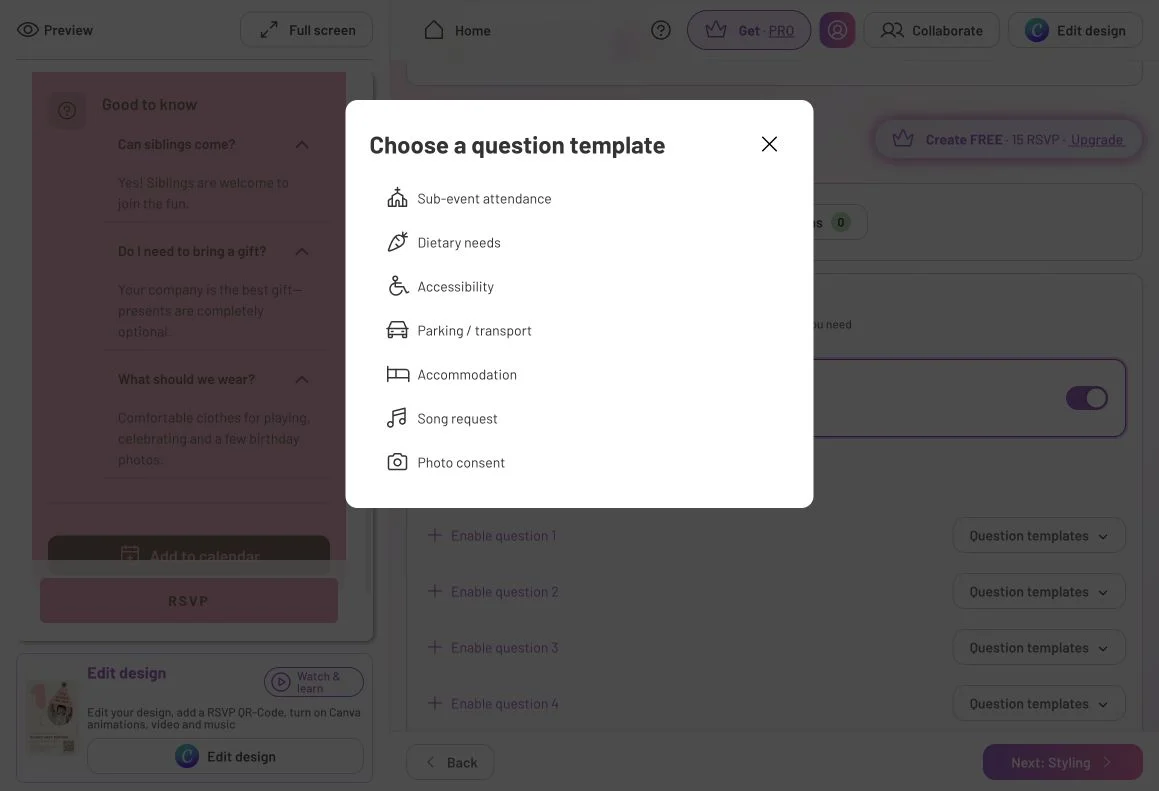
Question templates give you a starting point for what to ask. Choose one, then check its wording and whether an answer is required.
Word each question for the people it covers. “Does anyone in your group have dietary requirements?” suits Simple RSVP. “Do you have any dietary requirements?” suits Detailed RSVP, where the question is answered separately for each attendee. You don’t need an extra question for the headcount; the form already collects attendance.
You’ll review these answers with your guest replies in Page Manager.

These questions are worded for a Simple RSVP group reply. The Make required control lets you change whether each answer is compulsory.
When the form asks for what you need, select Next: Styling to finish your page’s appearance.
Questions you may have
Does choosing Detailed RSVP add meal or dietary questions automatically?
No. Detailed RSVP lets you collect answers for each named attendee. Choose what to ask in RSVP form → Custom questions, using a template or your own wording. The questions you enable are then answered for each person.
If you need answers for each named guest rather than one answer for a group, compare the RSVP modes.