Your invitation design sets the look of your event, and you can carry that look through the surrounding RSVP page. CreatEcards lets you choose colors, backgrounds and button styles that complement your design and feel on brand for your occasion. You can also arrange the information so guests encounter it in the order you want.
You’ll find these options in Styling, step 3 of the CreatEcards editor. They change the page around your invitation. To change the design itself, return to the tool where you created it.
For a page you’ve already created, open Home → Your pages in CreatEcards, select Edit, then Styling. If your page is published, styling changes appear on it immediately; the preview helps you check them as you work.
Choose colors and button styles
Matching the colors and shapes on your RSVP page helps your invitation and event information feel like parts of the same design. You can use colors from your invitation for the surrounding page, then choose the appearance of its buttons and invitation edges.
In Styling, step 3 of the CreatEcards editor, open the Styling panel. Start with your banner text and page colors. If MagicFill has already chosen colors from your design, keep them or try alternatives while watching the preview.
Choose text that stands out against the background. A dark plum may work with a pale pink invitation, for example, while a light text color may disappear against the same page. Check the smaller details and links in the preview as well as the heading.
Use the edge, fill and shadow controls to adjust how your invitation and buttons appear against the page background:
- To give your invitation rounded corners, choose Rounded for its edges. Choose Sharp for square corners.
- For buttons with a filled background, choose Solid fill. Choose Outline for an outlined style. Button edges can be Sharp, Curved or Round; Round gives the RSVP button the pill shape shown below.
- To add shadows beneath your banner, invitation or buttons, choose Soft or Bold for each. Choose None to remove a shadow. If you can’t see the effect, check the shadow color against your background.
Watch the preview as you adjust these controls, checking that your buttons remain easy to see and their text is readable.
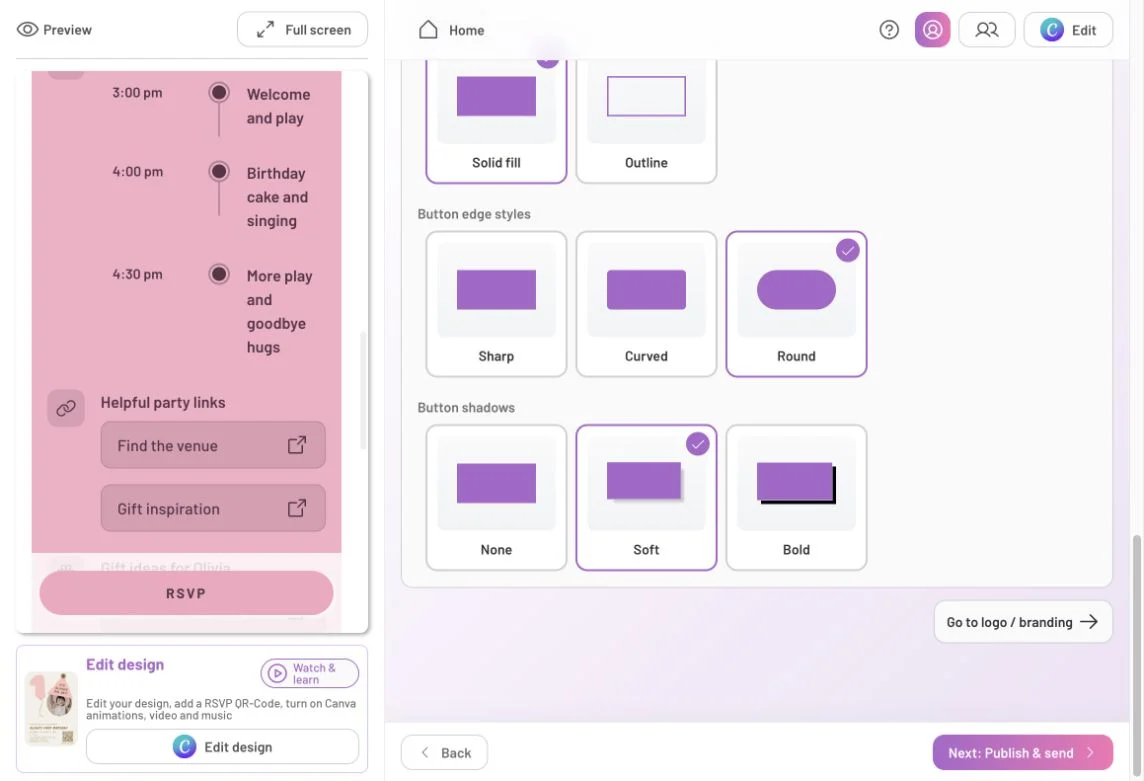
The Round option gives the RSVP button a pill shape. Button styling also applies to other buttons on the page.
Set the background and opening screen
A background can carry your invitation’s theme beyond the design itself. In the CreatEcards editor, open Styling → Wallpaper to upload your own PNG or JPG, or choose a photo from Pexels. For your own wallpaper, the editor recommends a file under 3MB.
To choose a Pexels photo, open Pexels, enter a search such as “pastel pink balloons,” and select a result. The photo appears behind your invitation in the preview. Choose something that supports your design without making the surrounding information difficult to read. You can remove the selected wallpaper using the delete icon beside its thumbnail.

The wallpaper sits behind your design and page content. Here, soft balloon colors carry the birthday theme through the page.
You can also choose how guests first encounter your invitation. In the Styling panel, turn on Show opening screen to present your design, video or branding before the event details. Guests select Continue to move from that opening view to the rest of the RSVP page. In the full-screen preview, check the opening screen, then select Continue to see how guests reach the event details.
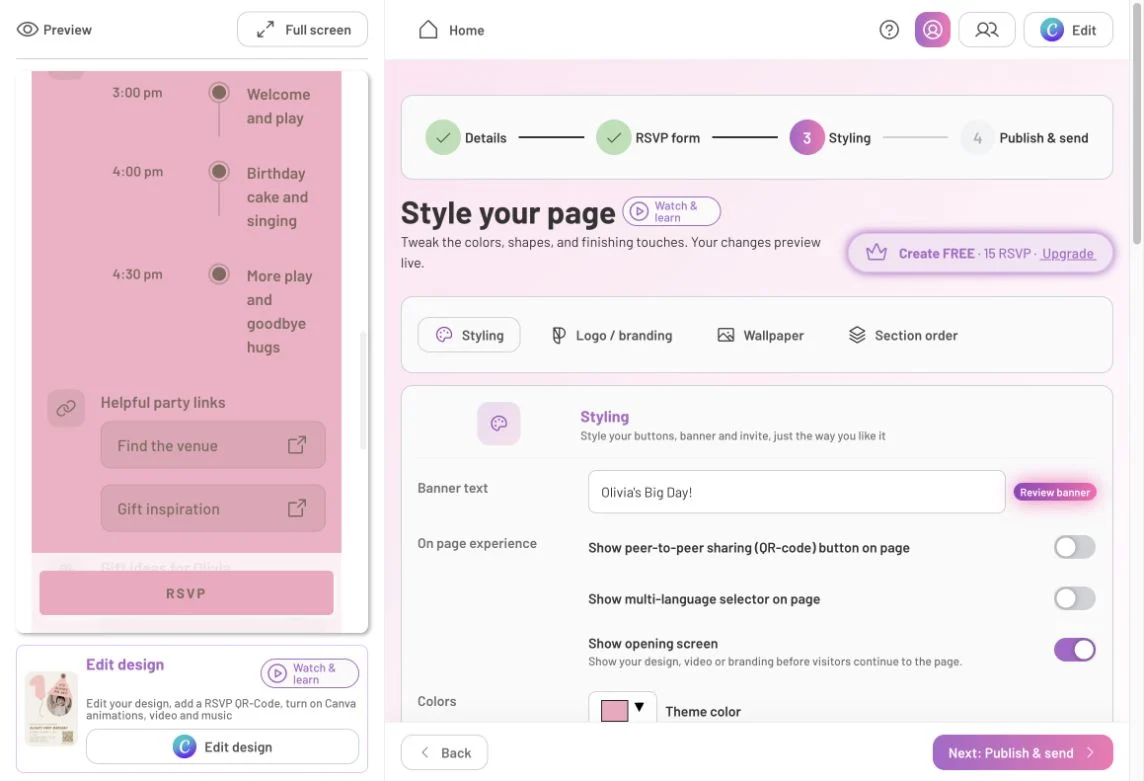
Show opening screen is enabled in this example. The language-selector switch above it controls whether guests can choose a language on the page.
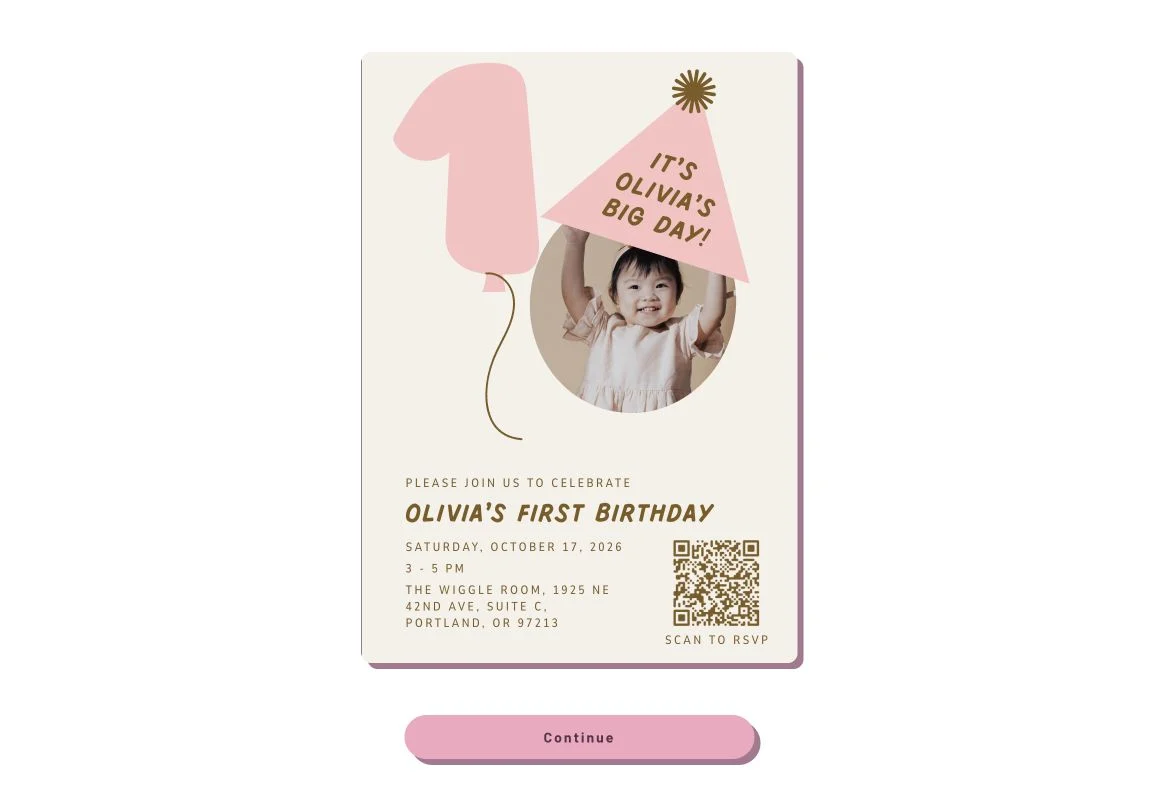
An opening screen lets guests see the invitation first, then continue to the event details and reply button.
If you want to add a separate logo or profile image, open Styling → Logo / branding in the CreatEcards editor. The editor recommends a square 500 × 500 image and accepts PNG, JPG or SVG files up to 8MB. This is optional; you don’t need a logo to create a personal invitation.
Put the information in the order guests need it
You can change the order of the information on your RSVP page to suit how you want guests to read about your event. You might introduce the occasion with your description, or put the date and location first so guests can find the practical details straight away.
To arrange these sections, open Section order in the editor’s Styling settings. Use the up or down arrow beside a section to move it one position. The preview updates with each move, so you can check the order as you go. You can arrange your description, date and time, location, agenda, links, gift registry and FAQs.
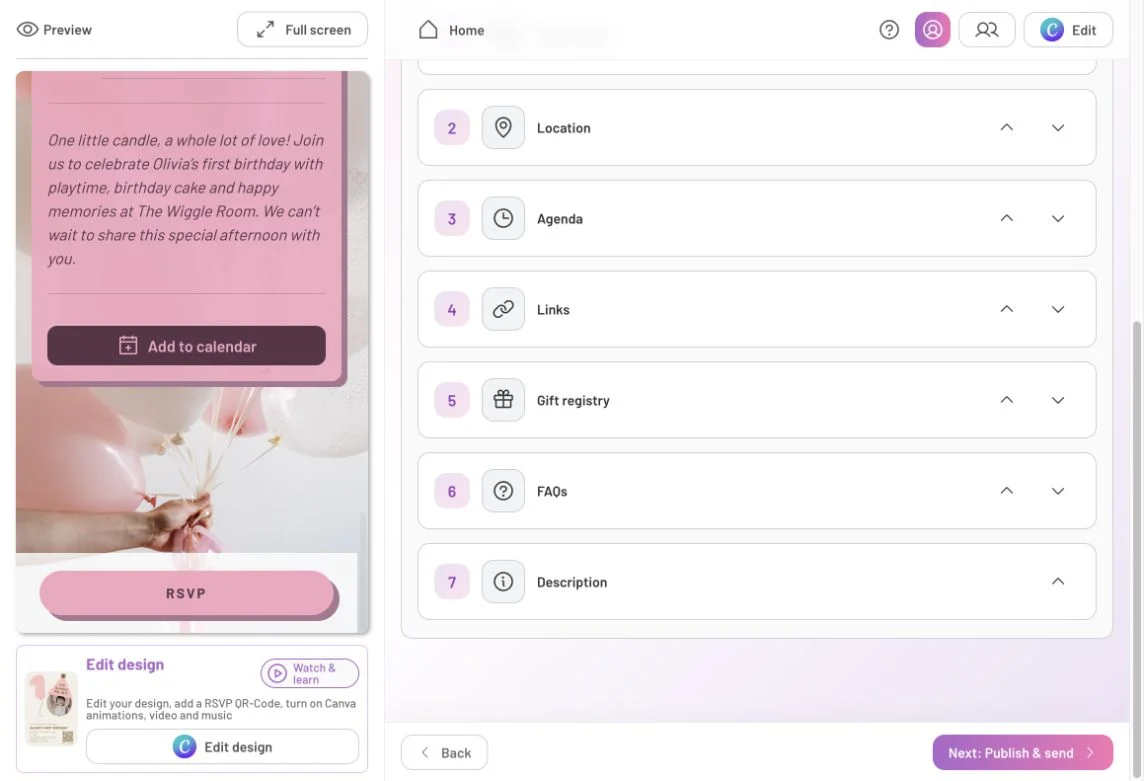
Moving a section changes where its information appears. Here, the description sits after the practical details.
To hide information, return to its controls in Details rather than Section order. Date/time, location and description have display settings; gifts have their own switches. Leave optional content out when it doesn’t help guests.
Review the complete page and its language
Before sharing your invitation, look through the complete page to check how your design and event information work together. Guests should be able to find when and where the event is happening, read any other details they need and see where to RSVP.
Select Full screen above the editor’s preview to open the complete page in another tab. If you’ve enabled an opening screen, select Continue to reach the event details. Read through the page and check its links and FAQ answers. If your invitation includes video or music, check that too.
Return to the editor tab if you need to make changes. Opening the preview doesn’t publish an unpublished invitation. Until you publish, this view is private to you and authorized editors.
If your guests use different languages, you can let them choose the language of supported page controls and date wording. Enable Show multi-language selector on page in the editor’s Styling panel. In your full-screen preview, use the globe to choose a language and see which wording changes, such as Add to calendar.
Your own writing stays in the language you entered it. The selector doesn’t translate your invitation design, event title, description, agenda, links or FAQs. Prepare those for the guests you’re inviting, and check any custom RSVP button label too.

The calendar button reads Añadir al calendario, while the host’s FAQs and description remain in English. Review both the interface and your own content for the guests you’re inviting.
When your page looks right, return to the editor and select Next: Publish & send. You’ll review publication and access settings before sharing it.
FAQs: Styling and previewing your page
Will these colors change my invitation design?
No. Styling changes the surrounding page, including its text, background and buttons. To change words or colors inside your design, edit it where it was created and bring the updated version into CreatEcards.
Can I change the order or hide a section?
Use the arrows in Styling → Section order to rearrange sections. To hide date/time, location or description, use that section’s display control in Details. Gifts have separate switches in Gift registry. You can leave optional content out if it isn’t needed.
Does opening the full-screen preview publish my page?
No. Before publication, the full-screen view is a private preview for you and authorized editors. You still need to publish before sharing your invitation with guests.
Does choosing another language translate everything?
No. Supported interface text changes, but your invitation image, event title, description, agenda, links and FAQs don’t automatically translate. Write those for your intended guests and check any custom button label as well.
Features and benefits: Carry your design through the whole page
Make your page feel like part of the occasion. Use colors, buttons and wallpaper that complement your invitation, while keeping the event information readable.
Put the most useful information first. Arrange sections around what guests need, whether that’s the venue and arrival time or an introduction to the celebration.
See your complete invitation before sharing. The full-screen preview lets you check the opening screen, design and event information together while the page is still unpublished.