How to edit AI generated images with Canva Magic Layers
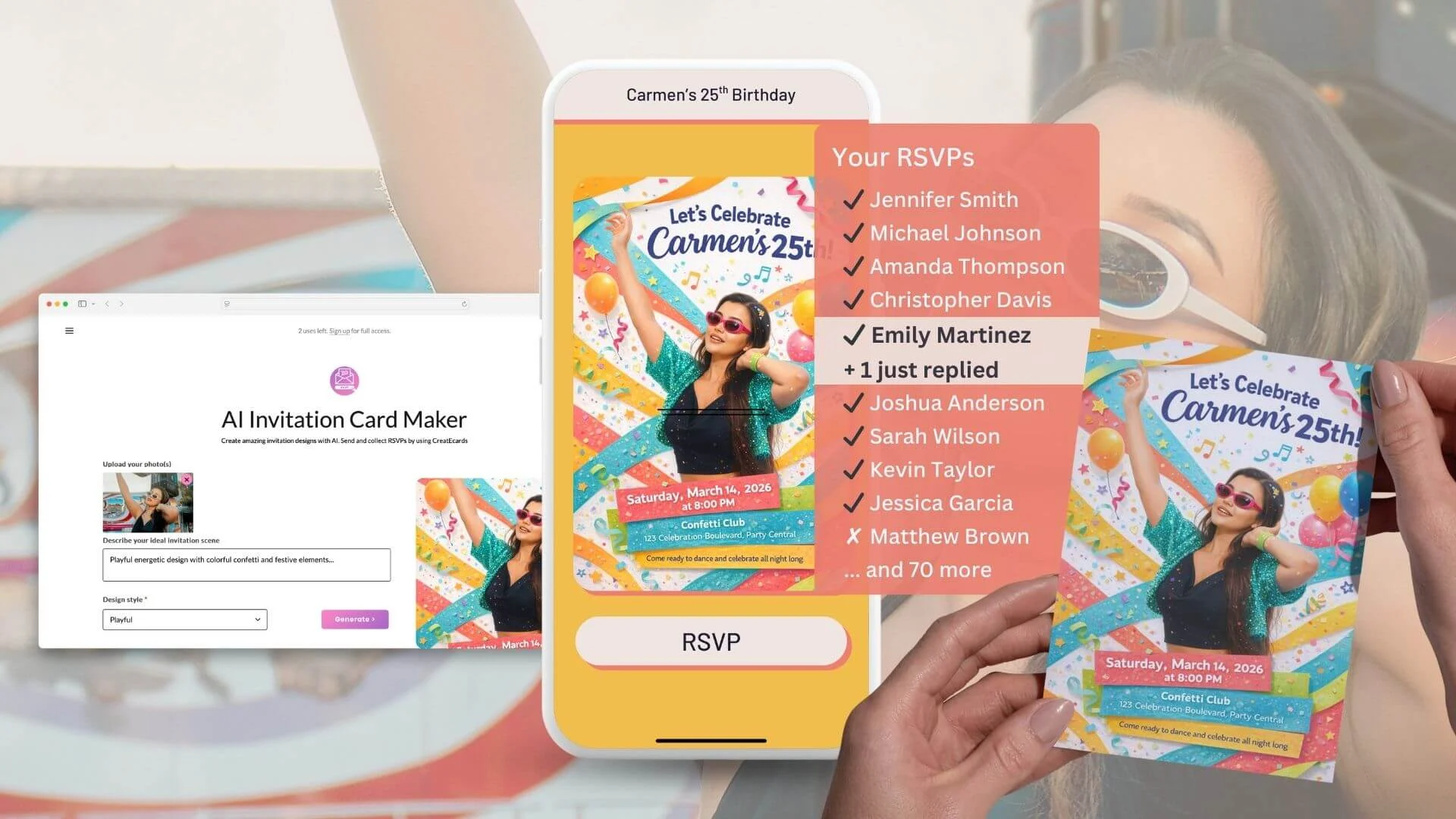
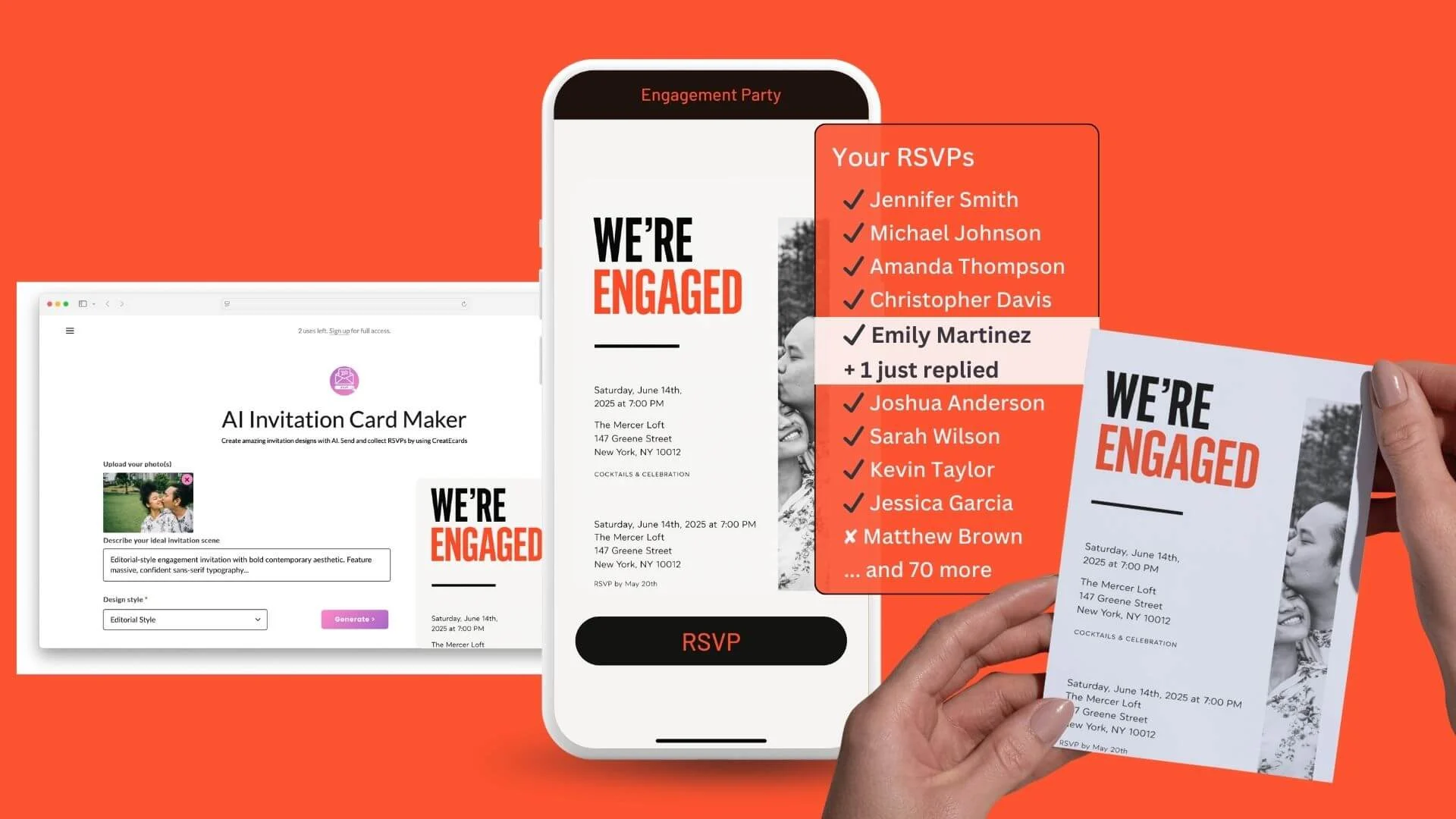
Turn an AI-generated invitation into editable layers in Canva. Fix text, swap photos and refine each element, then sync the finished design to CreatEcards as a live RSVP page.
Generate in your own AI • Edit in Canva • Sync to CreatEcards
1Design
2Generate
3Upload
Color Block Celebration
Bold color-block invitation ready for Canva Magic Layers editing
Event Style Mood 2
11:11RSVP
createcards.io
You're invited
You're Invited
Your date
RSVP
Templates - Birthday
Loved by hosts worldwide: 1,000,000+ guests across 100,000+ events in 100+ countries.
As easy as 1, 2, 3
Generate, edit in Canva and go live in 3 steps
Build the prompt in CreatEcards, use your own AI, then sync the editable Canva design into Magic Fill
Invitation composer
Ready
Color Block CelebrationSelected design
Bold color-block invitation ready for Canva Magic Layers editing
DetailsStyleMood
Generate
1
Design it
Pick a template and add your event title, date, location, extra details and how your photo should be restyled or redressed. Open the optimized prompt in ChatGPT, Gemini or Google AI Mode, and your AI generates the invitation.
Magic LayersEditable layers
Layers
Text
Photo
Background
RSVP QR
2
Edit it in Canva with Magic Layers
Tell your AI Edit in Canva. Its Canva connector opens the flat invitation in Canva, where Magic Layers separates it into editable elements. Fix text, swap photos, adjust the design and add an RSVP QR code with the CreatEcards app in Canva.
Live page
Your RSVPs
4 attending · 1 declined
Live
JSJennifer Smith
MJMichael Johnson
ATAmanda Thompson
EMEmily Martinez
MBMatthew Brown
+70 more guests
3
Sync and go live
Use Sync design in the CreatEcards Canva app. Magic Fill builds the matching live RSVP page, which you can share by link, QR code, email or messaging app while tracking responses.
Make the generated image editable in Canva, add the RSVP QR code, then sync the finished design into a live page with guest management.
Magic Fill
Build the RSVP page from your invitation
Upload the finished invitation and Magic Fill reads the design, event details and colours to draft a matching live RSVP page.
Review and edit every detail before sharing
Your page automatically matches the invitation's colours and style
Your designYour page
You’re invited
You're Invited
Your date
Your venue
DetailsDirectionsFAQs
RSVP
You're Invited
Your date
Your venue
RSVP
RSVP
Let guests RSVP in seconds
Guests confirm on a fast, mobile-friendly page, and every response stays attached to your invitation.
No app or login for guests
Choose a simple RSVP (name + headcount) or a detailed one (every guest named, with answers)
✎Set responder details
You're Invited✕
1234
Step 1 of 4 · Your details
Your details
For You're Invited
Full name
Chloe Jones
Email
chloe@email.com
Attendance
Will you and your group be there?
Your attendance
Yes, I/we will be attending▾
Adults
2
Children
1
A few questions
Answered right inside the RSVP
What song gets you dancing?
Groove Is in the Heart
Take the shuttle?
YesNo
Almost there
Keep your RSVPs in one place
✦Join the Hub Free and optional
or skip and submit
Next
Guest policy
Set plus-one and child rules
Control who each guest can bring so your final headcount is ready for the venue or caterer.
Cap how many people each guest can bring, including children and plus-ones
Give different guests or families their own limits
Host setup
Set who guests can bring
Plus ones allowed
Children allowed
Max people per reply · 4
Guest policy
Set who guests can bring
Plus ones
Plus ones allowedNo plus ones
Guests
Adult onlyChildren allowed
Max people per reply4
Guests add their group; your head count stays right.
What people see
Attendance
You're Invited
Your date · Your venue
Adults · 2
Children · 1
Custom questions
Ask what your event needs
Collect meal choices, dietary needs or anything else right inside the RSVP instead of chasing guests later.
Use text or multiple-choice questions
See each guest's answers next to their response
Host setup
Add your questions
Meal choice · Multiple choice
Dietary details · Text
Song request · Text
Custom questions
Ask anything and collect the details you need
Add custom questions to your reply form
What song gets you dancing?Text
Take the shuttle?Choice
YesNo
Anything else we should know?Text
Up to 6 questions, text or multiple choice. Guests can skip optional ones.
What people see
A few quick questions
You're Invited
Your date · Your venue
Choose your meal
Any dietary details?
Continue
RSVP limits
Close RSVPs by date or when your event is full
Set an RSVP deadline or guest capacity. The form closes at the deadline; choose whether to close or waitlist new replies at capacity. You can reopen it at any time.
Set a deadline or capacity limit
Reopen responses at any time
Host setup
Reply-by date
30 January, 2027
Close responses automatically
Reopen any time
Form settings
Stop collecting after a date
30 January, 2027
Replies close automatically once the date passes.
What people see
Replies are now closed
You're Invited
Your date · Your venue
The reply-by date has passed
Contact the host if plans changed
Calendar
Let guests add your event to their calendar in one click
One click adds the event name, date, time and venue to their calendar.
Keep the confirmed details close
Reduce questions about when and where
Host setup
Confirmation actions
Add to calendar · On
Event title
Date and time
Venue
On every confirmation
Add to calendar is built in
✓Saved to the guest's calendar in a tap
No setup. It is ready on every reply you collect.
What people see
You’re on the list
You're Invited
Your date · Your venue
Add to calendar
Gift registry
Keep gifting links on the invitation page
Add registry, honeymoon fund, Amazon or charity links beside the event details and RSVP.
Use more than one registry
Update links after the page is live
Host setup
Gift registry
Registry name
Registry link
Add another registry
Optional gift note
Gift registry
Share gift ideas and links to any registry
Guests can bring gifts
Registry name
Honey fund & Amazon
www.honeyfund.com
www.amazon.com
Add links to any registry; guests find them on your page.
What people see
Gifts
You're Invited
Your date · Your venue
Our registry
Honeymoon fund
View registry
Event schedule
Share the running order and locations
Add each part of your event, including times, places and what's happening, so guests know exactly where to be and when.
Add agenda items with times and locations
Guests see the full schedule on the live page
Host setup
Build the agenda
3:00 · Welcome
4:00 · Toasts
6:00 · Dinner
8:00 · Dancing
Agenda
Share a schedule for your day
13:00 PMWelcome
24:00 PMToasts
36:00 PMDinner
48:00 PMDancing
Add each moment; your live page builds the schedule.
“💌 CreatEcards is the absolute best choice for creating and managing Canva invitations, and I'm telling you, it's absolutely amazing! From their incredible user-friendly setup for RSVP collection to their seamless addition of additional information, they completely remove any obstacles when it comes to event planning. You won't believe how incredible it feels to use their platform and see your event come to life. Trust me, it's a total game-changer! 🎉”
Cynthia Davis
Event host
“CreatEcards is a game changer for event planning! With its Canva integration, I was able to effortlessly create beautiful invitations and easily collect RSVPs, all at an affordable cost. Highly recommend this user-friendly platform for anyone looking to streamline their party planning process.”
Sarah Mcdaniel
Event host
“CreatEcards made RSVP collection a breeze for me, turning event planning into a stress-free experience. The seamless integration with Canva allowed me to showcase my creativity while designing beautiful online invitations and event websites. I highly recommend CreatEcards to any Canva lover looking to easily manage their events and impress their guests with personalized digital creations.”
Meena Easwaran
Event host
“💌 CreatEcards is the absolute best choice for creating and managing Canva invitations, and I'm telling you, it's absolutely amazing! From their incredible user-friendly setup for RSVP collection to their seamless addition of additional information, they completely remove any obstacles when it comes to event planning. You won't believe how incredible it feels to use their platform and see your event come to life. Trust me, it's a total game-changer! 🎉”
Cynthia Davis
Event host
“CreatEcards is a game changer for event planning! With its Canva integration, I was able to effortlessly create beautiful invitations and easily collect RSVPs, all at an affordable cost. Highly recommend this user-friendly platform for anyone looking to streamline their party planning process.”
Sarah Mcdaniel
Event host
“CreatEcards made RSVP collection a breeze for me, turning event planning into a stress-free experience. The seamless integration with Canva allowed me to showcase my creativity while designing beautiful online invitations and event websites. I highly recommend CreatEcards to any Canva lover looking to easily manage their events and impress their guests with personalized digital creations.”
Meena Easwaran
Event host
“I am absolutely thrilled with the way my wedding invitation turned out, thanks to CreatEcards! Unlike other online invitation services, this platform made it a breeze to create a personalized and one-of-a-kind design that beautifully reflected my personal style. Throughout the entire process, I felt completely at ease and confident in my abilities, thanks to the user-friendly interface and helpful guidance provided by CreatEcards.”
Demeka David
Wedding
“I used CreatEcards to create my daughter's birthday invitation, and it was a breeze! I love that CreatEcards integrates seamlessly with Canva, allowing me to fully customize my design to match our party theme without being constrained by pre-made templates. It's so convenient to have the freedom to make it uniquely ours. Highly recommend for easy, personalized e-Vites!”
Jason A
Birthday
“I recently used CreatEcards for a client’s business event and the final product was amazing. I designed my draft in Canva and used the CreatEcards app to finalize it; the transformation was seamless and impressive. Since I was managing two separate invitations for the same event, I reached out for support and "Tom" was incredibly responsive, professional, and helpful. I’m excited to see future updates and highly recommend CreatEcards to anyone looking to elevate their event invitations.”
Rachel Lugo
Business event
“I am absolutely thrilled with the way my wedding invitation turned out, thanks to CreatEcards! Unlike other online invitation services, this platform made it a breeze to create a personalized and one-of-a-kind design that beautifully reflected my personal style. Throughout the entire process, I felt completely at ease and confident in my abilities, thanks to the user-friendly interface and helpful guidance provided by CreatEcards.”
Demeka David
Wedding
“I used CreatEcards to create my daughter's birthday invitation, and it was a breeze! I love that CreatEcards integrates seamlessly with Canva, allowing me to fully customize my design to match our party theme without being constrained by pre-made templates. It's so convenient to have the freedom to make it uniquely ours. Highly recommend for easy, personalized e-Vites!”
Jason A
Birthday
“I recently used CreatEcards for a client’s business event and the final product was amazing. I designed my draft in Canva and used the CreatEcards app to finalize it; the transformation was seamless and impressive. Since I was managing two separate invitations for the same event, I reached out for support and "Tom" was incredibly responsive, professional, and helpful. I’m excited to see future updates and highly recommend CreatEcards to anyone looking to elevate their event invitations.”
Rachel Lugo
Business event
Start with a style you love
Open any of these tuned prompts in your own AI, then edit the finished image in Canva with Magic Layers and publish it as a live RSVP page
Canva Magic Layers: How to Edit AI Generated Images vs the alternatives
Use your preferred AI for the invitation design, then use CreatEcards to turn it into a live page that collects responses and keeps the guest list clear.
Criterion
CreatEcards
Self-prompting AI
Canva
Starting point
Curated invitation template plus structured event fields
You write and refine the prompt yourself
You edit a preset template directly
Style reliability
The template defines the visual direction before the prompt opens
Results depend heavily on prompt quality
Preset templates give you predictable hands-on editing
Event text
Your supplied details are inserted into the prompt
Details must be written, checked and corrected manually
You type and position the text yourself
Photo transformation
Upload your photo in your own AI to restyle or redress it
Possible, but the styling depends on your prompt
Best suited to placing and editing photos within a chosen design
RSVP outcome
Upload the result and Magic Fill builds the live RSVP page
Produces the invitation image, not the RSVP workflow
Works with CreatEcards through the CreatEcards Canva app to add RSVPs
Best fit
A bespoke AI-styled invitation plus guest management
Open-ended experimentation and manual prompting
Direct editing and control over a preset design
Starting point
CreatEcards
Curated invitation template plus structured event fields
Self-prompting AI
You write and refine the prompt yourself
Canva
You edit a preset template directly
Style reliability
CreatEcards
The template defines the visual direction before the prompt opens
Self-prompting AI
Results depend heavily on prompt quality
Canva
Preset templates give you predictable hands-on editing
Event text
CreatEcards
Your supplied details are inserted into the prompt
Self-prompting AI
Details must be written, checked and corrected manually
Canva
You type and position the text yourself
Photo transformation
CreatEcards
Upload your photo in your own AI to restyle or redress it
Self-prompting AI
Possible, but the styling depends on your prompt
Canva
Best suited to placing and editing photos within a chosen design
RSVP outcome
CreatEcards
Upload the result and Magic Fill builds the live RSVP page
Self-prompting AI
Produces the invitation image, not the RSVP workflow
Canva
Works with CreatEcards through the CreatEcards Canva app to add RSVPs
Best fit
CreatEcards
A bespoke AI-styled invitation plus guest management
Self-prompting AI
Open-ended experimentation and manual prompting
Canva
Direct editing and control over a preset design
Want help with your invitation?
Ask your preferred AI about wording, styles, RSVP setup or guest management using CreatEcards answers.
Choose an AI to open this topic with a link to our FAQ.
Common questions about editing AI generated images
Is Canva Magic Layers free to use for editing AI generated images?+
CreatEcards is free to start. Choose a template, build the optimized prompt and generate the invitation in your own ChatGPT, Gemini or Google AI Mode. Then use Edit in Canva and Magic Layers before syncing the design into a live RSVP page. Access and limits depend on your chosen AI service; Canva feature availability depends on your Canva plan.
Will my photo be restyled into the invitation design?+
Yes. Add your photo details in the CreatEcards composer, including how it should be restyled or redressed. Your own ChatGPT, Gemini or Google AI Mode generates the invitation with the photo incorporated, then Edit in Canva opens the result for further changes with Magic Layers.
Can I add a QR code to my AI generated invitation design?+
Yes. After Edit in Canva opens the invitation and Magic Layers makes it editable, use the CreatEcards app in Canva to add the RSVP QR code. Then choose Sync design so Magic Fill builds the live RSVP page the QR code opens.
Which AI image tools work with Canva Magic Layers?+
The CreatEcards composer works with ChatGPT, Gemini and Google AI Mode. Pick one and it opens with the optimized invitation prompt ready. After your AI generates the invitation, use its Edit in Canva connector so Magic Layers can separate the flat image into editable elements.
How do I turn my edited Canva invitation into a live RSVP page?+
Once the design is polished in Canva, open the CreatEcards app and choose Sync design. The design returns to CreatEcards, Magic Fill builds the matching live RSVP page, and you can share it by link, QR code, email or text while tracking responses, plus-ones and guest answers.
What is the best way to edit an AI generated invitation without regenerating it?+
Tell your AI Edit in Canva after it generates the invitation. The Canva connector opens the flat image in Canva, where Magic Layers separates it into editable elements. Swap photos, update text, adjust colours, add the RSVP QR code, then use Sync design in the CreatEcards app so Magic Fill can build the live page.