Host a Charming Tea Party with Canva Invitations
Simplify your event with elegant invitations and easy RSVP tracking
Free to start. No credit card required.



What is an online tea party invitation?
Elegant Tea Party Invitations
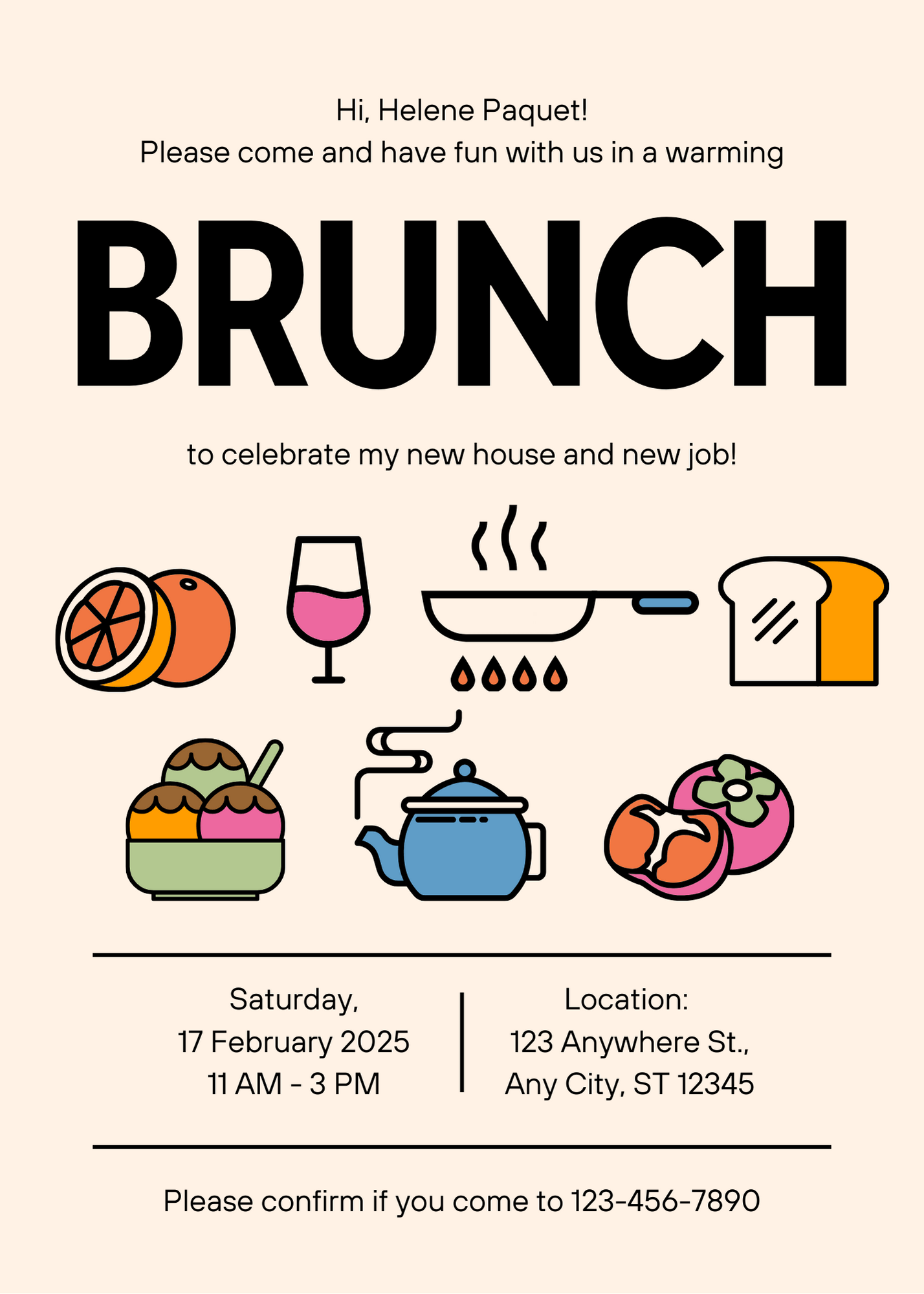
A Canva tea party invitation with CreatEcards keeps the design you made and adds one live page for event details and tracked RSVPs. A host planning a tea party can collect RSVPs, add questions about tea preferences, dietary needs, allergies, and accessibility needs, and share the venue, arrival time, dress code, parking, and seating details on the same page.
Your tea party invitation gives guests one place to check the date, venue, updates, and RSVP. Add RSVP questions about tea preferences, dietary needs, allergies, and accessibility needs. Use the attendance count and dietary answers to plan seating and refreshments.
Keep the Canva design
Add event questions
Track responses
How to make a Canva tea party invitation with online RSVP
Start with your tea party invitation, add the details and questions guests need, then share the page and track a dependable table and dietary count before service.

How to make a Canva tea party invitation with online RSVP
Start with your tea party invitation, add the details and questions guests need, then share the page and track a dependable table and dietary count before service.
Simple or Detailed RSVP
Collect the level of guest detail your tea party needs
Use Simple RSVP for adult and child totals plus one set of answers for the group. Use Detailed RSVP to name every guest and collect answers for each person attending the tea party.
- Choose group totals or named guests
- Collect attendance and allowed guests at the level your plans require
RSVP & responses setting
How responses will be collected
What your guest sees
Attendance
RSVP & Responses Setting
How responses will be collected
Guest groups and invitation rules
Set default rules or personalize each invited group
Set defaults for plus-ones, adults, children, and the maximum group size. Upload invited groups when you need personalized links with different tea party rules for family, friends, colleagues, or other guests.
- Apply sensible defaults across the event
- Override the rules for an individual invited group
Guest policy
Set who guests can bring
What your guest sees
Attendance
Guest policy
Set who guests can bring
Custom questions
Ask questions once per group or for every named guest
With Simple RSVP, collect one set of answers for the group. With Detailed RSVP, collect answers for each named guest about tea preferences, dietary needs, allergies, and accessibility needs.
- Use text or multiple-choice questions
- Choose group-level or per-person answers
Host setup
Add your questions
Custom questions
Ask anything and collect the details you need
What people see
A few quick questions
One live invitation
Keep the Canva design, RSVP, and tea party details together
Tea party guests use one mobile-friendly page for the original Canva design, response form, venue, arrival time, dress, parking, and seating details, and later updates from the host.
- Update practical details without sending a replacement invitation
- Keep the same shared link as plans change
Event details
Tell your guests when, where and what to expect
What your guest sees
Your invitation, details and response in one place
Event details
Tell your guests when, where and what to expect
Tea party planning outcome
Use RSVP answers to plan your tea party
Confirmed
See who is attending the tea party.
Event details
Keep attendance responses and answers about tea preferences, dietary needs, allergies, and accessibility needs together.
Follow-up
Add your guest list and send personal links to track replies and see who needs a reminder.
Tea party invitation questions, answered
Got a specific question? Open your AI with our FAQ link, then ask it there.
Yes. Sync your Canva design with CreatEcards to add event details and collect RSVPs.
Include the date, time and RSVP deadline, along with the venue, arrival time, dress code, parking, and seating details. Add RSVP questions about tea preferences, dietary needs, allergies, and accessibility needs if those answers will help you plan.
Yes. Edit event details in CreatEcards. For design changes, edit in Canva, sync again and choose Sync changes. Check that your design and event details match. Guests keep the same invitation link.
No. Guests open the live invitation in their browser and respond from their phone or computer.
It keeps accepted and declined responses together, so the host can reach a dependable table and dietary count before service.
Related invitations
More invitations for a similar guest list
Choose the event type that best matches the gathering and the details you want to collect.



Share your tea party invitation and collect RSVPs
Share event details, collect RSVPs and keep guest answers together.
Design Your Tea Party Invite